
Understanding timesheets
How the weekly timesheet grid works — one row per staff member, draft and approved entries, filters.
Timesheets record your crew's hours. The page is at Timesheets in the Directory group, and it needs the timesheets permission to view.
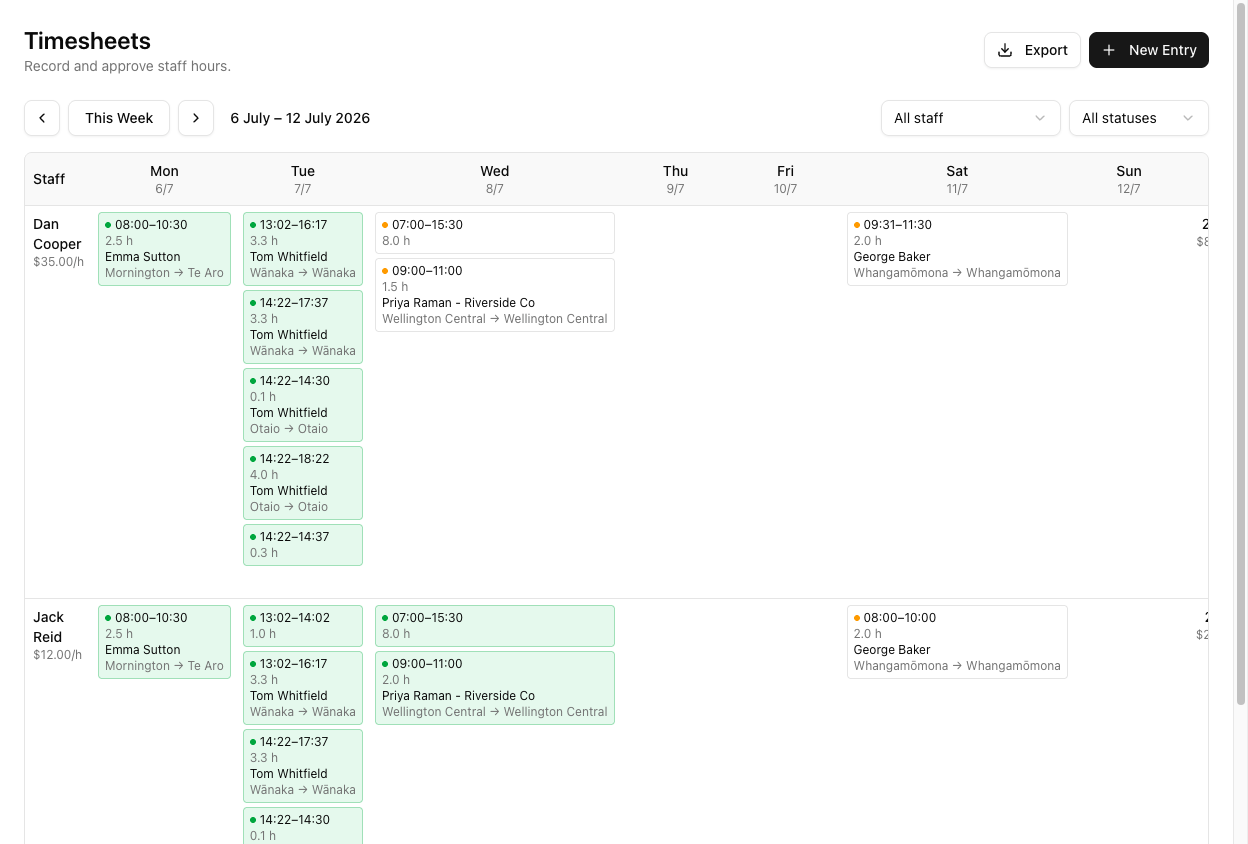
The grid
On desktop it is a single table: one row per staff member, columns for each weekday plus a Total, with the person's hourly rate under their name. Navigate weeks with ‹ / This Week / ›, and the range shows above (e.g. 6 July – 12 July 2026).
Each cell holds that person's entries for the day. An entry shows a time range, its hours, the customer, and the route — but not the break or the pay; those are elsewhere.
Break and pay are not on the grid cell. The cell shows the time range and hours. The break is inside the entry when you open it, and pay shows as a per-staff-week total and a grand total — not per entry.
Draft vs approved
Entries are colour-coded: amber = draft, green = approved (with a green dot). Draft entries are editable; approved ones are locked.
Editing an entry
Click a cell (or the + in an empty one) to open the entry in a side sheet — not inline in the grid. The sheet has Start, Finish, Break (min), the Job, and Notes, plus Approve/Unapprove.
Filters
Two dropdowns: All staff and All statuses. Note that a staff member who has left still gets a row for any week they have entries in.
Header actions
Export downloads the week as a CSV; New Entry adds one by hand (needs the edit permission).
Tutorial: read a week at a glance
It is Monday and you want to see last week's hours before payroll.
Open Timesheets and click ‹ to step back a week, or use the range label to orient yourself. Confirm you are on the week you mean — the range is shown up top.
Scan for amber. Amber cells are drafts — hours logged but not yet approved. Green cells are approved. A week that is all green is ready; amber means there is still checking to do.
Each staff row ends in a Total. That is the person's hours for the week. A total that looks wrong — 60 hours, or 2 — is your cue to open their cells and see what happened.
Click a cell to open the entry sheet. Here is where you find the Break (min) and can check the Start and Finish against reality. The grid gives you the shape; the sheet gives you the detail.
Use the All staff dropdown to isolate one person. If a crew member disputes their hours, filtering to just them makes the week's entries easy to walk through together.
The grid shows hours, not pay per entry. For what someone earned, look at the per-staff week total. And remember an amber entry uses the live rate; approving snapshots it — see approving and exporting.