
Adding conditions and delays
Branch a workflow on its data, and make it wait — including the field that makes waiting work.
Conditions decide whether a workflow continues. Delays decide when. Together they are how you build automations that check back later rather than firing blindly.
Conditions
Drag Condition from the palette and click it to open Condition Configuration.
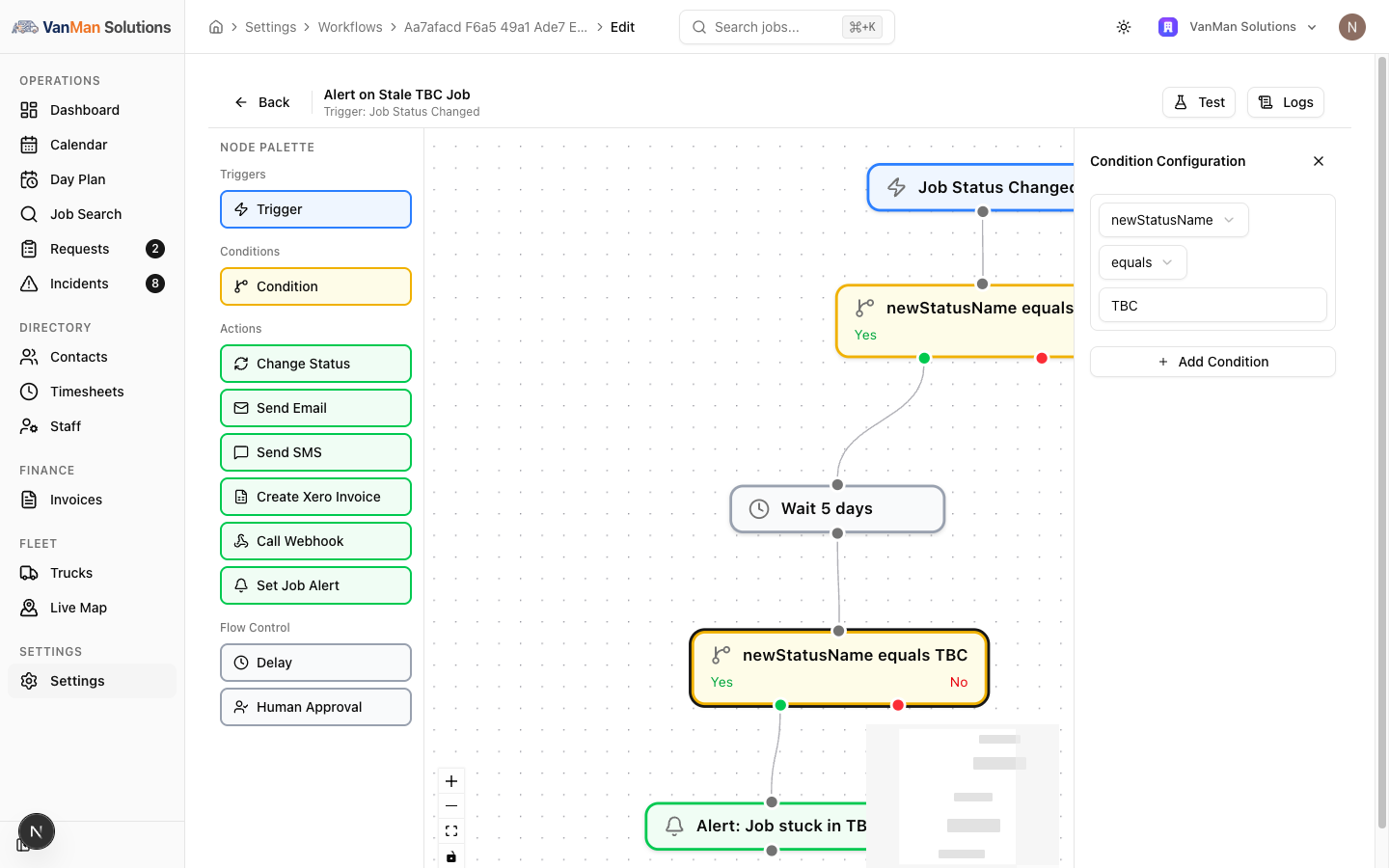
Each row is field, operator, value.
The field is a dropdown, not free text. It lists the payload fields belonging to your workflow's trigger — names like newStatusName, currentStatusName, truckName, customerEmail. You cannot invent a field. Change the workflow's trigger and the available fields change with it.
The operators, in full:
equals · not equals · contains · greater than · less than · is empty · is not empty
Multiple rows. Click Add Condition for another row, Remove to drop one. With more than one row, a Match selector appears: ALL conditions (AND) or ANY condition (OR).
The node's label summarises itself as you configure it — newStatusName equals TBC AND truckName is not empty — so you can read a canvas without clicking every node.
Branching
Conditions have two handles: Yes (green, left) and No (red, right). Connect whichever branches you need. An unconnected branch just ends, and the execution log records those steps as Skipped.
Human Approval branches the same way.
Delays
Drag Delay from Flow Control. It takes a Duration (minimum 1) and a unit: Minutes, Hours, or Days. The node relabels itself Wait 2 days.
Delays are durable, not a thread sitting still. The step is parked with a resume time and picked up by a job that runs every minute — so a delay resolves to about the nearest minute, and it survives deploys and restarts. A five-day wait genuinely waits five days.
The field that makes delays useful
This is the most important thing on the page.
After a delay, newStatusName is stale. It still holds whatever the status was when the workflow triggered, days ago — it is part of the original trigger payload and it never updates.
currentStatusName and currentStatusId are re-read live at the moment the condition is evaluated. They reflect the job as it is now.
So: conditions before a delay can use newStatusName. Conditions after a delay must use currentStatusName, or you are testing the past and your workflow will act on jobs that have already moved on.
This single distinction is the difference between "alert me if this job is still stuck" and "alert me because this job was once stuck."
Tutorial: alert on a job that is still TBC after two days
The classic delay pattern, built correctly.
Create a workflow with the trigger Job Status Changed.
Add a Condition. Set it to newStatusName equals TBC.
newStatusName is correct here — this condition runs immediately, while the trigger payload is fresh.
Drag Delay onto the canvas and connect it to the condition's Yes handle. Set Duration to 2 and the unit to Days. The node reads Wait 2 days.
Add a second Condition after the delay. Set it to currentStatusName equals TBC.
Use currentStatusName, not newStatusName. Two days have passed. newStatusName still says "TBC" because that is what it said when the workflow started — it would be true even if the job was confirmed an hour later. currentStatusName goes and looks at the job right now.
Get this wrong and your workflow alerts on every job that ever touched TBC, which is worse than no alert at all.
Drag Set Job Alert and connect it to the second condition's Yes handle. Set Alert Title to Job stuck in TBC and Alert Color to Amber (Medium).
Do not connect the second condition's No handle. A job that left TBC needs nothing — the branch ends, and the log records it as Skipped. That is the workflow working.
Click Test and run against a real job ID. Note the delay does not actually wait during a dry run.
Click Back and click the Status badge to make it Active.
Open Logs. A live delay shows the execution sitting as Pending, with the resume time in its step Output. That is a workflow waiting, not a workflow broken — the single most useful thing to know when debugging.
The Alert on Stale TBC Job template on the Templates tab is exactly this workflow, already assembled. If you have a copy of it, check its second condition — if it reads newStatusName rather than currentStatusName, it has been edited away from the working pattern and is alerting on jobs that are no longer stuck.