
Assigning messages to jobs
Link an email or SMS to the job it belongs to — using suggestions, search, and whole-conversation assignment.
A message is only useful where the work is. Assigning an Inbox message to a job files it on that job's Messages tab, puts any attachments on the job, and takes it out of the Unassigned queue.
Email that already carries a job number in its subject is matched automatically — you never need to assign those. Assignment is for everything else: a customer replying from a different address, a fresh enquiry, an SMS from a mobile you don't recognise.
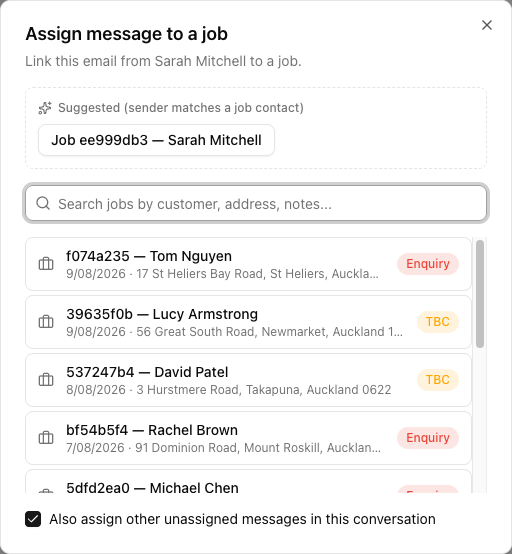
Assigning one message
Select the message, then click Assign to job in the action bar above the reading pane. (On a message that is already assigned, the same button reads Re-assign job.)
The dialog has three parts:
- Suggested — jobs whose contact matches the sender's email address or phone number. These are the one-click answers.
- A search box — search jobs by customer, address or notes.
- A results list — each row shows the job reference, the customer, the date (or Unscheduled), the pickup address and a status badge.
Click any suggestion or result and the message is assigned.
Suggestions
When a message arrives, VanMan compares the sender's email address and phone number against the contacts on your jobs. Any match becomes a suggestion, shown as a "2 suggested" badge in the list and as one-click buttons at the top of the assign dialog.
Suggestions are a match on the sender, not on what the message says. A repeat customer with three jobs on file gets three suggestions, and only one of them is the right one. Check the date and address on the button before you click it.
Assigning the whole conversation
For email in a provider thread, the dialog shows Also assign other unassigned messages in this conversation, ticked by default. Leave it on: a five-email back-and-forth belongs on the job as a whole, not as one message with four orphans behind it. VanMan tells you how many messages moved.
Messages already assigned to another job are left alone, so this can't drag someone else's correspondence onto your job.
The job side panel
Once a message is assigned, you can open the job's side panel next to the reading pane — the same panel as the calendar. From there, without leaving the Inbox, you can change the status, swap the truck or trucks, change the crew, and jump through to the full job page.
This is the fastest path from "customer just asked to move the job to Friday" to it actually being moved. Read, reassign in the panel, reply — all on one screen.
What assignment actually does
- The message appears on the job's Messages tab.
- Any attachments become attachments on the job.
- The row's amber Unassigned badge becomes a job-number badge.
- The action is written to the job's Activity log as Message assigned.
Tutorial: a fresh enquiry from an unknown address
Someone emails bookings@ asking about a move. There's no job yet.
Open it from the Unassigned tab. A brand-new enquiry has no matching contact, so expect no suggestions — that absence is itself the signal that this is new business, not a reply.
You can't assign to a job that doesn't exist. Create the job (or convert the booking request), then come back to the Inbox. Leave the message where it is meanwhile — the Unassigned tab is exactly the right holding pen.
Assign to job, search for the customer you just added, and click the row. Leave Also assign other unassigned messages in this conversation ticked so the original enquiry and any replies land together.
Open the job's Messages tab. The email should be there, with its attachments now on the job. If the customer sent an inventory list or photos, they are on the job record rather than lost in a mailbox.
Either works — both send from your connected mailbox and both file the reply against the job. See replying and composing messages.
Assigned the wrong job? Select the message and click Re-assign job. Nothing is lost; the message just moves.