
Understanding the Inbox
One place for every customer email and SMS — how the two-pane list, tabs, filters and conversation view work.
The Inbox is one list for every message your business sends and receives — customer emails from your connected Gmail or Outlook mailbox, and SMS through your VanMan number. It sits at Inbox at the top of the Operations group in the sidebar, and it needs the messaging permission to open.
Before the Inbox, an inbound email only reached you if its subject carried a job number — anything else was discarded. Now every inbound message is kept, matched or not. The Inbox is where the unmatched ones live until someone deals with them.
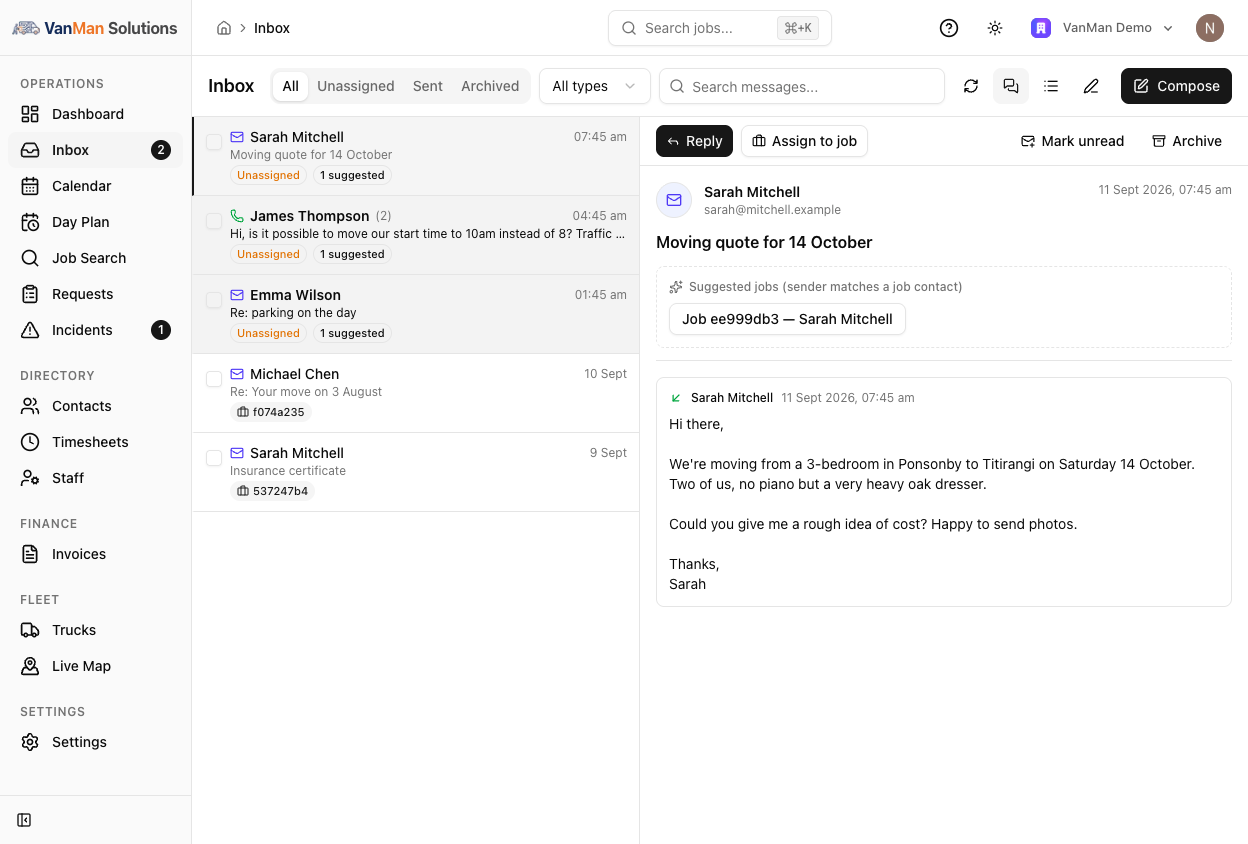
The layout
Two panes. On the left, the message list; on the right, the reading pane for whatever you have selected. Only those two panes scroll — the page itself does not, so the list stays put while you work through it.
Pick a message and it opens on the right and is marked read. The sidebar's Inbox item carries a live unread pill, so you can see there is something waiting from anywhere in the app.
Tabs
Four tabs across the header:
| Tab | What's in it | | --- | --- | | All | Everything inbound that isn't archived | | Unassigned | Inbound messages not yet linked to a job — your work queue | | Sent | Outbound email and SMS, with their delivery status | | Archived | Messages you have filed away |
Unassigned is the one that matters day to day. It is the list of messages nobody has connected to a job yet — see assigning messages to jobs.
Filters and search
Next to the tabs, an All types dropdown narrows to Email or SMS only, and the search box searches across messages. Search is debounced, so type the whole thing and let it settle rather than searching a letter at a time.
Conversation view vs flat list
Two small buttons at the top right of the header switch how the list is grouped:
- Group by conversation (the default) — one row per conversation, showing the most recent message with a count of how many are in the thread.
- Flat message list — one row per message, newest first.
Your choice is remembered in the browser, per device. Threaded is right for email-heavy days; flat is better when you are scanning for one specific message and don't care what it was replying to.
Reading a row
Each row packs a lot in. A phone icon means SMS, an envelope means email. Bold text means unread. A paperclip means there are attachments. Then a badge showing where the message stands:
- A job number badge — already assigned to that job.
- A Booking badge — tied to a booking enquiry.
- An amber Unassigned badge — nothing has claimed it yet.
- "2 suggested" — VanMan has found jobs whose contact matches the sender.
- On the Sent tab, a delivery status badge, shown in red when a message failed or bounced.
Selecting and bulk actions
Every row has a checkbox. Tick a few and an action bar appears: Mark read, Mark unread, and Archive (or Unarchive on the Archived tab). Selection is limited to the messages currently loaded, so changing a filter can never quietly apply an action to rows you can no longer see.
Live updates
The Inbox updates itself. New mail and SMS appear without a refresh, and the list stays mounted while it reconciles — your scroll position and selection survive. If you don't want to wait for the next scheduled check, hit the Sync button; see keeping your mailbox in sync.
Tutorial: clear the inbox each morning
Open Inbox and click the Unassigned tab. All is for browsing; Unassigned is the actual queue. If it is empty, every message that has arrived is already attached to a job and you are done.
Leave the view on Group by conversation. One row per customer conversation means you read the latest message with its history behind it, instead of the same thread three times.
For each row: read it, assign it to a job, and reply if it needs one. Assigning is what takes it out of this queue — marking it read does not.
Spam, supplier mail, a wrong number. Tick them and Archive. They leave the queue without pretending to be job-related, and you can still find them on the Archived tab.
Before you close it, click Sent and scan for red failed or bounced badges. A bounced quote is the message you most need to know about, and nobody chases you about mail they never got.