
Replying and composing messages
Reply to a customer or start a new conversation from the Inbox, with templates, signatures and attachments.
You never have to leave VanMan to answer a customer. The Inbox sends both email and SMS, and everything it sends is recorded against the conversation and the job.
Replying
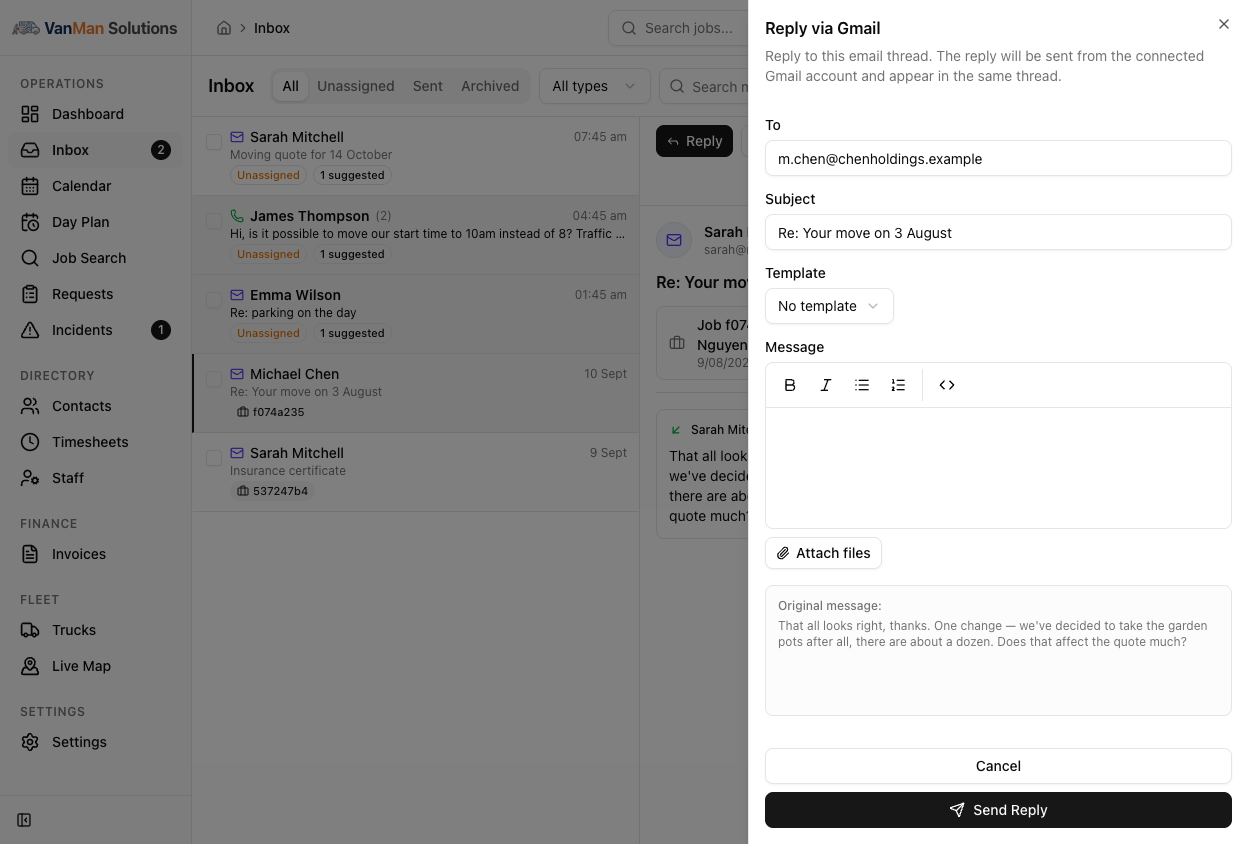
Select a message and click Reply. What opens depends on the channel:
- Email in a Gmail or Outlook thread — the threaded reply panel, so your reply lands in the same conversation in the customer's mail client.
- SMS, or email with no thread — the general reply panel.
Either way you get a Template picker, a Subject (email only), the message body, an Attach control for email, and a Signature picker.
Email sent from VanMan now goes out through your connected Gmail or Outlook mailbox. It comes from your real business address, it appears in your mailbox's Sent items, and it threads properly for the customer. If no mailbox is connected — or the provider rejects the send — VanMan falls back to its own delivery so the message still goes.
Templates
The Template dropdown lists your organisation's message templates for the channel you're replying on, plus any personal templates you have made yourself (marked (personal)).
Pick one and it fills the subject and body. If the message is already assigned to a job, the template is rendered with that job's data — the customer's name, the date, the addresses are all filled in before it reaches the editor. You'll see Filling template with job details… while that happens.
This is the single best reason to assign a message to a job before replying. Assign first, then apply the template, and the variables resolve. Apply a template to an unassigned message and the job placeholders come out empty.
Signatures
For email, a Signature dropdown appends one of your saved signatures to the end of the message. Your default is preselected. See signatures and personal templates.
Signatures are per user, not per organisation — everyone signs with their own name.
Attachments
On email you can attach images and PDFs — up to 10 files per message. They are uploaded as you pick them and shown as removable chips. SMS has no attach control.
Composing a new message
Click Compose in the header for a message that isn't a reply to anything.
Search your contacts in the To field. You send to a contact on file, not to a raw address typed in — which keeps the conversation attached to someone you can find again.
Email or SMS. The one your contact has no address or number for is disabled, and a line underneath confirms exactly what it will send to.
Optional template, then a subject (email only) and the body. Compose has no job context, so job variables in a template render empty — write the specifics yourself, or reply from the job instead.
Add files if it's an email, choose your signature, and Send.
Replies to anything you compose come back into the Inbox.
Where sent messages go
Everything you send appears on the Sent tab with a delivery status badge, and — if the message was tied to a job — on that job's Messages tab. A failed or bounced send shows in red.
Check the Sent tab after sending anything that matters, especially quotes. A bounced email looks identical to a delivered one from your side until you look at the status. See understanding delivery statuses.