
Signatures and personal templates
Set up your own email signature and your own private message templates, separate from the shared ones.
Message templates in Settings > Message Templates are shared by the whole business. Signatures and personal templates are the opposite: yours alone, nobody else sees or can edit them.
Both live in one dialog. In the Inbox header, click the pen icon — Signatures & my templates.
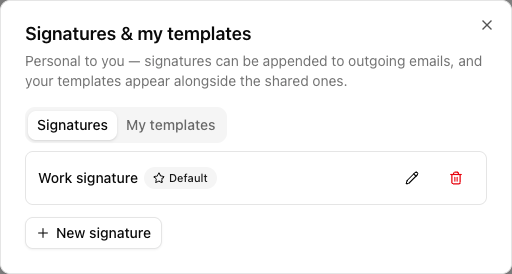
Signatures
A signature is appended to the end of an email you send from VanMan. It is per user, so everyone signs with their own name and mobile.
Pasting an existing signature
The fastest way to get a proper signature is to steal the one you already have.
Open Outlook or Gmail, start a new email so your signature renders, select the whole thing and copy it.
In the dialog, New signature, give it a Name (e.g. Work signature), then click the dashed box and press Ctrl+V (⌘V). Formatting, colours and links are kept — this is a real HTML paste, not a plain-text one.
What you see after pasting is exactly what customers will get. If it looks wrong, Replace (paste again) and try copying a cleaner selection.
Tick Use as my default signature, then Save signature. The default is preselected in every reply and compose panel, so you never have to think about it again.
Images only survive if they are hosted. A logo that sits in your mail client as an embedded file will not come through — it needs to be an image on a web address. Company logos usually are; a photo you dragged in usually isn't.
Typing one instead
If you just want three lines and no logo, click Type it as text instead. Plain lines become paragraphs. The same box is where you go to hand-edit HTML (Edit HTML source) if you know what you're doing.
Several signatures
You can keep more than one — a full one for quotes and a short one for quick replies, say. One is marked Default; the rest are picked from the Signature dropdown when you need them.
Personal templates
The My templates tab holds templates only you can see. They appear in the template picker alongside the shared ones, marked (personal).
Each has a Name, a Channel (Email or SMS), a Subject for email, and a Body. Template variables like {{CustomerName}} and {{JobNumber}} work exactly as they do in shared templates and are filled from the job the message is assigned to — see using template variables.
Personal templates are the right home for a phrasing you use constantly but nobody has agreed on as the house style — your own follow-up nudge, your own way of asking for a review. Get it right, use it for a month, and then promote it to a shared template in Settings if the rest of the team wants it.
Which to use
| | Shared templates | Personal templates | Signatures | | --- | --- | --- | --- | | Who sees it | Everyone | Only you | Only you | | Where it's managed | Settings > Message Templates | Inbox → pen icon | Inbox → pen icon | | Needs a permission | Yes (templates) | No | No | | Used by workflows | Yes | No | No |
Automated workflows can only use shared templates. If a message needs to go out on its own without anyone pressing send, it has to live in Settings — a personal template will never be picked up by automation.