
Understanding Xero sync
What actually syncs between VanMan and Xero, in which direction, and when.
It is worth being precise about what "sync" means here, because it is narrower than the word suggests.
Xero sync is not two-way, not real-time, and not automatic in the way you might assume.
- VanMan pushes invoices to Xero when you click a button. It never pushes on its own.
- VanMan pulls invoice status back from Xero on a schedule, or when you click Sync Invoices.
- That is the whole of it. Contacts do not sync back. Nothing else flows.
What goes to Xero
When you send an invoice, VanMan creates it in Xero with your line items, grouped and coded by the account codes on your materials. It finds or creates the customer as a Xero contact along the way.
This is a manual push — it happens when you click Send to Xero, not automatically when the invoice is created.
What comes back
On a schedule (and on demand via Sync Invoices), VanMan reads each invoice's status from Xero and updates its own record — so an invoice marked paid in Xero shows as Paid in VanMan.
That is all that comes back. The status, nothing more.
Editing a customer in Xero does not update VanMan, and vice versa. There is no contact sync. If a customer's details change, change them in both places.
There is no pre-flight check
VanMan does not validate account codes before sending. It posts the invoice to Xero, and if a code is wrong, Xero rejects it and you see the error afterwards — the send fails, it does not pause and warn you first.
This is why coding your material categories correctly up front matters: the failure comes at send time, on a real invoice.
Where the settings live
-
Payments & Invoicing (Settings > Payments & Invoicing) — Xero Invoice Status (Draft or Authorised), Auto-send Invoices, and GST Rate (%).
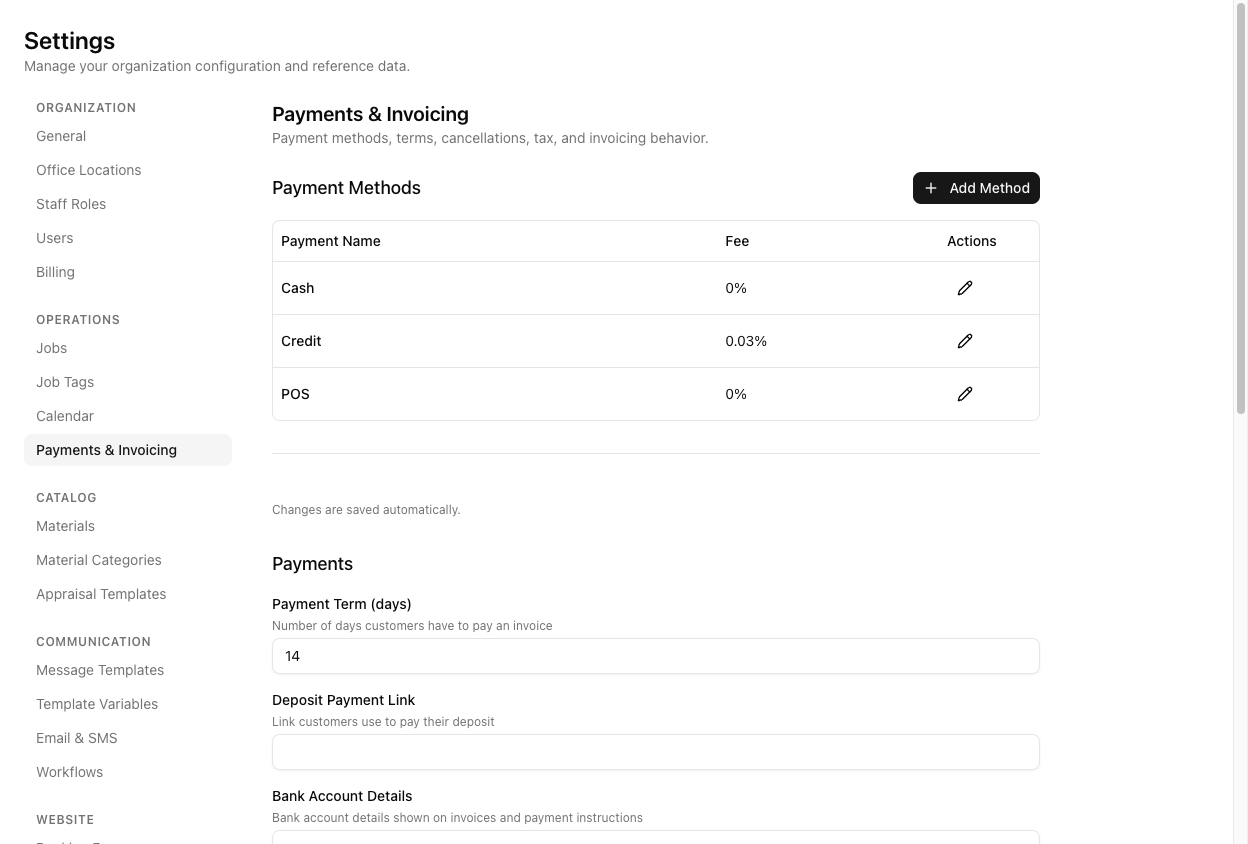
Settings → Payments & Invoicing. Xero Invoice Status and Auto-send Invoices are further down this page. -
Cost Categories / Costs — the account codes themselves.
When a send fails
There is no background retry that will quietly fix it. A failed send is retried a few times within that one click, then stops. Open View Audit Log on the Xero card to see what Xero said.
Tutorial: reconcile a payment recorded in Xero
A customer paid their invoice and your bookkeeper marked it paid in Xero. You want VanMan to reflect that.
Payment was recorded in Xero. VanMan learns about it by pulling status back — it does not happen the instant your bookkeeper clicks, because the pull is scheduled, not live.
Go to Settings > Integrations and click Sync Invoices on the Xero card. This pulls current invoice statuses from Xero now, rather than waiting for the schedule.
Open Invoices. The invoice now shows Paid. If it still shows Sent, the status had not been set in Xero yet — check there.
Marking something in VanMan does not push a change back to Xero for payments. Xero is the source of truth for payment status; VanMan mirrors it one way.
Click Check Now on the Xero card. A stale or expired connection stops the pull silently, and this is where it shows.