
Adding and editing trucks
Add a truck, edit its details, and delete one — including what stops you.
Your fleet lives at Fleet > Trucks — under Fleet in the sidebar, not under Settings.
Adding a truck
Click New Truck. A panel slides in from the right.
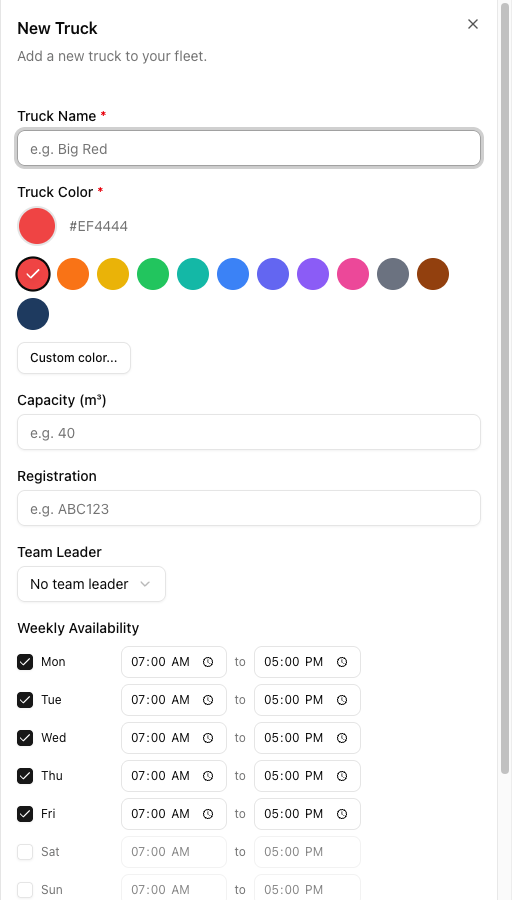
The fields, in the order they appear:
- Truck Name — required. Use what your team calls it out loud. Names must be unique; a duplicate is rejected with "A truck with this name already exists".
- Truck Color — required, defaults to red. Twelve presets plus Custom color.... See choosing truck colours.
- Capacity (m³) — optional. A reference figure only; see setting truck capacity.
- Registration — optional.
- Team Leader — optional, defaults to No team leader. It controls push notifications, not crew — see assigning a team leader.
- Weekly Availability — which days the truck runs and between what hours. Defaults to Mon–Fri, 07:00 AM–05:00 PM.
Click Create Truck.
Weekly Availability
Each day has a checkbox and a start and end time. If a truck runs Saturday mornings only, or knocks off at 3pm on Fridays, set it here.
Availability is reporting, not enforcement. It feeds the Truck Availability card on your dashboard — and nothing else. VanMan will happily let you book a truck at midnight on a day it is switched off, with no warning at all.
Calendar events do not reserve a truck either. If a vehicle genuinely must not be used, the only reliable protection is not assigning it.
Editing
Click any row to open its edit panel, or use the ⋯ menu → Edit. The button becomes Update Truck.
Renaming or recolouring a truck changes how past jobs display. Jobs store a link to the truck, not a copy of its name and colour, so historical records pick up the new details. If you rename Missy to Truck 3, last year's jobs now say Truck 3 too.
If you need old jobs to keep reading correctly, add a new truck rather than repurposing an old one.
The list shows Color, Truck Name, Registration, Capacity, and Team Leader, and you can search by name or registration. Truck Name, Registration, and Capacity are sortable.
Deleting
There is no deactivate. The ⋯ menu has exactly two actions: Edit and Delete.
Delete is a soft delete — the record survives but the truck disappears from the app. Two things to know:
- VanMan blocks you if the truck has upcoming jobs. The dialog warns "This truck has N upcoming job(s). Reassign them first." and the Delete button disappears until you do.
- Undo lives about ten seconds. The success toast carries an Undo action, and it is the only way back. There is no restore screen.
Tutorial: retire a truck you are selling
Missy is sold and goes next week. There are jobs on her.
There is no such switch. Your real options are: reassign her work and delete her, or leave her in place and stop assigning her.
Go to Fleet > Trucks, click Missy's ⋯ menu, and choose Delete.
The dialog goes amber: "This truck has 4 upcoming job(s). Reassign them first." and there is no Delete button — only Cancel. The app will not let you pull a truck out from under scheduled work, which is exactly right.
Switch to the Trucks calendar view and step through next week, or filter the calendar to Missy only. Either gives you her jobs.
Open each one and swap the truck. Watch for the Scheduling Conflict dialog — moving four jobs onto one truck is exactly how you double-book it. Read the clash rather than clicking Assign Anyway.
Back to Fleet > Trucks → ⋯ → Delete. With no future jobs, the Delete button is there. Click it.
The toast says "Missy deleted" with an Undo. That is your only recovery, and it is brief. If you delete the wrong truck, click Undo immediately — do not go looking for a restore page, because there isn't one.
Her completed jobs still exist, but their truck details come from a record that is now hidden. Do not delete a truck whose history you still need to read cleanly — leaving her in place, unassigned, is the safer call.