
Connecting Gmail
Connect a shared Gmail inbox so job-related emails are captured onto jobs automatically.
Connecting Gmail lets VanMan capture emails that carry a job number onto the right job's Messages tab, and lets you reply from inside VanMan. It sits on the Gmail Integration card at Settings > Integrations.
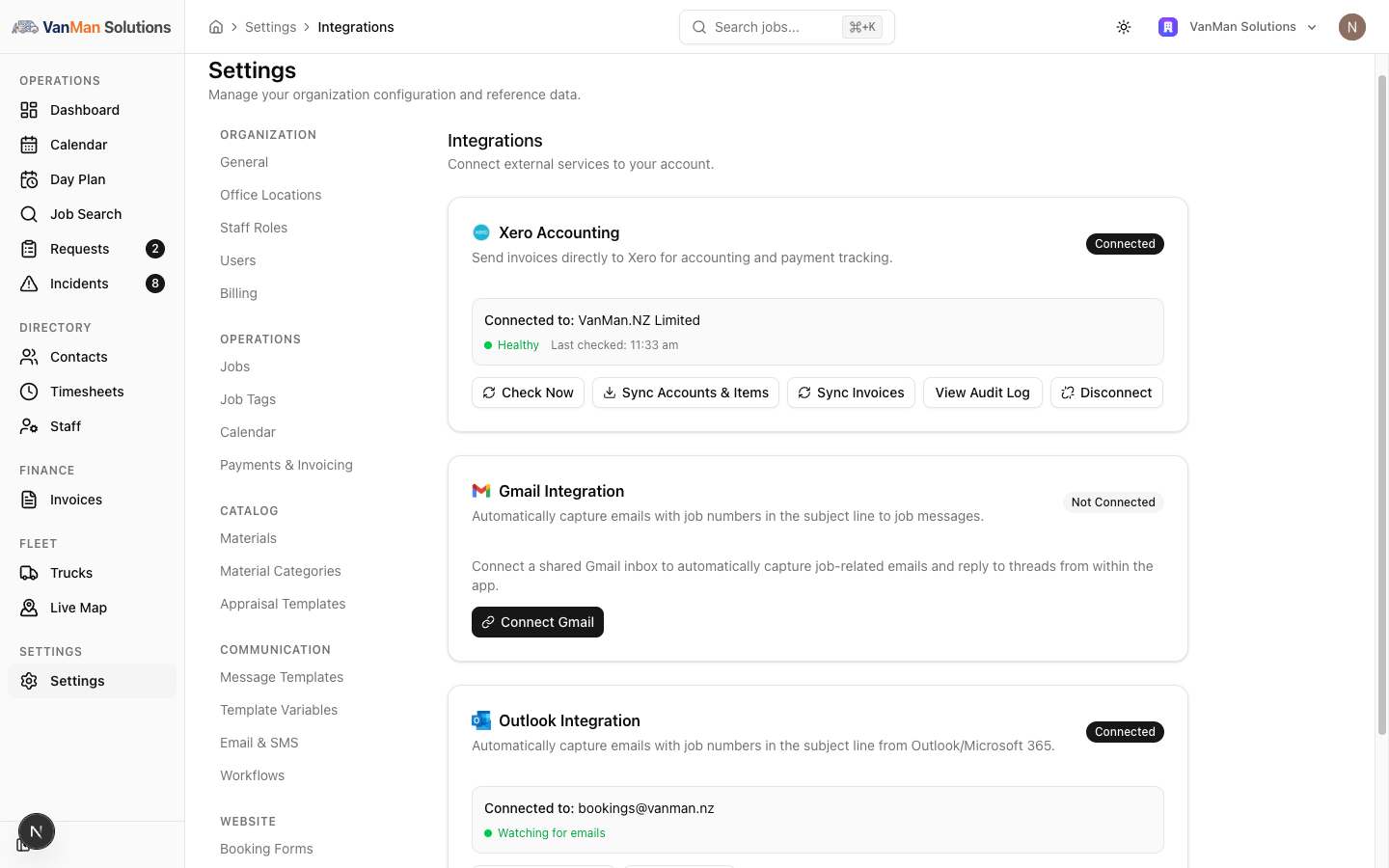
This connects one shared inbox for the whole business, not your personal email. Connect the central address customers write to — bookings@ or office@. Everyone then works from what that inbox captures. There is no per-user email connection.
Connect
On the Gmail Integration card, click Connect Gmail. You are taken to Google to sign in and approve access. Connecting needs a role that can edit settings.
Grant the access Google asks for. VanMan needs to read the inbox (to find job-related emails) and to send (so you can reply from within the app).
Back on the card, the status shows Connected and a green Watching for emails. If it instead shows the watch is not active, the connection needs attention.
Granting access means VanMan reads the whole inbox — and it now stores inbound messages whether or not they match a job, so that nothing gets silently dropped. Unmatched mail sits in VanMan's Inbox until someone assigns or archives it. Connect a shared business inbox your team is comfortable with, not a personal account.
When it's connected
The card shows Connected, the inbox address, a Watching for emails indicator, and Test Connection / Disconnect buttons. If the connection lapses, a Reconnect button appears — use that rather than disconnecting and starting over.
Where the mail ends up
Incoming emails whose subject carries a job number appear on that job's Messages tab — how that matching works is covered in how email job matching works. Everything else — a fresh enquiry, a customer writing from a different address, a supplier — lands in the Inbox on the Unassigned tab, with its attachments, so nothing arrives and quietly vanishes.
Sync frequency
As well as the provider's instant push notifications, VanMan polls the mailbox on a schedule you set at Settings > Email & SMS → Inbox Sync Frequency (default: every 5 minutes). The poll is your safety net for when a push subscription lapses, and it repairs the subscription when it finds it has. There's also a Sync button in the Inbox header for an immediate check. See keeping your mailbox in sync.
Tutorial: connect your bookings inbox
You run everything through bookings@yourcompany.com and want replies to file themselves.
Before you start, make sure the Google account you are signed into in this browser is the bookings@ one, not your personal Gmail. The connect flow uses whichever account you approve — connecting the wrong one is the most common mistake.
Settings > Integrations → Connect Gmail on the Gmail card → sign in as bookings@ → approve.
The card should read Connected with a green Watching for emails. That green state is the one that matters — it means new mail will be captured.
Send a customer a message from a job (so the subject carries the job number), have them reply, and check the job's Messages tab. The reply filing itself there is proof the whole chain works.
Google connections can lapse. If the card later shows the watch is not active, or a Reconnect button appears, click Reconnect. Do not leave it — a lapsed connection silently stops capturing, and you only notice when a reply goes missing.
Not sure whether to use Gmail or Outlook? See Gmail vs Outlook. You connect one shared inbox, so the choice is simply which mail provider your business already runs.