
Connecting Outlook
Connect a shared Outlook or Microsoft 365 inbox to capture job-related emails automatically.
The Outlook integration captures emails carrying a job number from an Outlook or Microsoft 365 inbox onto your jobs. It is the Outlook Integration card at Settings > Integrations, and it works the same way as Gmail.
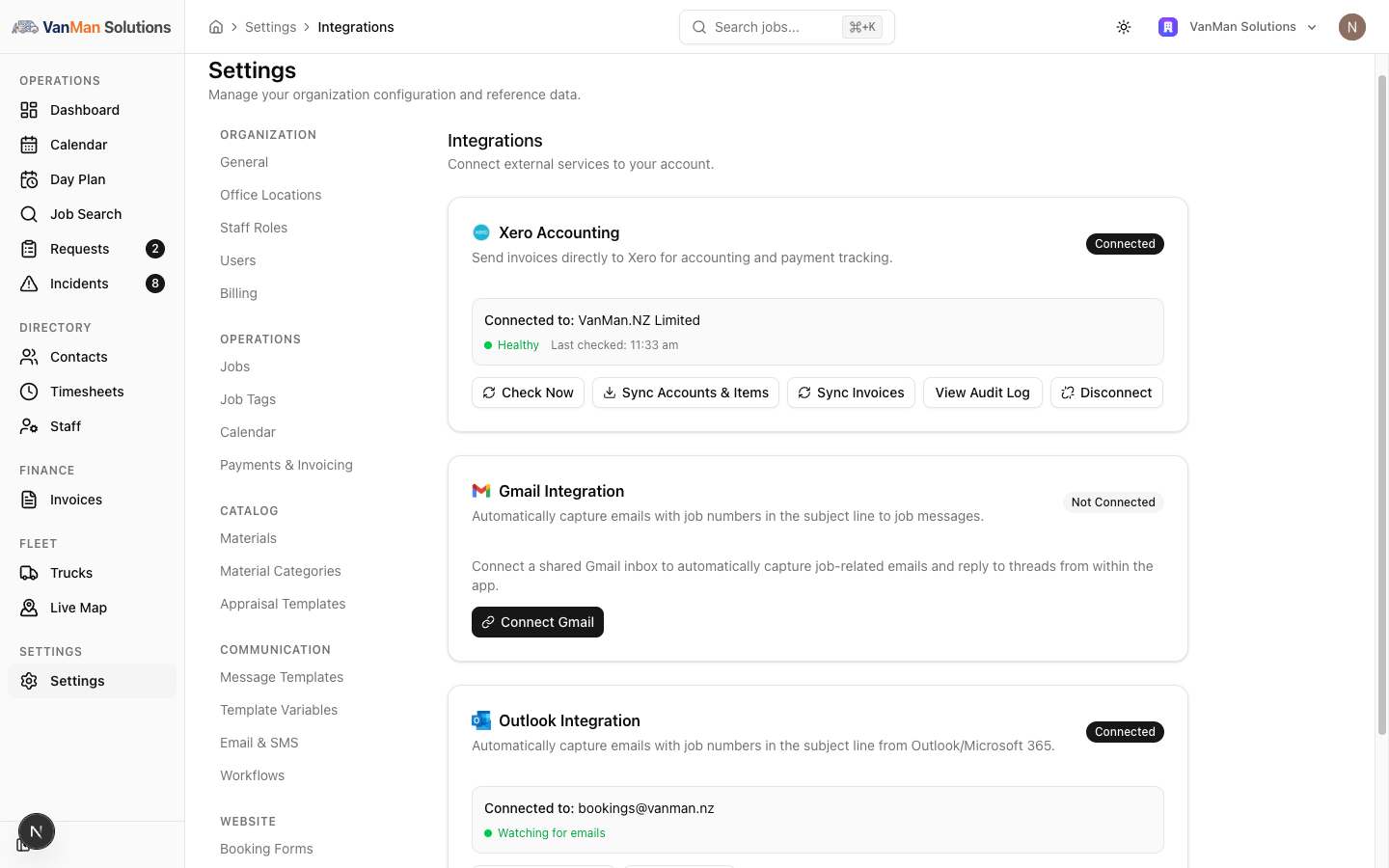
Like Gmail, this is one shared business inbox, not a personal per-user connection. Connect the central Microsoft 365 mailbox your customers write to.
Connect
On the Outlook Integration card, click Connect Outlook. You are taken to Microsoft to sign in and approve. Connecting needs a role that can edit settings.
Grant the requested access — reading the inbox to find job-related mail, and sending so you can reply from within VanMan.
The card shows Connected, the inbox address (e.g. Connected to: bookings@yourcompany.com), and a green Watching for emails.
When it's connected
The connected card offers Test Connection and Disconnect, and a Reconnect button if the connection lapses.
A known limitation: replies to Outlook-captured emails may start a new thread rather than threading into the original conversation. Gmail threads replies correctly; Outlook's reply may land as a fresh email in the customer's inbox. The reply still reaches them and is still recorded on the job — but do not rely on it appearing inside the original thread on their end.
Where the mail ends up
Matching works exactly as for Gmail — an eight-character job number in the subject line files the email onto the job's Messages tab. See how email job matching works. Everything else — a fresh enquiry, a customer writing from a different address, a supplier — lands in the Inbox on the Unassigned tab, with its attachments, so nothing arrives and quietly vanishes.
Sync frequency
As well as the provider's instant push notifications, VanMan polls the mailbox on a schedule you set at Settings > Email & SMS → Inbox Sync Frequency (default: every 5 minutes). The poll is your safety net for when a push subscription lapses — and because Microsoft Graph subscriptions expire on a short cycle, it is the one that most often does the repairing. There's also a Sync button in the Inbox header for an immediate check. See keeping your mailbox in sync.
Tutorial: connect a Microsoft 365 shared mailbox
Your office runs on Microsoft 365 and customers reply to bookings@yourcompany.com.
Make sure you can sign into the bookings@ mailbox with Microsoft, and that it is the address customers actually reply to. This is a shared-inbox connection, so it is the central mailbox you want, not an individual's.
Settings > Integrations → Connect Outlook → sign in with Microsoft → approve.
The card should read Connected to: bookings@yourcompany.com with a green Watching for emails.
Message a customer from a job so the subject carries the job number, have them reply, and check the job's Messages tab. The reply filing there confirms capture works.
When you later reply to that customer from VanMan, tell yourself not to expect it inside the original Outlook thread on their side — Outlook replies may arrive as a new message. It still reaches them; it just may not thread. This is the one place Outlook differs from Gmail.
Microsoft connections can expire. If the card stops showing Watching for emails, or a Reconnect button appears, click Reconnect promptly — a lapsed connection stops capturing silently.