
Configuring AI and automatic appraisals
The two auto-appraisal settings, how they differ, and the AI prompts you can tune.
The AI settings live at Settings > AI (the System group). There are two separate automatic-appraisal settings — they are often confused, so it is worth being precise.
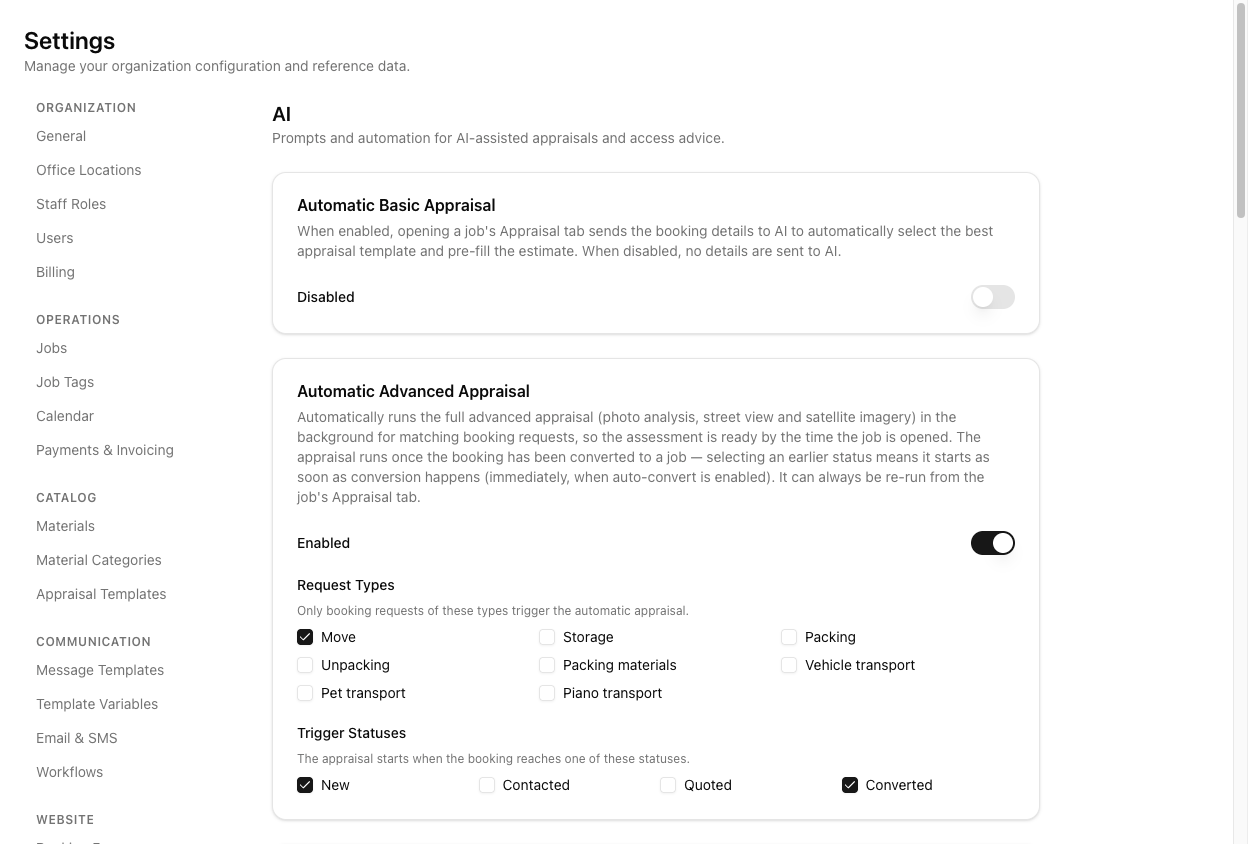
Automatic Basic Appraisal
A plain on/off toggle, no scoping. When on, opening a job's appraisal tab sends the booking details to AI to select the best appraisal template and pre-fill the estimate. When off, no details are sent.
This is the estimate automation — it fills the numbers from booking data.
Automatic Advanced Appraisal
A toggle with scoping. It runs the full advanced appraisal — photo analysis, Street View, satellite — in the background, so the assessment is ready when you open the job.
Advanced has two sets of checkboxes:
- Request Types — only booking requests of these types trigger it (Move, Storage, Packing, and so on).
- Trigger Statuses — the booking status at which it starts (New, Contacted, Quoted, Converted).
It runs once the booking has been converted to a job. Picking an earlier status means it starts as soon as conversion happens.
These are two different features. Basic pre-fills the estimate from text; Advanced runs the photo/imagery assessment in the background. Only Advanced has the request-type and status scoping — Basic is a bare toggle. Do not look for scoping on Basic; it has none.
The AI prompts
Below the toggles are editable prompt templates: Access Advice, Appraisal Photo Analysis, Appraisal Full Assessment, and Appraisal Basic Assessment. These tune how the AI behaves.
Only the Access Advice prompt exposes placeholder variables (things like {{address}}, {{itemList}}, {{accessTypeOptions}}). The others do not show a placeholder list.
And editing a prompt is two steps: Reset to Default only repopulates the box — you must then click Save Template to keep it. Navigate away without saving and your change is lost.
Tutorial: turn on background appraisals for moves only
You want move enquiries pre-appraised automatically, but not storage or packing jobs.
Go to Settings > AI. You will see the two cards — Basic (a toggle) and Advanced (a toggle with checkboxes).
For background photo/imagery appraisals ready when you open the job, you want Automatic Advanced Appraisal — the one with scoping. If you only wanted the estimate numbers pre-filled from text, that would be Basic instead. Pick the right card for the job.
Turn Automatic Advanced Appraisal on. Under Request Types, tick Move and leave Storage, Packing, and the rest unticked. Now only move enquiries trigger it.
Under Trigger Statuses, choose when it starts — Converted is the safe default (it runs once the booking becomes a job). Tick an earlier status only if you want it to start sooner.
If you untick every Request Type or every Trigger Status, the automation never runs — the page warns you about this. Make sure at least one of each is ticked.
If you want to adjust, say, the Access Advice prompt, edit it and then click Save Template. Do not assume Reset-to-Default or just typing is enough — without Save, the change does not persist.
Convert a move booking to a job, then open it. The advanced appraisal should already be done in the background — the assessment ready without you clicking Ask Daz AI. That is the setting working.