
Setting up appraisal templates
Build reusable appraisal templates — preset values and linked materials — for quick estimates.
An appraisal template is a preset for a quick estimate — a named bundle of default values and linked materials. It is what the estimate-card pills load. Manage them at Settings > Appraisal Templates (the Catalog group).
A template is not an item-to-material mapping. There is no screen where you say "a sofa maps to this material at this price". A template holds preset numbers (men, time, rate) and links to materials at default quantities — that is the whole model. The AI's detected items never enter into it.
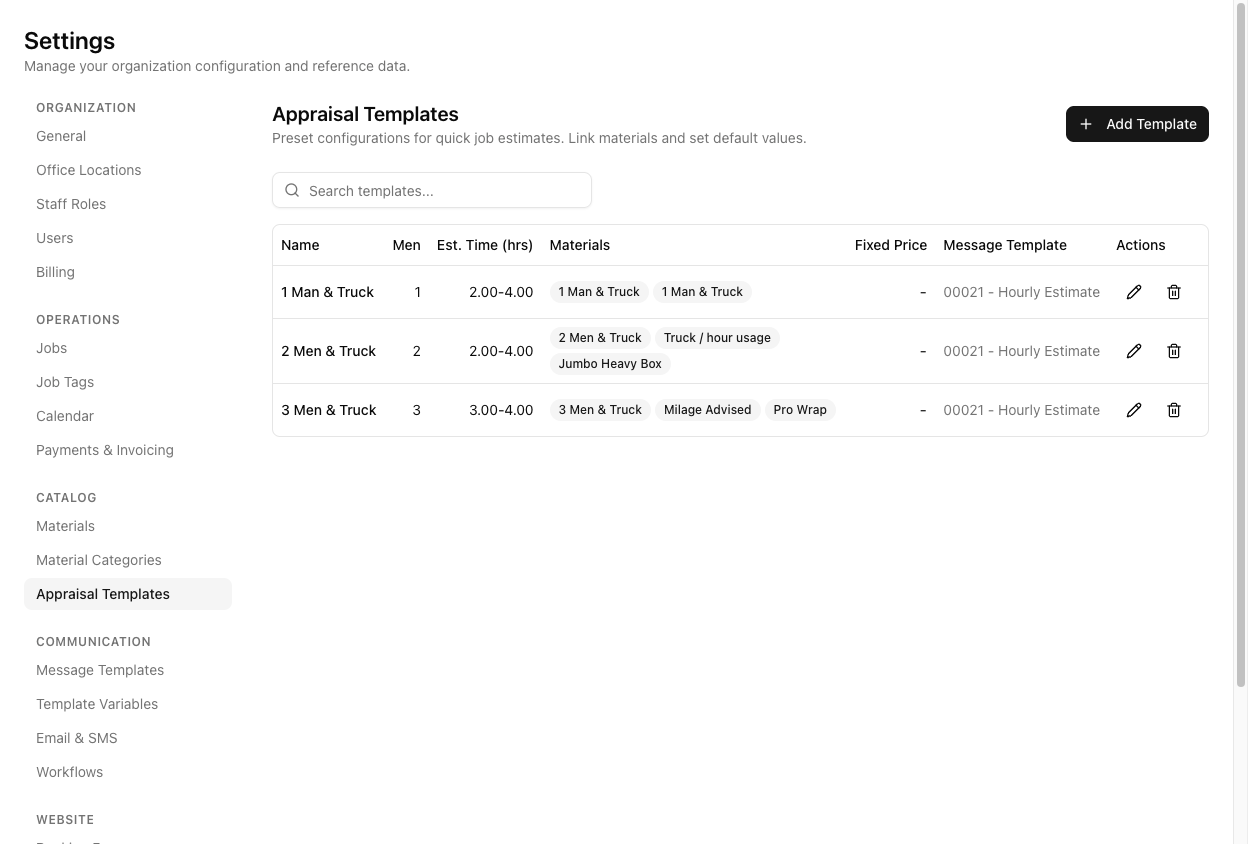
The list
The table shows Name, Men, Est. Time (hrs), Materials (the linked ones), Fixed Price, and Message Template. Click Add Template to create one.
In the template
- Name (required, e.g. "2 Men & Truck Standard").
- Number of Men, Time Est. Low/High (hrs).
- Hourly Rate, Fixed Price.
- Default Message Template (filtered to Estimate-type templates), plus Default Email Template and Default SMS Template — the defaults used when sending an estimate from this template.
- Linked Materials — add materials with a default quantity each.
- An Advanced section: start/end time windows, cubic-metre range, vehicle capacity, load description.
Note a naming quirk: the template's Vehicle Capacity (trucks) is a count of trucks, while the same-named field on the job estimate is in m³. They are related but expressed differently — do not assume the two are the same number.
Tutorial: build your standard hourly template
You quote most jobs as "2 men and a truck, hourly" and want a one-click preset.
Settings > Appraisal Templates → Add Template. Name it 2 Men & Truck Standard.
Set Number of Men to 2, and Time Est. Low/High to your usual range, say 2 to 4 hours. These are the presets the estimate pill will load.
Enter your Hourly Rate for a 2-man crew. Leave Fixed Price blank — this is an hourly template, not a fixed one.
Under Linked Materials, add the lines a typical job carries — the 2-man-and-truck rate, a travel line — each with a sensible default quantity. This is the closest thing to "what's on the quote", and it comes from you linking materials, not from AI.
Set Default Message Template to an Estimate-type template (e.g. 00021 - Hourly Estimate). This is what renders the estimate into a customer message. Without it, the estimate has nothing to send through.
If you quote arrival windows and volume ranges, open Advanced and set the start/end windows and cubic-metre range. Skip it if you keep quotes simple.
Create the template, then open a job's estimate card. Your 2 Men & Truck Standard pill is there — click it and all these presets load in one go. That one click is the entire payoff of setting the template up.