
Inviting team members
Invite people to your VanMan account and give them the right access role.
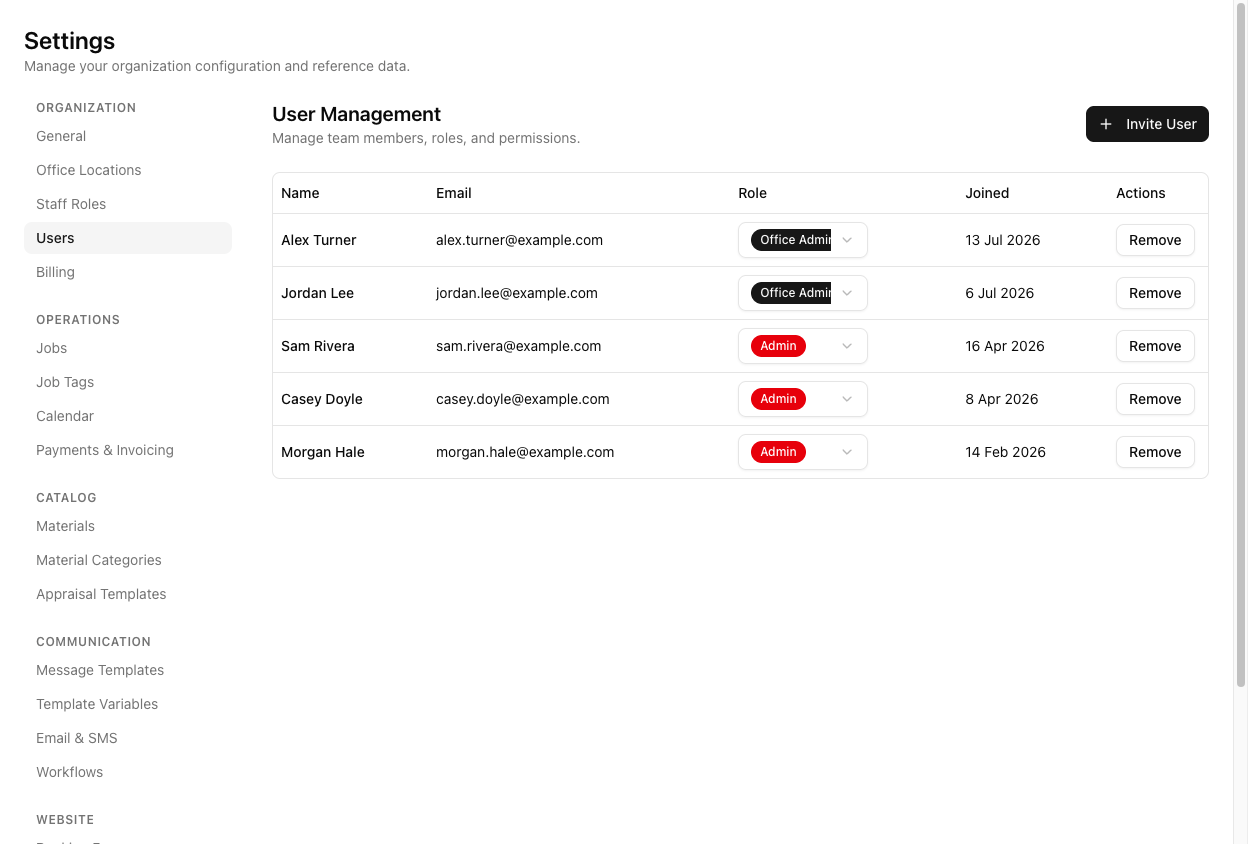
People are added at Settings > Users, on the page titled User Management — not on a "Team" page.
Send an invite
Click Invite User. The dialog asks for two things only: an Email and a Role.
There is no name field, and you invite one person at a time — there is no "add another" for bulk invites. The person's name comes from their own profile when they accept.
The Role dropdown offers five options and defaults to Operator:
- Admin — everything, including billing.
- Office Admin — everything except billing.
- Operator — day-to-day operations: jobs, bookings, contacts, messaging, materials, invoicing, trucks, staff, timesheets, incidents. Can view workflows but not edit them; no access to settings, users, or billing.
- Driver — view jobs, view the calendar, update deliveries. Nothing else.
- User — view-only: jobs and calendar.
Click Send Invitation. They receive an email invitation to join.
Only an Admin can invite another Admin. And this is a user role — access to the app. It is separate from a staff role (a crew job title like Driver or Mover). Someone can be crew on jobs via a staff role without ever having a login. See setting up staff roles.
Changing and removing access
Change someone's role from the Role dropdown in their table row — it applies immediately, with no Save button. Remove revokes their access.
Tutorial: bring on an office manager and a driver
Go to Settings > Users. The table lists everyone with access and when they joined.
Click Invite User, enter their email, set Role to Office Admin, and Send Invitation.
This is the important call. Office Admin gives them every operational power — settings, users, templates, invoicing — while keeping them out of billing. Making them a full Admin hands them the subscription too, which is rarely what you want for a staff member.
Invite User again, their email, Role Driver. Driver is deliberately minimal — jobs, calendar, deliveries — which is the safe role for a phone in a truck cab. They cannot see pricing or invoices anywhere.
User is view-only and sits right by Driver in the list. A driver set to User by accident cannot update deliveries and will report the app as broken. Check the role before you send.
If you got one wrong, do not remove and re-invite. Open the Role dropdown on their row and change it — it takes effect immediately.
Access alone does not make someone schedulable. If the driver will be assigned to jobs, they also need a staff role under Settings > Staff Roles and a staff record — see adding staff members.