
Managing user roles
The five VanMan access roles, what each can do, and how to change someone's role.
A user's role decides what they can see and do. VanMan has five, managed at Settings > Users.
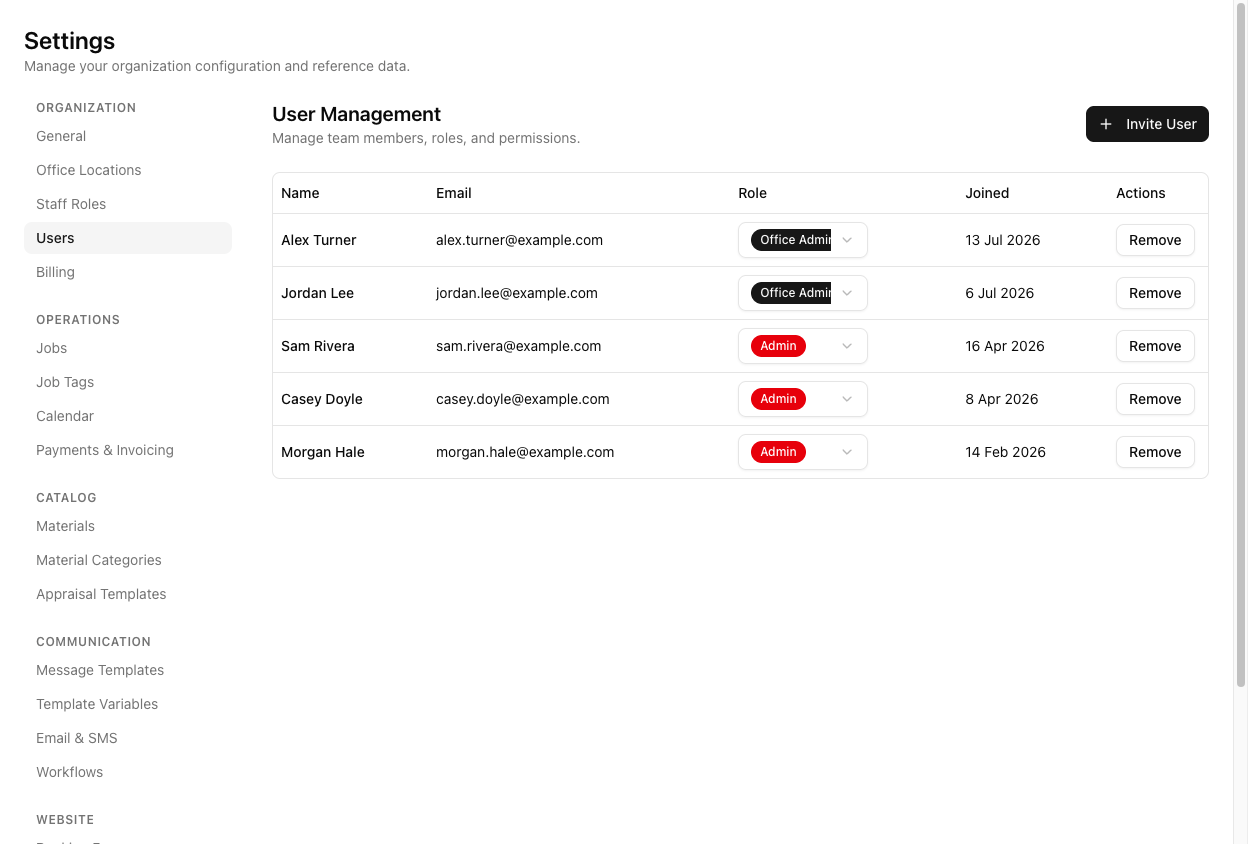
The five roles
- Admin — everything, including billing. Best for owners.
- Office Admin — everything except billing. The right role for an office manager who runs the business but should not touch the subscription.
- Operator — the coordination role: create, edit, and delete jobs and bookings; manage contacts, materials, trucks, and staff; send messages and edit templates; create and send invoices; view, edit, and approve timesheets; manage incidents. Can view workflows but not change them. No access to settings, user management, or billing.
- Driver — view jobs, view the calendar, update deliveries. Nothing more. This is what on-road crew get.
- User — view-only: jobs and the calendar, read access, nothing else.
These are the shipped defaults. An Admin can adjust the permissions of every role except Admin from the admin portal — Admin always holds everything. So if a role in your account behaves differently to the above, its permissions have been customised.
Changing a role
Change it from the Role dropdown in the person's table row. It applies immediately — there is no click-into-detail screen and no Save button.
You cannot change your own role, and only an Admin can grant, change, or remove Admin. This stops an account accidentally locking itself out of its own administration.
User roles are not staff roles
The five above control access to the app. A staff role (Settings > Staff Roles) is a crew job title — Driver, Mover, Team Leader — used for scheduling. They are different systems.
A person can be schedulable crew via a staff role with no login at all, and a person can have a login (a user role) without being crew. Do not conflate "Driver" the access role with "Driver" the staff role — they happen to share a word.
Tutorial: right-size everyone's access
You have inherited an account where everyone is an Admin.
Go to Settings > Users. Read the Role column. A row of Admins is a row of people who can all change billing and settings — usually more access than anyone needs.
For each office person who is not the owner, open their Role dropdown and set Office Admin. They keep every operational power and lose only billing. The change is instant.
Someone who books and dispatches but should not touch settings or users is an Operator. That is the coordination role — everything about running jobs, nothing about running the account.
On-road people should be Driver — jobs, calendar, deliveries. They then cannot see pricing or invoices, which is right for a device that lives in a truck.
Keep Admin to the few who genuinely handle billing and account setup. Every Admin is someone who can cancel your subscription. And remember only an Admin can create another Admin — so demote deliberately, keeping at least one.
Your own row has no self-demotion — that is by design. If your role needs changing, another Admin does it.
Access is only half the picture. Whether these people can be assigned to jobs is governed by staff roles under Settings > Staff Roles — a different list entirely. See setting up staff roles.