
Creating multiple booking forms
Build several named forms, each with its own slug, request type, fields, and embed.
You can run as many booking forms as you like, each with its own name, slug, request type, field setup, and embed code. Manage them at Settings > Booking Forms (in the Website settings group).
The list
Click New Form to add one. The list shows Name, Slug, Request Type, Status, and Actions, and one form is marked Default.
What each form carries
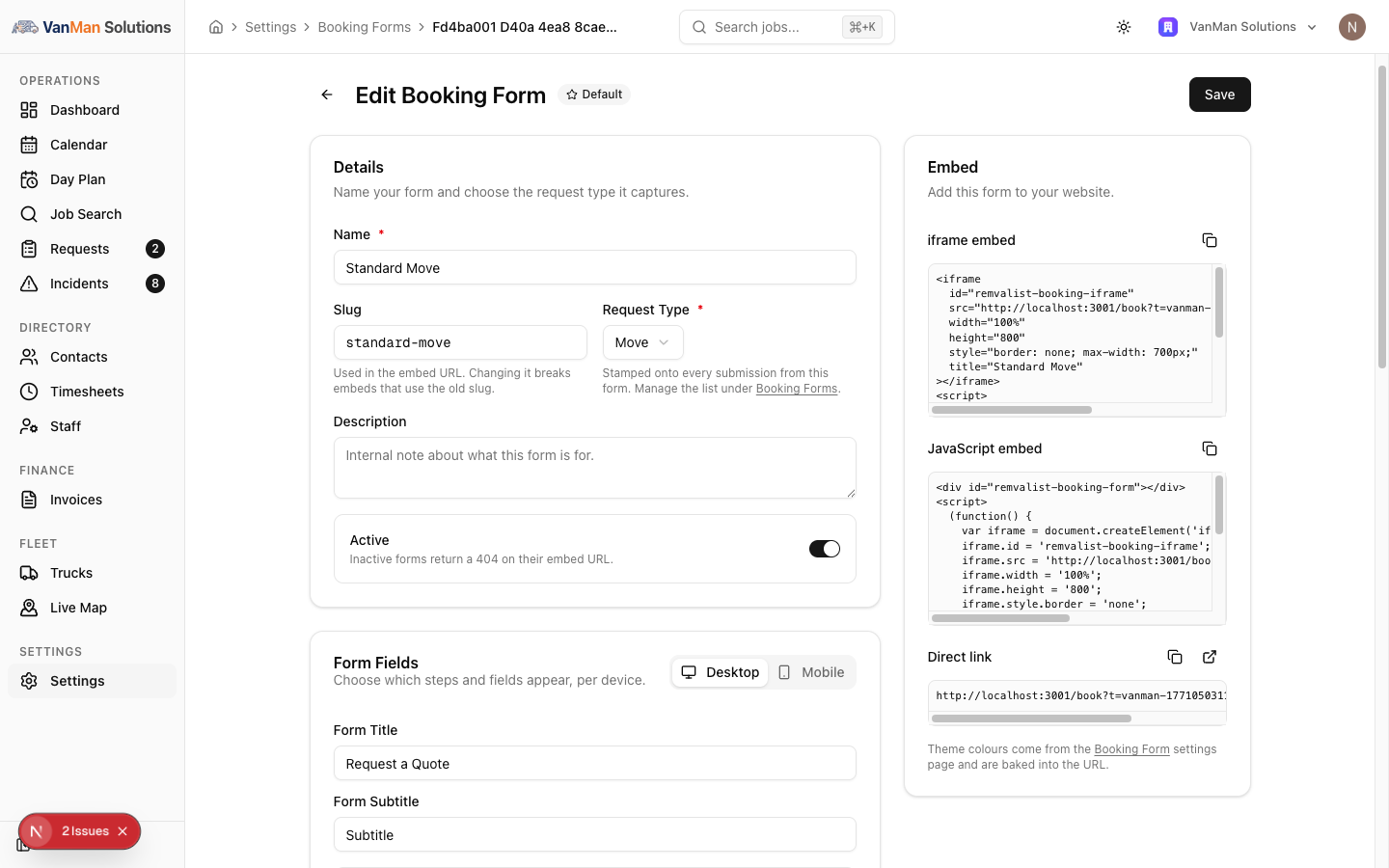
Open a form to edit it:
- Name and Slug — the slug appears in the embed URL. Changing it breaks embeds that use the old slug.
- Request Type — stamped onto every submission from this form, so you know what kind of enquiry it is.
- Active — inactive forms return a 404 on their embed URL. This is how you take a form offline without deleting it.
- Form Fields (per device), Advanced Features, and the Embed panel.
Request Types
The Request Types list on the Booking Forms page defines the categories a form can be tagged with: Move, Storage, Packing, Unpacking, Packing materials, Vehicle transport, Pet transport, Piano transport — plus any you add.
Built-in request types can't be renamed or removed, and renaming or removing a type doesn't change forms already using it.
Advanced Features
Per form (desktop): Location maps, AI item capture, Access advice, QR hand-off, and a Progress style (Top bar or Sidebar). Leave them off for a lightweight enquiry form.
Theming is global, not per form
You cannot theme forms individually. Theme colours are set once at Settings > Booking Form (the singular "Embed Booking Form" page) and are baked into every form's embed URL. So all your forms share one colour scheme.
Per-CTA theming exists for upsell CTAs, but per-form theming does not. Do not build two forms expecting different colours.
Tutorial: a Move form and a separate Storage form
You take both moves and storage enquiries and want them tagged differently.
Settings > Booking Forms → New Form. Name it House Moves, and set Request Type to Move. Every submission through it is now stamped Move.
New Form again. Name it Storage Enquiries, set Request Type to Storage. If Storage is not in your request types, add it in the Request Types section first.
The slug is in the embed URL. Set them to house-moves and storage now, and do not change them once embedded — changing a slug 404s any page still using the old one.
A storage enquiry needs different questions from a house move. Use each form's Form Fields to show the relevant fields — but remember you are toggling a fixed list per device, not adding custom fields. See choosing which fields appear.
Both forms will look the same colour — theming is global. If you wanted the storage form in a different palette, that is not possible; theme is one scheme for all forms.
Copy each form's embed from its Embed panel and paste it on the matching page — the moves form on your moving page, the storage form on your storage page. See embedding the form.
Submissions arrive on Requests tagged Move or Storage, so you can filter by request type and handle each stream appropriately. That tagging is the whole reason to run two forms.