
Embedding the booking form on your website
Add a booking form to your site with the iframe, JavaScript, or direct-link embed.
Each booking form has its own embed code, in the Embed panel of the form editor: Settings > Booking Forms → open a form → Embed.
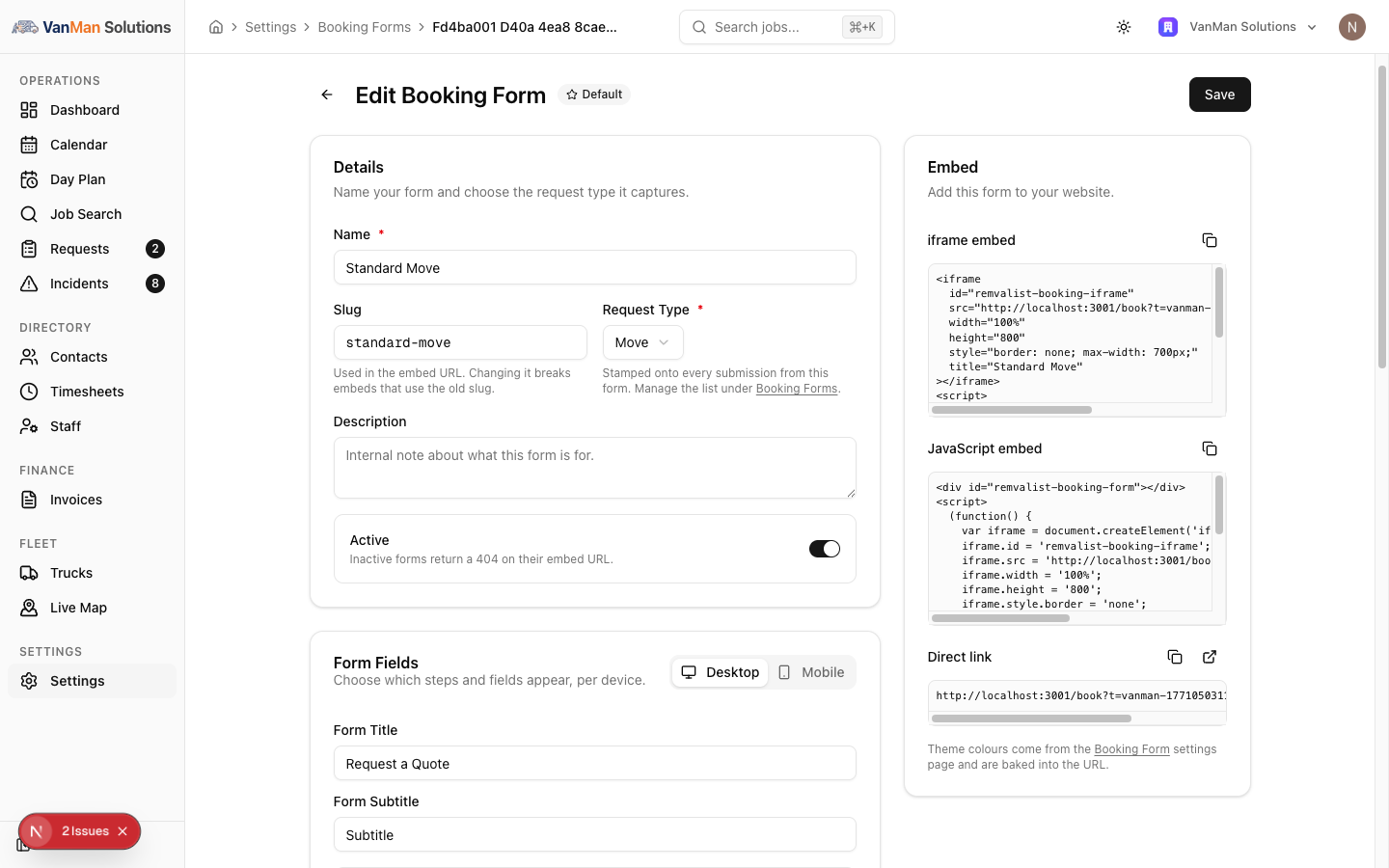
The Embed panel only appears once the form is saved. A brand-new unsaved form has no embed code yet.
The three options
- iframe embed — the simplest. Paste the HTML wherever you want the form. It ships with a small script that grows the iframe to fit, so the form does not scroll inside its own box. Note it caps at
max-width: 700px, so it will not stretch wider than that even in a wide container. - JavaScript embed — injects the form into a
<div>you place. Use it when your CMS strips raw iframes. - Direct link — the form's plain URL, for emailing to a customer or linking from social.
Each has a copy button (an icon that ticks when copied). All three carry your tenant token and the form's slug, so the right form loads.
Theme colours are baked in
The embed URL carries your theme colours, which come from the Settings > Booking Form page. There is one theme for all forms — change it there and every embed updates.
Tutorial: put a form on your quote page
Open your form under Settings > Booking Forms and make sure it is saved — the Embed panel does not appear until it is. If you just created it, save before looking for the embed code.
In the Embed panel, click the copy icon on iframe embed. It ticks to confirm. This is the option to try first — it just works on most sites.
Drop it into your website's quote or "book now" page where you want the form. The bundled resize script means it will size itself to the form's height rather than showing a scrollbar.
Some site builders remove raw iframes. If the form does not appear, come back and copy the JavaScript embed instead — it builds the iframe from a script and usually survives a CMS that blocks raw iframe tags.
If the embedded form shows a 404, the form is inactive. An inactive form returns a 404 on its embed URL by design — open it in Settings > Booking Forms and switch Active on.
Fill in the embedded form and submit. Then open Requests — your test should be there, tagged with the form's request type. That round trip confirms the whole thing works.
Copy the Direct link as well — it is handy for pasting into a reply to a customer who wants to book but is not on your website. Same form, same theme, no embedding needed.