
Adding notes and photos to a job
Write notes with internal-only sections, and upload photos, videos, and documents from the web or the app.
Notes
The Notes field on the job's Details tab saves as you type. There is no save button.
Internal-only text
Wrap text in ##double hashes## and it becomes internal-only — highlighted in the editor and hidden from customer communications. Everything outside the hashes can reach a customer.
This is the most useful thing in the field, and the least known. A note reading Customer is difficult about pricing in plain text is one careless template away from being read by that customer.
So a well-written note looks like this:
Prefers a call before 8am. Gate code 4471. ##Chased twice on the deposit — do not allocate a second truck until it clears.##
The first two sentences are safe anywhere. The third is for your team only.
The editor also renders {tags} as badges.
Attachments
Photos, videos, and documents live on the job's Attachments tab.
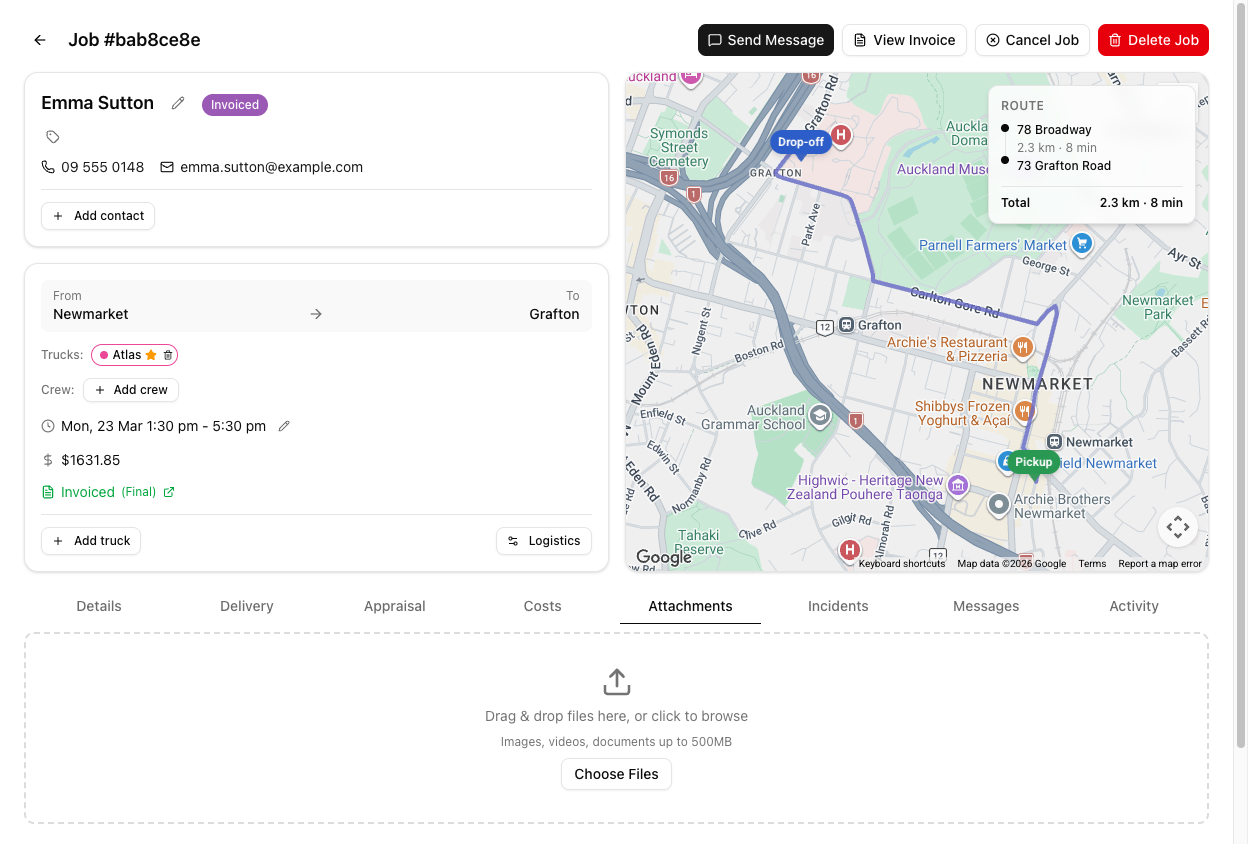
You do not need the mobile app to add photos. Drag files onto the drop zone or click Choose Files. The office can attach floor plans, inventories, and access photos from a desk; the crew adds theirs from the app. Both land in the same place.
What you can upload — images (JPEG, PNG, GIF, WebP, HEIC), video (MP4, QuickTime, WebM), and documents (PDF, Word, Excel), up to 500MB each. That ceiling is deliberately high enough for walkthrough video.
Attachments can be deleted. They are not permanent, and uploading requires the job edit permission — Drivers and view-only Users cannot add or remove them.
Why photos on the job matter
Job photos are not just a record. They are the source for Attach Photos when you email a customer, and they feed the AI appraisal from photos. A job with no photos cannot do either.
Tutorial: document a damage claim properly
The customer says a dresser was scratched. Build a record that holds up.
Open the job's Attachments tab. If the crew photographed the load, their photos are already here — you do not need to chase them for anything.
The customer has emailed you three pictures. Drag them straight onto the drop zone.
You are at a desk, and this works — attachments are not a mobile-only feature.
You now have before-photos from the crew and after-photos from the customer on the same job. That contrast is the whole value: it is what tells you whether the scratch was there at pickup.
In Notes:
Customer reported a scratch to the dresser on delivery, photos attached. Incident logged and we'll come back to them by Friday. ##Crew photos at pickup show the mark already present — check before offering anything. Do not admit liability in writing.##
The first half is factual and safe if it ever reaches the customer. The second half is exactly the sort of thing that must never leave the building — so it is inside the hashes.
This is the step to be careful about. If you had written that second sentence as plain text, any template rendering the job's notes onto a customer document would carry it straight to them. The hashes are the only thing standing between an internal assessment and a very bad email.
Notes are not a claims process. Open the Incidents tab and report it there — that is what tracks it to resolution. The note and photos are the evidence; the incident is the workflow.
When you email the customer, the Attach Photos picker in the Send Message panel now offers every photo on this job — including the crew's pickup shots. Attach the ones that help.
Photos are email-only; you cannot send them by SMS.
Job notes are searchable from Job Search. Note the things you would want to find again — piano, permit, settlement — and they become a way back to the job months later.