
Adding locations to a job
Add and order multiple pickup or drop-off locations, with access details for each.
A job is a list of locations, each typed as Pickup or Drop-off. There are no fixed "pickup" and "delivery" fields — a two-stop move is just the simplest case of the same list, and adding a third stop is no different from the first two.
Locations live on the job's Locations tab, or inside Details depending on how your account is set up.
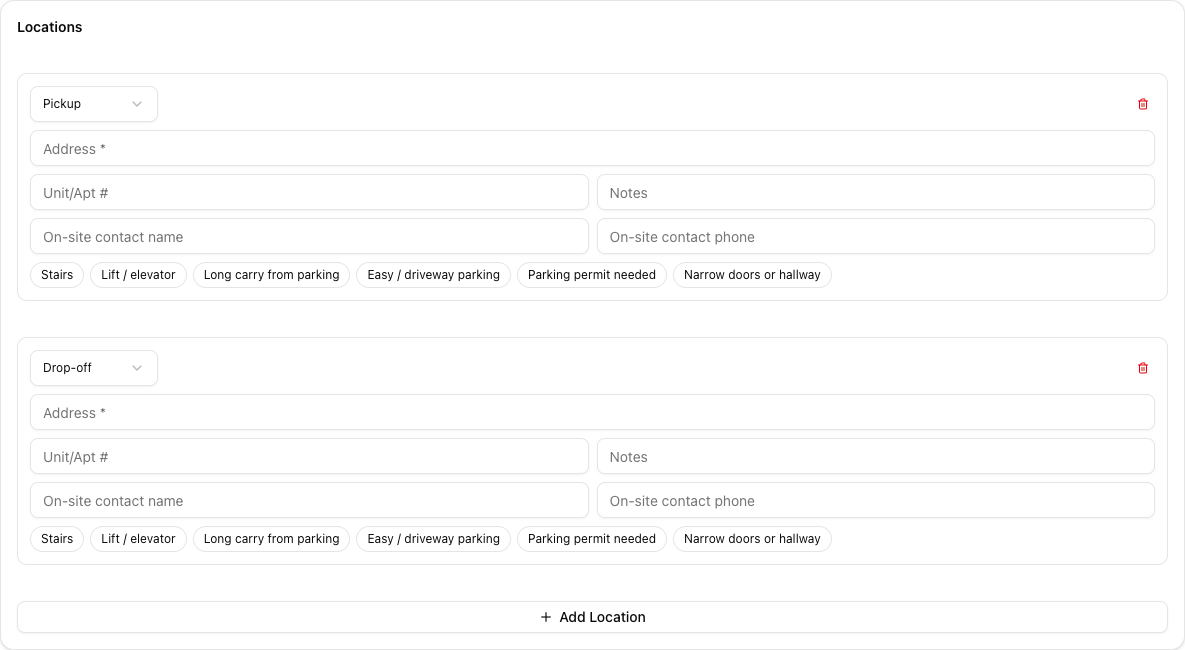
What each location holds
- Type — a dropdown: Pickup or Drop-off. Change it any time; a location is not locked to the role it was created with.
- Address — required, with autocomplete. Pick a suggestion rather than typing the address freehand: that is what geocodes it, and geocoding is what makes the route map and the crew's navigation links work.
- Unit/Apt # — the detail that decides whether your crew finds the door.
- Notes — free text for this location.
- On-site contact name and phone — who is actually meeting the truck here. Often not the customer.
- Access toggles — Stairs, Lift / elevator, Long carry from parking, Easy / driveway parking, Parking permit needed, Narrow doors or hallway.
The access toggles are the most valuable field on this card and the most often skipped. They are what your crew reads before they arrive — the difference between bringing the right gear and finding out about the third-floor walk-up on the day.
Adding and ordering
Click Add Location to add another card, then set its type.
Reorder with the up and down arrow buttons on each card. Locations are not drag-and-drop — there is nothing to grab. The order matters: it is the sequence your crew will drive, and it drives the route map's distance and time.
Locations save as you edit them. There is no save button.
Tutorial: a two-pickup move via storage
The customer is moving out of a flat, collecting a sofa from their mother's, and everything goes to storage before the new house is ready.
On the job's Locations, the first card is the flat. Type is Pickup. Enter the address using autocomplete, add the Unit/Apt # — a flat number is not optional information — and switch on Stairs and Narrow doors or hallway.
Click Add Location. Set its type to Pickup as well. Nothing stops a job having two.
Enter the mother's address. Switch on Easy / driveway parking. In Notes: One 3-seat sofa only — nothing else from this address.
The customer will not be at their mother's house. Put the mother's name and mobile in On-site contact name and On-site contact phone on this card.
This is what the field is for. Without it your driver rings the customer, who is across town at the flat, to ask why nobody is answering the door.
Add Location again, type Drop-off. Enter the storage facility. Switch on Long carry from parking — loading docks are rarely close to the unit. In Notes: Unit 214. Access code at reception. Site closes 4pm sharp.
That closing time is a hard constraint. It belongs on the location, where the driver will read it.
Your cards must read: flat, mother's, storage. If storage landed in the middle, use the up and down arrows to move it to the end. Do not try to drag it.
The order is the drive. Get it wrong and the route map is wrong, and so is your time estimate.
Look at the route map on the job. It now runs through all three stops with a total distance and drive time. If a leg looks absurd, an address probably did not geocode — reopen it and pick a real autocomplete suggestion.
Three stops with stairs at one end and a 4pm storage cutoff is not a two-hour job. Set the job's End Time to reflect the real shape of the day, before the crew discovers it.
The access toggles are advisory — they inform your crew, they do not change pricing or block scheduling. If stairs and a long carry mean more hours, that is a judgement you make on the Costs or Appraisal tab. Ticking the toggle does not adjust the quote.