
Finding and restoring a deleted job
Deleted jobs aren't gone — how to see them in Job Search and put one back.
Deleting a job in VanMan doesn't destroy it. The job, its locations, its contacts and its history are all still there — just hidden from the calendar and the normal lists. Which means the job someone deleted by mistake last Tuesday is recoverable.
Seeing deleted jobs
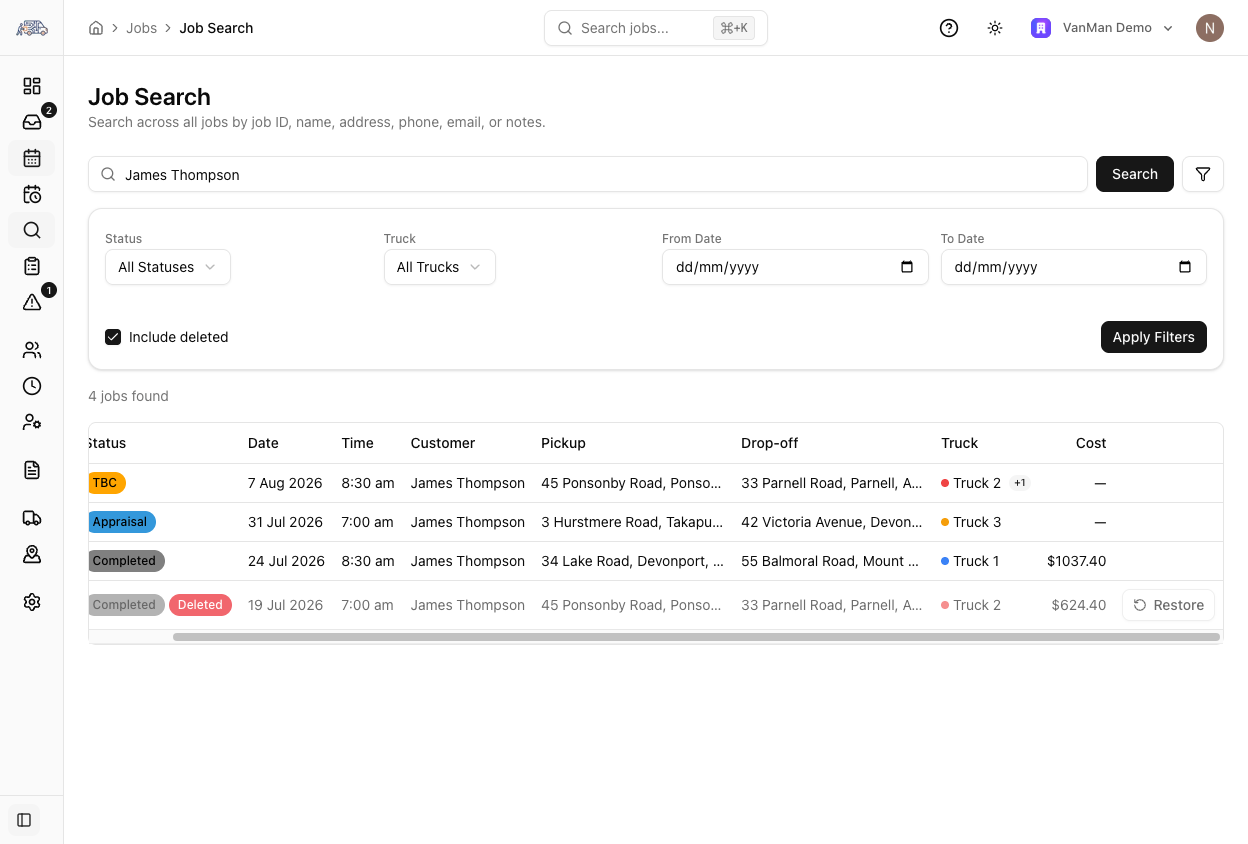
Go to Job Search and tick Include deleted. Deleted jobs then appear alongside the live ones, dimmed and carrying a red Deleted badge next to their status.
The usual filters still apply, so you can narrow by date range, status, truck or search text while deleted jobs are showing.
The checkbox is off by default and stays off until you tick it. Deleted jobs never appear in ordinary searching, the calendar, the Day Plan or the mobile app — you have to go looking for them on purpose.
Restoring one
Each deleted row gets a Restore button in an extra column at the end of the table (or at the bottom of the card, on mobile). Click it, and the job comes back in full — locations, contacts and all — with a Job restored confirmation.
Restoring needs the delete jobs permission. If you can delete jobs you can restore them; if you can't, you'll still see deleted jobs when you tick the box, but without a Restore button.
A deleted row is not clickable. You can read it in the search results but you can't open the job page until it's restored — so restore first, then go in and check it.
Tutorial: recovering a job someone deleted by mistake
A customer rings about a move next week. Nobody can find the job.
Open Job Search and search by the customer's name with Include deleted off. If it turns up, it was never deleted — it's on a date or a status you weren't expecting.
Same search, box ticked. A dimmed row with a red Deleted badge is your answer.
Read the date, customer and addresses in the row. Deleted duplicates are common — restoring the wrong one puts a second copy of the job back on the calendar, which is worse than the problem you started with.
Click Restore. The job is live again, with its locations and contacts.
Now the row is clickable. Open the job and confirm the date, truck and crew — while it was deleted the calendar carried on without it, so its slot may have been given to someone else. See resolving scheduling conflicts.
Check the job's Activity tab. If it was deleted on purpose — a cancellation, a duplicate — restoring it is undoing someone's decision, and the person who made it should know. See job history and audit trail.