
Resolving scheduling conflicts
How VanMan spots a double-booked truck, where it tells you, and the gaps you need to know about.
A conflict is one truck booked on two overlapping jobs. VanMan spots them and tells you — but it never stops you, and there are real gaps in where it looks.
The rule
Two jobs conflict when they share a truck and their times overlap.
A job is excluded from conflict checking entirely if:
- It has no truck assigned.
- It is missing a start or end time.
- Its status is Cancelled or Completed.
That third exclusion is the one to understand. A job with no end time is never flagged, no matter how badly it clashes. Conflict detection needs both bounds to compare. If your team leaves end times blank, you have switched conflict detection off without realising.
A multi-truck job is checked per truck, and never conflicts with itself.
Where conflicts show up
The amber banner at the top of the calendar: "4 scheduling conflicts — 3 trucks double-booked". Dismissible with the ✕.
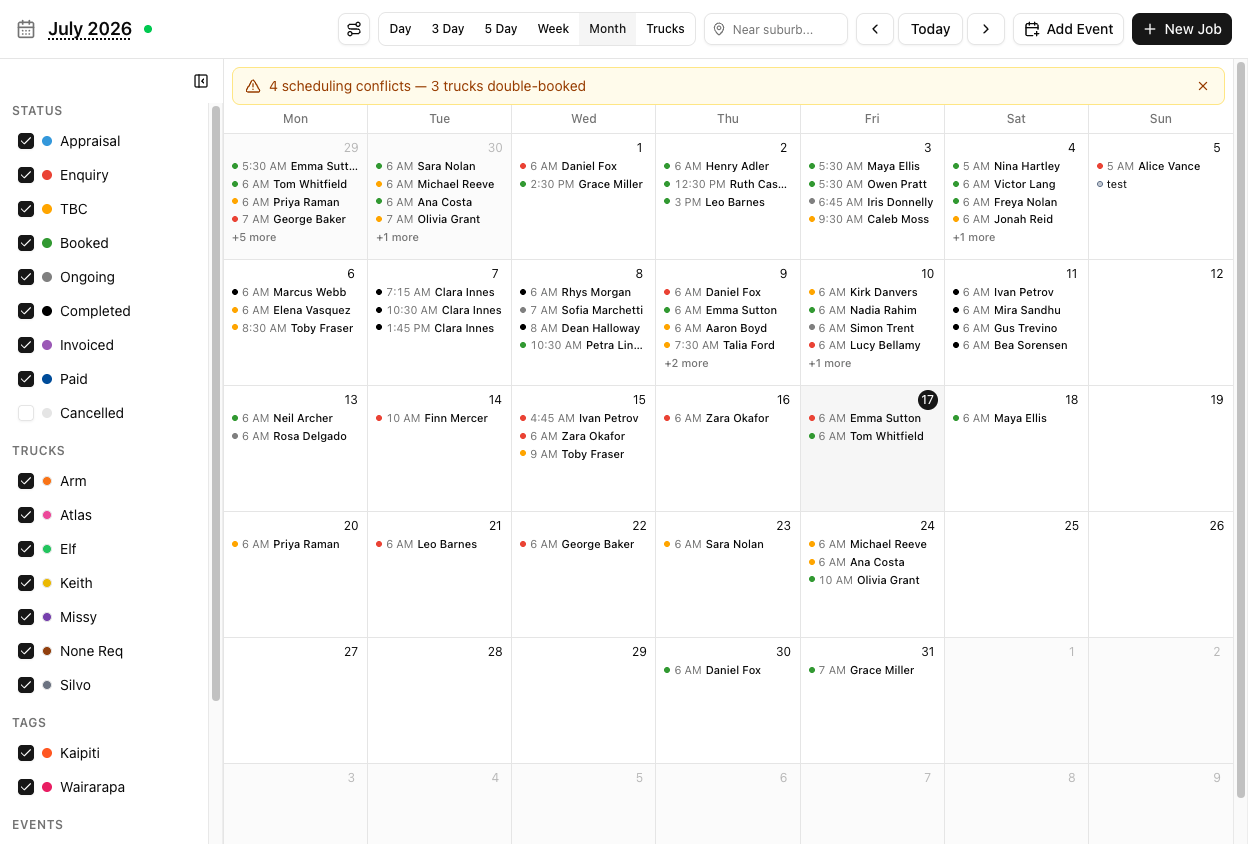
A red ⚠ on the job block, with a tooltip reading "Truck double-booked" and listing what it clashes with.
Confirmation dialogs, when your action would create one:
- Dragging a job → Scheduling Conflict → Reschedule Anyway
- Changing a truck on the job page → Assign Anyway
- Changing the schedule on the job page → Save Anyway
They also surface on the Day Plan and the Dashboard.
The two gaps
There is no conflict check when you create a job. The Create Job form does not look. You can book a truck that is already busy and get no warning of any kind — no dialog, no flag on the truck chips. The conflict only appears once the job exists and you are looking at a calendar.
Always glance at the calendar after booking a job into a busy day.
Conflicts are only detected among the jobs currently loaded and filtered. Hide a truck or a status in the sidebar and you hide its conflicts too — the banner's count drops, and nothing has actually been fixed.
A clean-looking calendar with half the trucks filtered out is not a clean calendar.
Also worth knowing: calendar events never conflict with anything. An event assigned to a truck — a service booking, a day of leave — does not block that truck, and does not appear in conflict detection. Truck Weekly Availability does not block scheduling either. Neither is a guard rail.
Conflicts are advice
Every dialog offers a way through. VanMan assumes you sometimes know better — two jobs may genuinely share a truck if they are ten minutes apart in the same street. Nothing is ever hard-blocked.
The flip side: nothing protects you from yourself. Reschedule Anyway is a real decision.
Tutorial: clear a week's conflicts
The banner says four conflicts. Work through them properly.
Before you trust the count, tick every status and every truck back on in the sidebar.
Conflicts are only found among visible jobs. Starting from a filtered calendar means the banner is under-reporting, and you will "fix" four while three more sit hidden.
"4 scheduling conflicts — 3 trucks double-booked". That is your worklist. Do not dismiss it yet.
Look for the red ⚠ on job blocks. Hover one — the tooltip names the job it clashes with and its times.
Not every overlap is a problem. Two thirty-minute jobs in the same suburb overlapping by ten minutes may be fine. A three-hour house move overlapping a four-hour one is not.
Judge each on the work, not on the fact that it is flagged.
Drag one job to a free slot, or open it and change its truck. If you drag and get Scheduling Conflict again, you have moved it onto a different clash — read the dialog rather than clicking Reschedule Anyway.
Now the important bit. Scan the week for blocks with no end time, or with no truck.
Those are invisible to conflict detection. A job with a start time and no end never appears in the banner and never gets a ⚠, however badly it overlaps. Give them end times and they join the system — and you may find your four conflicts were five.
If a truck has an event on it for a service appointment, that does not reserve it. Jobs can be booked straight over the top with no warning, because events are not part of conflict detection.
If a truck is genuinely unavailable, the safe move is not to assign it.
Book a new job into that week and come straight back to the calendar. The create form never checks for conflicts — the calendar is the only place you will find out.