
Creating a calendar event
Add meetings, training, and vehicle servicing to the calendar — and understand what events don't do.
Events are the non-job things on your calendar: a service booking, a team meeting, a day of leave.
Click Add Event in the calendar header.
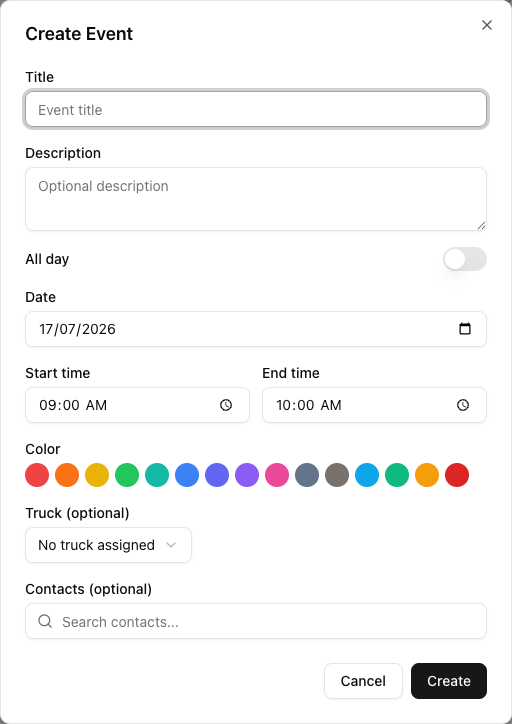
The fields
- Title — required. Leave it empty and you get "Title is required."
- Description — optional.
- All day — hides the times but keeps the Date. See managing all-day events.
- Date, Start time, End time — end must be after start.
- Color — fifteen swatches. No custom hex, unlike trucks. Default is slate grey.
- Truck (optional) — defaults to No truck assigned.
- Contacts (optional) — link contacts to the event.
Click Create. When editing, it reads Update.
The thing to understand about events
An event assigned to a truck does not reserve that truck. Events are not part of conflict detection at all. You can book a job onto a truck that has an all-day "In for service" event, and VanMan will not warn you — not on the calendar, not on the create form, nowhere.
Events are a note to your team, not a booking constraint.
If a truck is genuinely off the road, the only reliable protection is not assigning it to jobs. Treat the event as a reminder for the humans, and the humans as the enforcement.
How events look
Event blocks are solid-filled with their colour. If a truck is assigned, they get a left border in that truck's colour.
Events look much like jobs. There is no dashed border, no calendar icon, nothing marking them as a different kind of thing. The colour palette you choose is what distinguishes them — so pick event colours your fleet does not use.
Events are not shown in the Trucks view. A truck's column will look free even with an event on it.
The Events filter in the sidebar hides them all.
Editing
Click an event and you get a popover with an Edit action, which opens the dialog. Events can also be dragged to reschedule — with no confirmation and no undo, unlike jobs.
Drag-select
Dragging out a slot on the grid creates a job, not an event. There is a setting — Show event option on calendar drag-select at Settings > Calendar — that adds a Job/Event choice popover, but it is off by default.
So on a default account, Add Event is the only route to the event dialog.
Permissions
Creating events needs the job edit permission. Drivers and view-only Users cannot.
Event times are stored in your account's timezone from Settings > General, not the browser's.
Tutorial: book a truck in for a service
Atlas is off the road all Wednesday.
Click Add Event. Set Title to Atlas — in for service (Northside Diesel).
Put the detail in the title, not just the description. The title is what people read on the grid.
Toggle All day on. The times disappear; the Date stays. Set it to Wednesday.
Choose a swatch your trucks do not use — grey or brown. Events fill solid and look like jobs, so an event in a colour close to a truck's reads as work.
Set Truck (optional) to Atlas. This tints the event's left border in Atlas's colour and ties it to the Trucks filter.
It does not reserve Atlas. Somebody can still book Atlas on Wednesday and get no warning at all.
Click Create. Not Save — there is no Save.
The event is a note. Tell your dispatcher. If Wednesday is already booked with Atlas jobs, go and reassign them — the event will not do it and will not flag them.
This is the step that matters. An event is documentation, not a lock.
Switch to the Trucks view on Wednesday. Atlas's column looks completely free — events are not rendered there.
So the dispatcher checking truck availability in the view built for checking truck availability will not see your service booking. Week view is where it shows.
For anything that must not be double-booked, a job is safer than an event. Jobs take part in conflict detection; events do not. Some operators book maintenance as a job against a placeholder truck for exactly this reason.