
Drag-and-drop rescheduling
Drag a job to a new day or time — what it changes, what it doesn't, and how to undo it.
Drag a job block to move it. It works in Day, 3 Day, 5 Day, Week, and Trucks views — not in Month, and not on mobile.
Nothing happens until you confirm
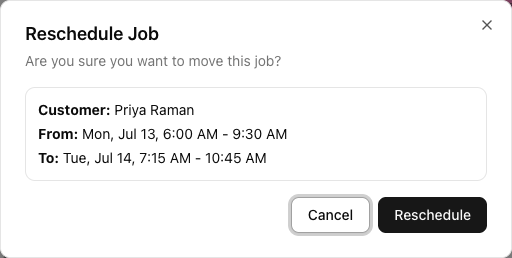
Dragging a job does not reschedule it on the spot. When you let go, a Reschedule Job dialog appears showing the customer, the current slot, and the proposed slot. Nothing is saved until you click Reschedule.
Dropping a job in the wrong place is therefore harmless — click Cancel and the job stays put.
What a drag actually changes
This is the part that catches people out, and it differs by view:
- In Day, 3 Day, 5 Day, and Week — dragging changes the date and the times. It does not change the truck. The truck stays exactly as it was.
- In the Trucks view — dragging a job into a different truck's column does reassign the truck. But that view is one day, so you cannot change the date.
There is no way to change the day and the truck in a single drag. Those are two different views doing two different things. Move the day on the week view, then swap the truck on the job page or in the Trucks view — or just do both on the job page.
Note also that reassigning a truck by dragging in the Trucks view replaces the job's trucks with the one you dropped onto. On a two-truck job, that is not what you want.
While you drag
- Times snap to 15 minutes.
- The block goes semi-transparent and a ghost follows your cursor.
- Escape cancels the drag before you drop.
- You cannot drag outside the grid's hours.
There is no drop-zone highlighting — the ghost's position is the feedback.
Conflicts
If the new slot double-books a truck, you get a Scheduling Conflict dialog instead, listing what it clashes with and offering Reschedule Anyway. It warns; it does not stop you. See resolving scheduling conflicts.
Undo
After a successful move, the confirmation toast carries an Undo button for about ten seconds. If you realise immediately, that is the fastest way back — no need to drag it again.
If the save fails, the block snaps back and you get a "Failed to reschedule job" message. The job is unchanged.
Permissions
Dragging needs the job edit permission. Operators, Office Admins, and Admins can. Drivers and view-only Users cannot — for them the calendar is read-only. Some statuses are not draggable at all.
Events can be dragged too, but they move without a confirmation dialog and without an undo.
Tutorial: clear Thursday morning
A truck is off the road Thursday morning and two jobs need moving.
Open the Calendar in Week. Set Address display to Show Suburbs — if you are going to move jobs around, you want to see where they are before you decide which day suits.
Grab the Thursday 8am block and drag it to Friday morning. As you move, it snaps to 15-minute steps. Let go.
Reschedule Job appears with From: Thu, 8:00 AM - 11:00 AM and To: Fri, 8:15 AM - 11:15 AM.
Look at the To time. Dragging by eye rarely lands exactly on the hour — you have quietly proposed a 8:15 start. If that is not what you want, click Cancel and drag again, or fix the times on the job afterwards.
Click Reschedule. The job moves and a toast confirms it.
If Friday was wrong, click Undo in the toast — you have about ten seconds. After that, drag it back.
Drag the second job to Friday too. This time you get Scheduling Conflict — that truck already has a job in the slot.
Do not click Reschedule Anyway reflexively. Read what it clashes with. VanMan will let you double-book, and it will not stop you or warn anyone later. Pick a different time instead.
Both jobs are now on Friday with the same truck — the one that is off the road. Dragging changed the day, not the vehicle.
This is the step people miss. You have rescheduled two jobs onto a truck that still is not available.
Switch to the Trucks view for Friday. Drag each job into an available truck's column.
Or open each job and use Add truck / remove — better if either job needs two trucks, since dragging in the Trucks view replaces the assignment with a single vehicle.
Nothing about dragging a job messages anyone. Open each job and Send Message, or set up a workflow on Job Schedule Changed to do it for you.