
Navigating the weekly view
Read the week calendar — day columns, hour rows, colour-coded job blocks, and the filter sidebar.
The calendar is Calendar in the sidebar. Week is the default view.
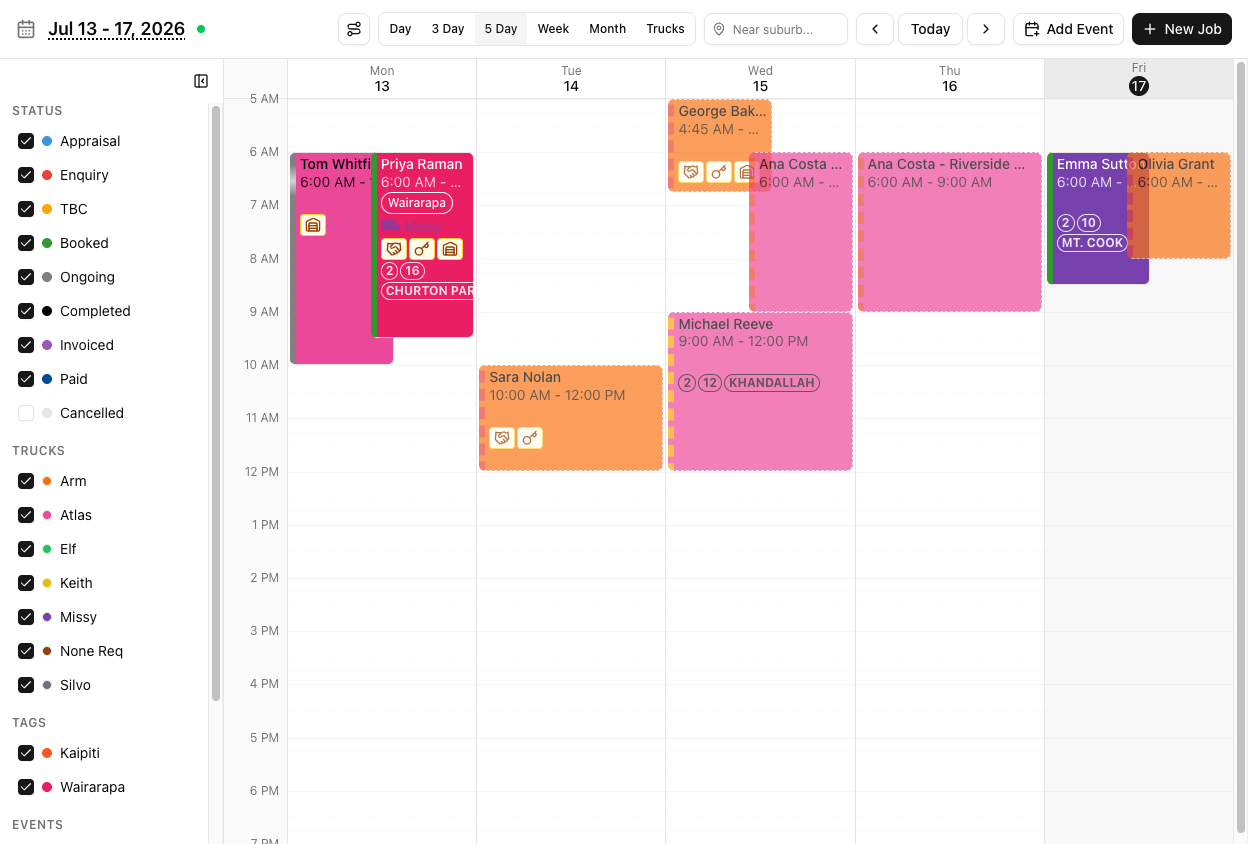
How to read the grid
Columns are days. Rows are hours. That is the whole model.
There are no truck lanes in this view. Trucks appear in the left sidebar as filters — tick and untick to show or hide their jobs — but the grid itself is organised by day and time, not by vehicle.
If you want one column per truck, that is the Trucks view. See month and truck day views.
The hours shown come from your business hours at Settings > General.
Job blocks
A block's position and height come from the job's start and end time. The block itself carries:
- The customer name and the time
- A left border in the status colour
- A bottom border in the truck colour
- The truck name and icon
- Any tags, and any alert indicators
- The address — only if you turn it on
Addresses are off by default. The Address display control in the filter sidebar offers Off, Show Suburbs, and Show Address. Suburbs are usually the sweet spot: enough to plan a route, not so much that blocks become unreadable.
The colour scheme is worth internalising: status on the left edge, truck along the bottom. The block body is white unless someone has switched on truck-colour backgrounds.
Clicking a job
Hover for a moment, or click, and you get the job popover. Depending on your account settings this may be a side panel instead.
The popover and side panel are deliberately minimal — View Job and Call, and that is it. There is no activity log and no messaging here. Anything real happens on the full job page: click View Job.
The filter sidebar
- Status — checkboxes. Completed, Cancelled, and Enquiry are unticked by default. Jobs in those statuses are not missing; they are hidden.
- Trucks — show or hide each truck's work.
- Tags — filter by job tag.
- Events — show or hide calendar events.
- Address display — Off / Show Suburbs / Show Address.
Filter state lives in the URL, so a calendar link you send a colleague carries your filters with it — useful deliberately, confusing accidentally.
Getting around
‹ and › step a week; Today returns to now. Click the date range in the header to open a date picker and jump.
The calendar updates live — a colleague's change appears without a refresh. A small connection dot in the header tells you the live link is healthy.
Tutorial: read your week in thirty seconds
Open the calendar on a Monday and get the shape of the week.
Scan for density. Vertical stacks are busy days; gaps are capacity. You are reading the grid, not the jobs.
Status is the left border of every block. A week of green (Booked) is confirmed work. A wall of orange (TBC) is a week that looks full and might evaporate — those are jobs nobody has nailed down.
That distinction is invisible if you only read customer names.
In the sidebar, set Address display to Show Suburbs. Now you can see that Tuesday is three jobs scattered across the city and Wednesday is four in one suburb. That is a routing problem you can only see once the addresses are on.
Leave it on Suburbs rather than Show Address — full addresses will not fit and you will lose the times.
Look at the Status filter. Completed, Cancelled, and Enquiry are unticked by default.
So the week you are looking at excludes every enquiry. If you are asking "how busy are we?", tick Enquiry on — the answer changes.
Untick every truck but one. You now have that vehicle's week: where the gaps are, whether it is being used evenly.
Remember this is filtering, not lanes. To see all trucks side by side for one day, switch to the Trucks view.
Click a block. The popover gives you View Job and Call — useful if you just need the number. For anything else, View Job.
Filters live in the URL. If you send this link to a colleague while one truck is isolated, they see a nearly empty week and think something is broken. Tick everything back on, or say what you filtered.
Blocks can be resized by their top and bottom edges to change start and end times, and dragged to reschedule. Both prompt for confirmation. See drag-and-drop rescheduling.