
Using month and truck-day views
The month overview and the per-truck day view, and the display settings that tune both.
Two views answer questions the week grid cannot: Month for shape, Trucks for fleet.
Month
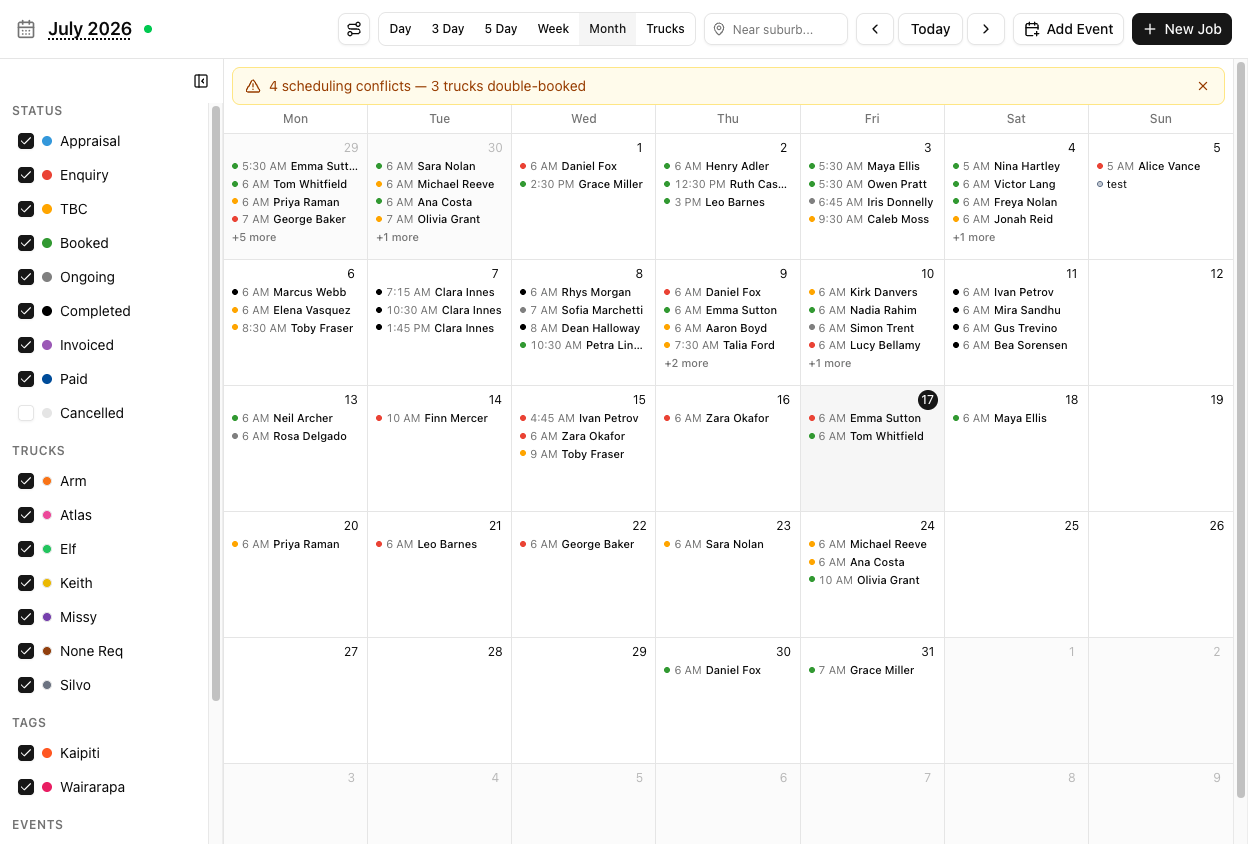
Month shows individual job chips — a status dot, a time, and a customer name — not a count. Busy days overflow to +N more.
Click any day to drill into Day view for that date.
Month has no drag-and-drop. It is for reading, not rearranging. Drill into a day to move anything.
Trucks
One day, one column per truck, each headed by its colour and name. This is the view for "what is each vehicle doing?" — see understanding truck colours.
The arrows step one day at a time here. Events are not shown.
Address display
The filter sidebar's Address display control has three settings:
- Off — the default. Customer name and time only.
- Show Suburbs — adds the suburb.
- Show Address — the full street address.
This one is per-user — it lives in your URL and your browser, so changing it does not affect colleagues. Show Suburbs is usually the right answer: enough to plan a route without blocks becoming unreadable.
The account-wide display settings
These live at Settings > Calendar and change the calendar for everyone:
- Default Calendar View — where everyone starts.
- Use truck color as job background — fills blocks with truck colour instead of a bottom border.
- Override background color with tags — tag colours beat truck colours. This silently defeats the setting above.
- Animate Ongoing jobs — in-progress jobs pulse.
- Use Side Panel for Job Details — clicking a job opens a side panel rather than a popover.
- Show event option on calendar drag-select — off by default; see creating a calendar event.
- Occlusion settings — how much overlapping blocks are allowed to cover each other, tuned per view.
Address display is yours alone. Everything under Settings > Calendar is not — it changes what your whole team sees, and it needs the settings permission.
Tutorial: plan next month's capacity
You are deciding whether to take on a large job in three weeks.
Open the Calendar and click Month. You want shape, not detail — which weeks are already heavy.
Tick Enquiry on in the Status filter.
This matters. The calendar hides Enquiry by default, so a month that looks half-empty may be full of unconverted work. If you are judging capacity, you need to see what might land, not just what is confirmed.
Each chip has a status dot. A week of green (Booked) is real. A week of orange (TBC) is soft. Those two weeks look equally full and are not remotely equivalent commitments.
Days showing +N more are hiding jobs. Click through to see the full picture — those are exactly the days you cannot afford to misjudge.
Click a day in your target week. You land in Day view. Now switch to Trucks.
The Trucks view answers the actual question. It is not "is the week busy?" — it is "is there a truck free?". One column per vehicle, gaps visible immediately.
Step through the week a day at a time with the arrows; Trucks is a single-day view.
A truck with a clear column is not necessarily available. Events do not show here, so a truck booked out for servicing looks free. Truck availability hours are not enforced either.
Check Fleet > Trucks for the vehicle's weekly availability, and check the week view for events, before you promise anything.
If you take the job, create it — then come straight back to the calendar. The create form does not check for conflicts, so the calendar is where you find out if you have just double-booked.