
Switching between calendar views
The six calendar views, what each is for, and how your choice is remembered.
There are six views, in a button group in the calendar header: Day, 3 Day, 5 Day, Week, Month, and Trucks.
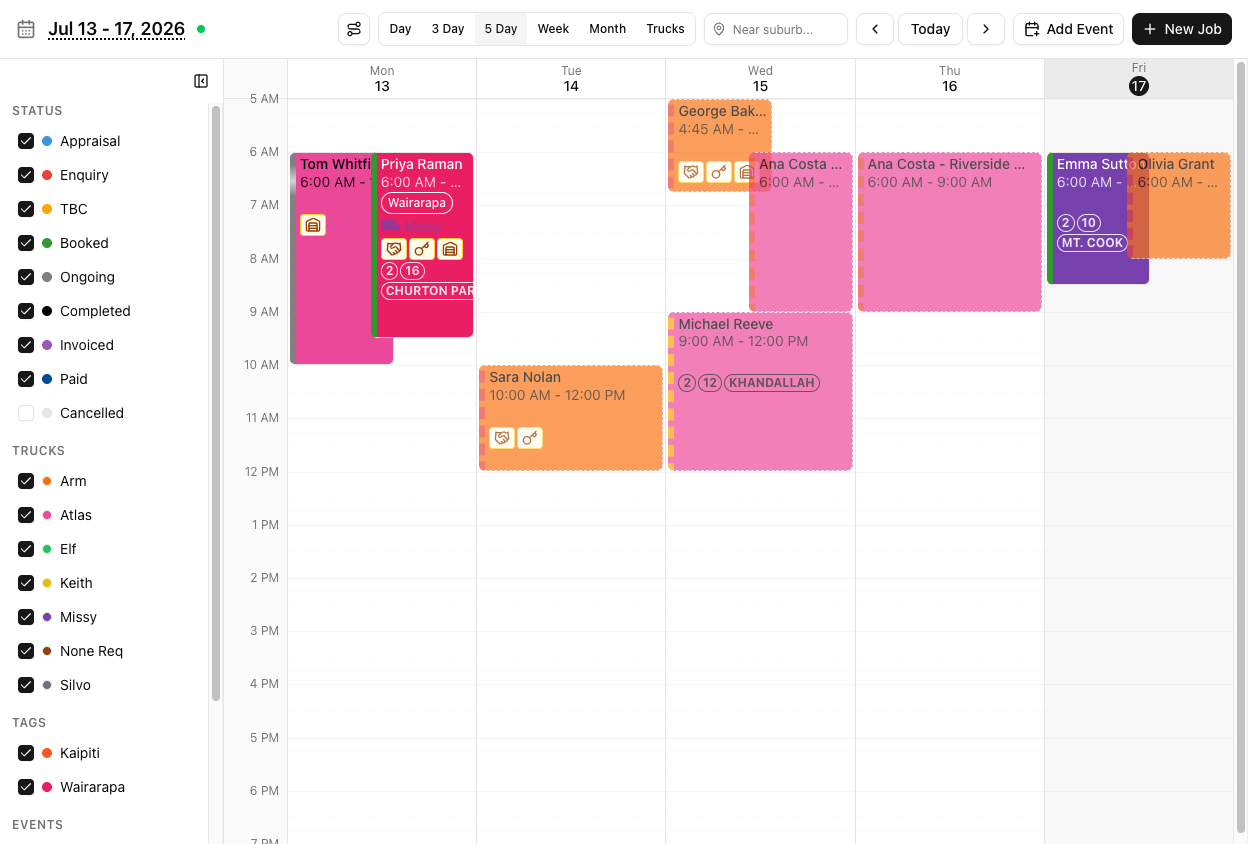
What each is for
Day — one day, hours down the side. Detail for a single day.
3 Day and 5 Day — the same grid over three or five days. 5 Day suits a Monday-to-Friday operation: your working week with no weekend columns eating space.
Week — seven days. The default.
Month — the whole month as job chips rather than a time grid. Shape, not detail.
Trucks — one day, with a column per truck. The only view organised by vehicle.
Day, 3 Day, 5 Day and Week are all the same thing at different widths: days as columns, hours as rows. None of them arranges jobs by truck. If you want to compare trucks side by side, that is the Trucks view, and it only ever shows one day.
How your view is remembered
Three things decide which view you land on, in order:
- The URL. A link with
?view=in it wins, always. - Your last choice, remembered in that browser.
- Your account's default, set at Settings > Calendar.
Your remembered view is stored in that browser only — it does not follow you to another machine or another browser. And it is only applied when you open the calendar with a bare URL. A link a colleague sends you carries their view and their filters, and it overrides yours.
The account-wide default is Week out of the box, and an admin can change it under Settings > Calendar.
Switching keeps your place
Change view and you stay on roughly the same date — going to Month snaps to that month, going to Week snaps to that week. You do not lose your position.
Clicking a day in Month drills into Day for that date.
Mobile
There is no view switcher on a phone. Mobile shows a single day view regardless of what you picked on desktop. The six views are a desktop feature.
Tutorial: pick the right view for the question
Four questions, four views. The skill is matching them.
Click Month. You get chips per day, with +N more where a day overflows.
Do not try to read job detail here — that is not what it is for. You are looking at density: which weeks are full, which are empty.
Click 5 Day. Monday to Friday, no weekend columns.
If you rarely work weekends, this is a better daily driver than Week — the same information with 40% less dead space.
Click Trucks, then navigate to Thursday.
Now you have one column per vehicle and the gaps are obvious. This is the only view that answers this question — in Week view, trucks are just a filter and you would be ticking them on and off one at a time to work it out.
Remember it is one day. The arrows step a day at a time here, not a week.
Click Day. One column, full height. Best when a day is packed and blocks are overlapping too much to read at week width.
If your team lives in 5 Day, get an admin to set Default Calendar View at Settings > Calendar. That is the account-wide starting point, so nobody has to switch every morning.
Copy the URL while you are in Trucks view with one truck filtered, and that is exactly what your colleague sees — not their own view. The URL beats their saved preference.
When you want someone to see what you see, that is a feature. When you are just sending "the calendar", reset your filters first.