
Searching and filtering jobs
Use Job Search to find any job by name, address, phone, email, or notes — and filter the results.
There are two different surfaces here and mixing them up wastes time:
- Job Search (Job Search) searches every job you have ever had.
- Calendar (Calendar) shows scheduled work, and hides some statuses by default.
If you are looking for a specific job, use Job Search.
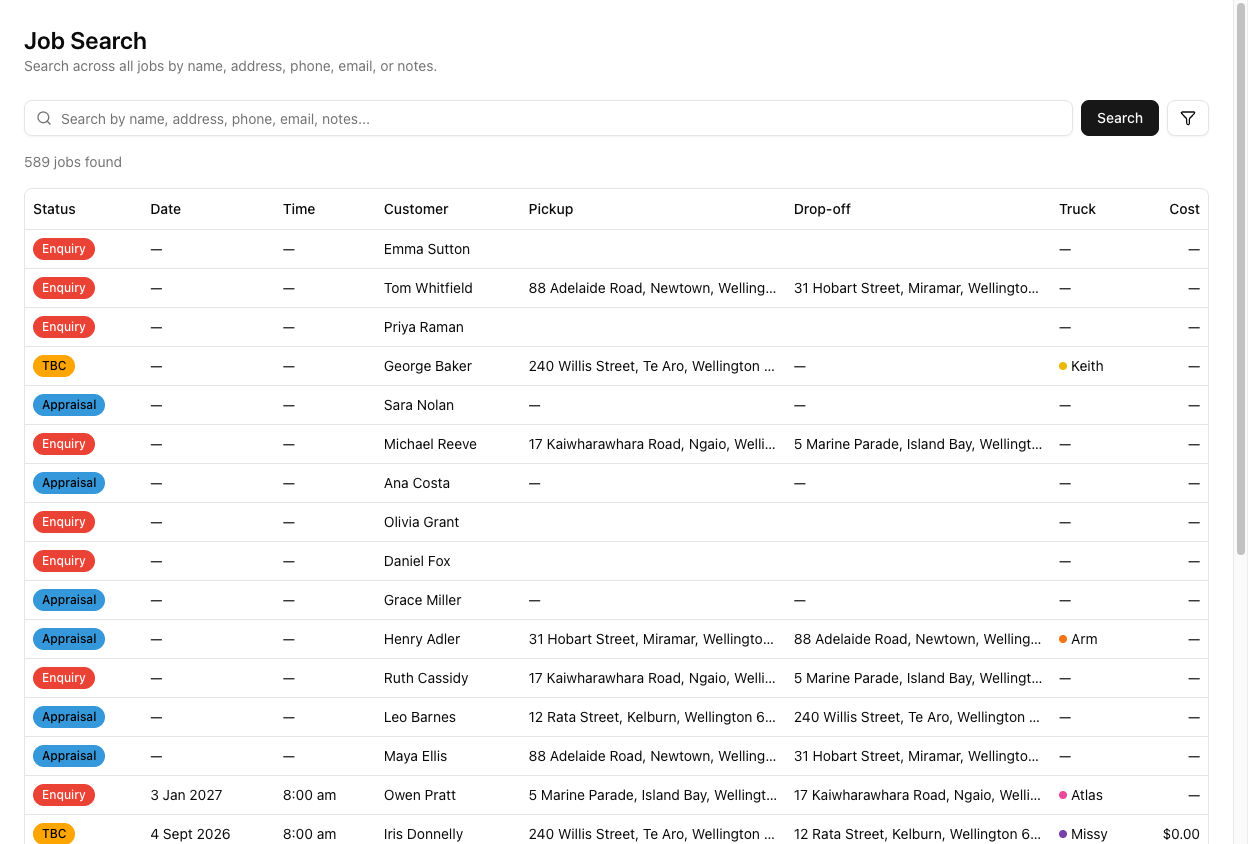
Searching
Type into the box and press Enter, or click Search.
Results do not appear as you type. Nothing happens until you press Enter or click Search. If you have been typing and waiting, that is why nothing moved.
It searches more than you would expect — customer name, email, phone, and mobile, any of the job's location addresses, and the job's notes.
Notes being searchable is the useful part. Search piano and you find every job where someone mentioned one.
Results show a count — "589 jobs found" — and a table of Status, Date, Time, Customer, Pickup, Drop-off, Truck, and Cost.
Filtering
The filters are collapsed by default behind the filter icon next to the Search button. There is no filter bar on screen until you click it — which is why people assume Job Search has no filters.
Click the icon and you get four:
- Status — one at a time. This is single-select, not a set of checkboxes; you cannot ask for Booked and Ongoing together.
- Truck — one at a time.
- From Date and To Date — actual dates. There are no "this week" or "last month" presets.
There is also an Include deleted checkbox. Tick it and deleted jobs appear alongside the live ones — dimmed, with a red Deleted badge and a Restore button. It is off by default, and deleted jobs never show anywhere else in VanMan. See finding and restoring a deleted job.
Then click Apply Filters.
There is no Clear filters button. Reset by setting Status back to All Statuses and Truck to All Trucks, and emptying the dates.
Search text and filters work together as one query — Apply Filters re-runs everything including whatever is in the search box. They are not independent.
The calendar filters are a different thing
The calendar's left sidebar has its own model: Status as checkboxes you untick to hide, Trucks, Tags, an events toggle, and an Address display control (Off / Show Suburbs / Show Address), plus a suburb proximity search.
If a job cannot be found anywhere — not on the calendar, not in Job Search — tick Include deleted before concluding it never existed. Deleting a job in VanMan hides it; it doesn't destroy it.
The calendar hides Completed, Cancelled, and Enquiry by default. It does not open showing everything. A job that is "missing" from the calendar is usually one of those three — and the calendar's filter state lives in the URL, so a link you paste to a colleague carries your filters with it.
Tutorial: find a job from a half-remembered detail
A customer rings. They will not give a name, they moved "sometime last autumn", and there was a piano.
Go to Job Search. The calendar is the wrong tool — the job is long completed, and the calendar hides Completed by default. You would conclude it did not exist.
Type piano and press Enter.
You have no name, but notes are searchable — and somebody almost certainly wrote "piano" on that job. This is why noting the memorable detail pays off months later.
Too many results. Click the filter icon — the filters are hidden until you do.
Set From Date and To Date to March and May. There are no presets, so pick the real dates. Click Apply Filters.
Your search text is still applied; the filters narrowed it rather than replacing it.
If you want to narrow by status, pick one. Status is single-select — you cannot ask for Completed and Invoiced together. If the job might be either, leave status alone and use the dates.
The results show Customer, Pickup, and Drop-off. The caller will recognise their own addresses even if you cannot recognise their name.
Nothing? Ask for their mobile and search that instead. Search covers phone and mobile, so it does not matter which one is on the contact record.
There is no Clear filters button. Set Status back to All Statuses, Truck to All Trucks, and clear the dates by hand — otherwise your next search silently runs inside last autumn and you will think the next job is missing too.
Job Search does not hide anything by status, so it is also the honest way to answer "how many jobs are sitting in TBC?" — the calendar's defaults would flatter the answer.