
Creating your first job
Walk through creating a moving job in VanMan with contact details, locations, scheduling, and move details.
Jobs are at the heart of VanMan. Each job represents a single moving booking — the customer it belongs to, the addresses your crew will visit, when it is happening, and which trucks are assigned.
Open the job form from Create Job on the dashboard, or from the calendar. The form is one page, split into sections: Contact, Schedule, Locations, Move Details, Logistics, and Notes. Only the contact, an address, and the schedule are needed to save — everything else can be filled in later as you learn more about the move.
The Contact section is a single search box. Start typing a name, phone number, or email and VanMan searches your existing contacts. Pick a match to link the job to that customer's record, or create a new contact inline if they are not in your system yet. There are no separate name, phone, and email fields on the job itself — the job points at a contact record, so updating the customer's details later updates them everywhere.
Choose the Date, Start Time, and End Time. VanMan uses a start and end time rather than a duration, and the header shows your configured office hours as a guide (set these under Settings > General). The times you enter determine the size of the block on the calendar.

Click a truck to assign it. You can assign more than one truck to a job — hold ⇧ or ⌘ and click to multi-select, which is how you handle a large move that needs two vehicles. Each truck shows in its own colour, and that colour is what you will see on the calendar.
Status defaults to Enquiry. Leave it there while you are still quoting, and move it to Booked once the customer confirms.

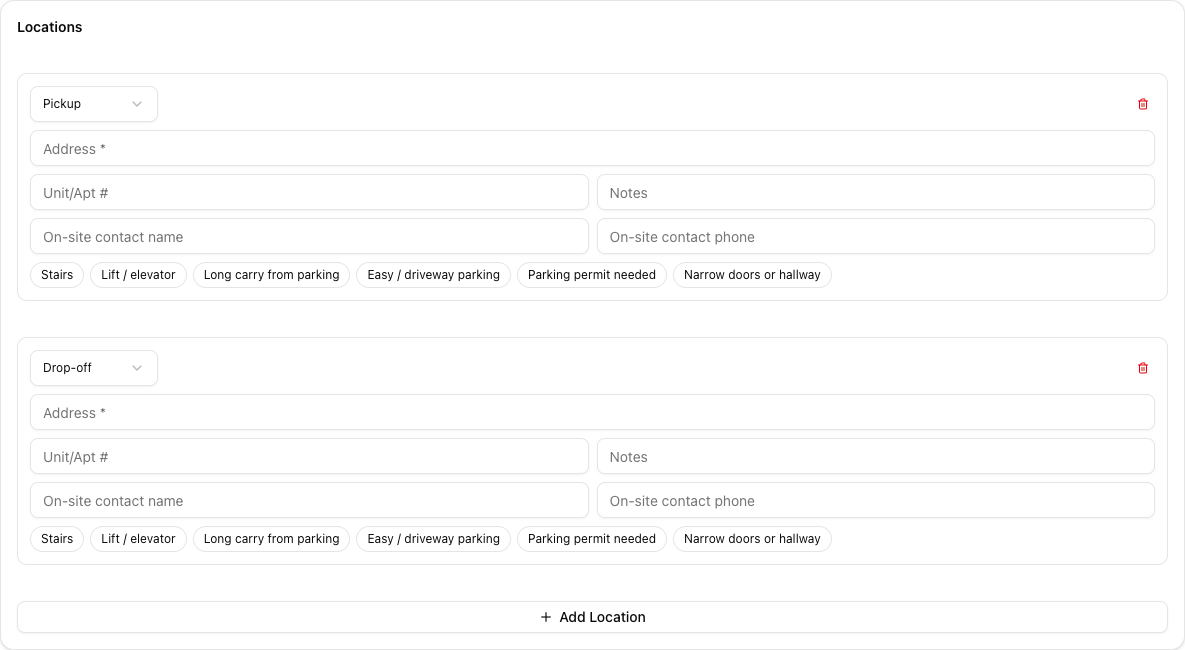
Every job starts with a Pickup and a Drop-off. Enter the Address for each — this field autocompletes against real addresses, and selecting a suggestion geocodes the location so travel times and crew route links work correctly.
Each location also takes a Unit/Apt #, free-text Notes, and an on-site contact name and phone — useful when the person meeting your crew at the delivery end is not the customer who booked.
Underneath are the access toggles: Stairs, Lift / elevator, Long carry from parking, Easy / driveway parking, Parking permit needed, and Narrow doors or hallway. These are what your crew reads before they arrive, so set them honestly — they are the difference between a smooth job and a surprise.
If the move involves more than two stops, click Add Location and pick the type from the dropdown.
Move Details is what turns a time slot into a job your crew can actually plan for. Record a Reference number if the job came from a booking request, describe what they're moving, and pick the property type — House, Apartment, Townhouse, or Storage.
Then fill in the Item list, whether Packing is included, whether Dismantling is required, any Fragile or high-value items, and any Preparation details.
Three questions under Logistics catch the things that most often move a date: Settlement involved, Waiting on keys, and Needs storage. Answer these up front — a job waiting on keys is a job you will likely reschedule.
The Notes field is shared, but anything you wrap in ##double hashes## is internal-only and never shown to the customer. Use it for the things your team needs to know but the customer should not read.
Click Create Job to save. The job appears on your calendar in its truck's colour, ready for dispatch.
Tutorial: book the Henderson move
Follow this worked example end to end. It uses a two-truck house move with stairs at one end — the kind of job where the details matter.
From the dashboard, click Create Job under Quick Actions. You land on the Create Job form with today's date and a two-hour slot pre-filled.
In Contact, type Henderson. If they have moved with you before they appear in the list — select them and their phone and email come across automatically. If not, create the contact inline.
Set Date to the Tuesday of next week, Start Time to 08:00 AM, and End Time to 01:00 PM. That is a five-hour block, which is realistic for a three-bedroom house with two trucks.
Click Keith (32 m³), then hold ⇧ and click Atlas (24.75 m³). Both chips highlight. Leave Status on Enquiry — the customer has not confirmed yet.
Under Pickup, enter the origin address and let autocomplete resolve it. The house has an internal staircase, so switch on Stairs. Parking is on the street and tight, so switch on Parking permit needed and add a note: Permit required — arrange with council 48h ahead.
Under Drop-off, enter the destination. This one has a driveway, so switch on Easy / driveway parking. The customer's sister is meeting the crew there, so put her name and mobile in the on-site contact fields.
In Move Details, set property type to House. In What they're moving, write 3 bedroom house, full contents. Set Packing to whichever applies, Dismantling required to Yes (the bed frames), and list the piano under Fragile or high-value items.
Under Logistics, set Settlement involved to Yes and Waiting on keys to Yes. This move depends on a settlement clearing, so the date may shift.
In Notes, write:
Customer prefers a call before 8am. ##Settlement not confirmed — do not lock the truck until Friday.##
The first sentence is safe to share; the part in double hashes stays internal. Click Create Job.
Open the calendar. The Henderson job now shows on Tuesday morning across both Keith's and Atlas's lanes, in their truck colours, in the Enquiry state — visible to your team, not yet committed.
A job saved as Enquiry still occupies its trucks on the calendar, so you can see the shape of your week before anything is confirmed. Move it to Booked the moment the customer says yes.