
Setting up the mobile app
Download the VanMan Solutions app on iOS or Android and get your crew signed in.
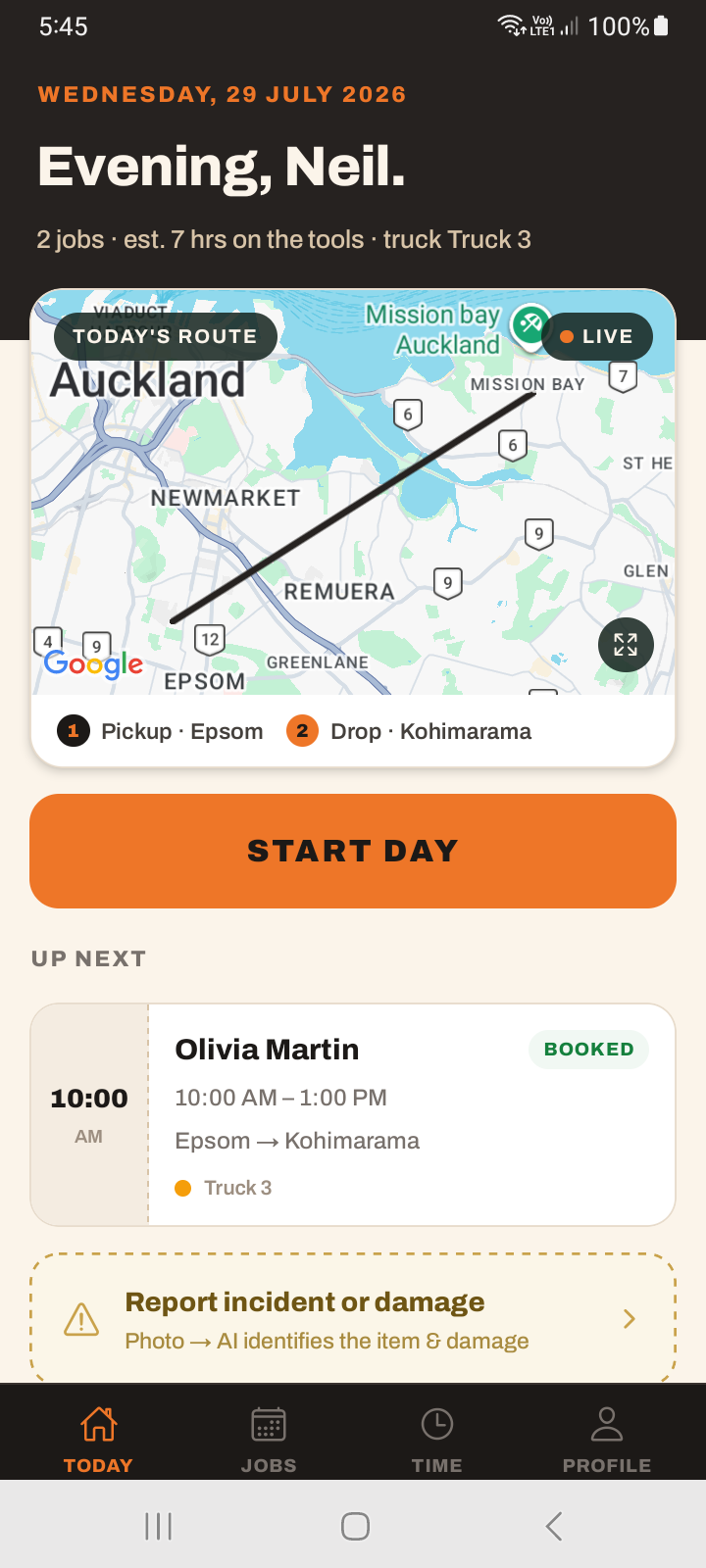
The VanMan Solutions app is the crew's tool. It puts the day's jobs, time tracking, photos, customer signatures, team chat, and incident reporting in your drivers' pockets, and keeps dispatch updated on where the trucks are.
It is a phone app. It runs in portrait on iOS and Android; tablets are not supported. The office runs on the web app — the mobile app is not a pocket version of the full dashboard.
Search for VanMan Solutions on the App Store or Google Play, or use the download links in the site footer. The app is free — your VanMan subscription covers mobile access for your whole team.
Signing in
The sign-in screen reads Crew sign in and offers three routes:
- Email and password — the credentials for their VanMan account.
- Sign in with Google — if their account uses a Google identity.
- Sign in with Microsoft — if their account uses a Microsoft identity.
If someone has not been invited yet, there is nothing for them to sign into. Invitations come from the web app under Settings > Users — see Inviting your team. They need to accept their invitation and set a password before the app will let them in.
What your crew sees
The app has three tabs:
- Today — the day's work, which is where a driver lives.
- Jobs — their assigned jobs, with search.
- Profile — their account and notification settings.
Open a job and the crew can:
- Track time on the job.
- Attach photos and videos.
- Call the customer.
- Adjust job details.
- Complete a tally, including capturing the customer's signature on the screen.
- See and change the trucks on the job.
Beyond the job itself there is team chat, incident reporting, notifications, a live truck map, and an end of day flow.
What a person sees is governed by their user role, and the Driver role is deliberately narrow: view jobs, view the calendar, and update deliveries. Drivers cannot see pricing, invoices, or settings anywhere — including in the app. If your crew need more than that, they need a different role, not a different app.
Permissions the app asks for
Each one is asked for a reason, and declining has a specific cost:
- Location, including in the background — this is how your truck's position reaches the dispatch team and the live map. Decline it and dispatch loses sight of the truck.
- Camera — taking photos and videos of jobs.
- Microphone — recording video with sound.
- Notifications — job assignments, schedule changes, and chat messages.
Background location is the one that matters most and the one most likely to get switched off by a well-meaning driver trying to save battery.
Tutorial: get a new driver onto the app
Your new driver starts Monday. Here is the path from no account to a working phone.
In the web app, go to Settings > Users, click Invite User, enter their email, and set Role to Driver. Send it. Do this before they try to download anything — the app has no self-signup, and a driver who downloads first just hits a sign-in wall.
They receive an invitation email and set their password. This has to happen before the app will work.
Access is not the same as being schedulable. Go to Settings > Staff Roles and make sure a role like Driver exists, then assign it to them under Staff. Without this you cannot put them on a job as crew, and an empty Today tab is the result.
On their phone, search the App Store or Google Play for VanMan Solutions and install it. It is a phone app — do not put it on a tablet in the cab and expect it to work.
Open the app to the Crew sign in screen. They enter the email you invited and the password they just set, or tap Sign in with Google or Sign in with Microsoft if that is their account type. (The logo on this screen reads Removalist. — it is the same app.)
The app asks for location, camera, and notifications. Walk them through this rather than letting them tap through it:
- Location must be allowed always, not just while using the app — background location is what keeps the truck on dispatch's live map when the phone is in a pocket.
- Camera is needed for job photos.
- Notifications are how they find out about a schedule change.
Back in the web app, open tomorrow's job and add them to the Crew. Their Today tab is empty until they are actually on a job — this is the single most common "the app is broken" report from a new driver, and it is not a bug.
They pull to refresh the Today tab and the job appears. Open it and they can track time, attach photos, call the customer, and complete the tally with a signature at the end.
In the web app, go to Fleet > Live Map. If their location permission took, the truck shows. If it does not, background location is the first thing to check on the phone.
If a driver's Today tab is empty, work through it in this order: are they assigned to a job, do they have a staff role, and is their user role Driver rather than User? User is view-only and is a common mis-click when inviting.