
Taking the in-app tour
The welcome video, the guided dashboard tour, and the per-page walkthroughs behind the help icon.
VanMan will show you round itself. There is a welcome video and a guided tour on first sign-in, and a walkthrough for most individual screens available at any time.
First sign-in
The first time you open VanMan, a Welcome to VanMan dialog appears on the dashboard with a short product video. Two buttons:
- Take the tour — a guided walkthrough of the dashboard and the sidebar, with each element highlighted in turn.
- Skip for now — closes it. Nothing is lost; you can replay it whenever.
The tour is per person, not per business. Every teammate you invite gets their own welcome on their first sign-in, whatever their role. Nobody has to be walked through it by whoever set the account up.
On a phone or small screen, the sidebar the tour points at isn't on screen, so you get the video with a Get started button instead of the tour. Take the tour on a desktop or laptop when you can.
Per-page walkthroughs
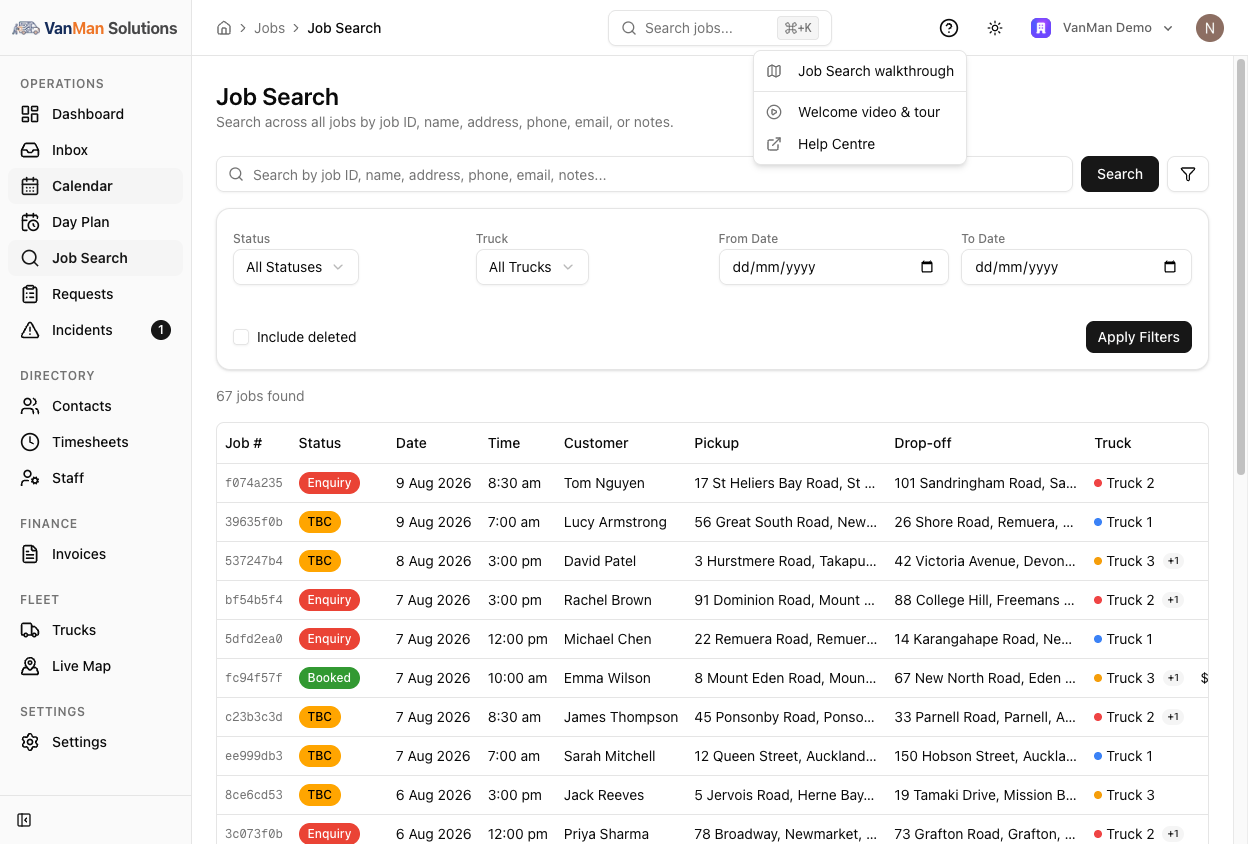
Most screens have their own walkthrough. Click the ? icon in the top bar and the first item in the menu is the walkthrough for the page you're on:
| Page | Menu item | | --- | --- | | Dashboard | Dashboard walkthrough | | Calendar | Calendar walkthrough | | Day Plan | Day Plan walkthrough | | Job Search | Job Search walkthrough | | A job page | Job page walkthrough | | Requests | Booking requests walkthrough | | Incidents | Incidents walkthrough | | Contacts | Contacts walkthrough | | Timesheets | Timesheets walkthrough | | Staff | Staff walkthrough | | Invoices | Invoices walkthrough | | Trucks / Live Map | Trucks / Live map walkthrough | | Settings | Settings walkthrough |
The walkthrough highlights each part of the screen in turn and explains what it does. Many steps carry a Learn more → link through to the relevant Help Centre article, so you can go deeper on the bit you actually care about.
Walkthroughs respect your permissions. If your role can't see timesheets, the timesheet steps don't appear — so the tour never shows you a button you don't have.
Replaying the welcome
The same ? menu has Welcome video & tour, which replays the video and the dashboard tour from anywhere in the app. Useful when you take on a new office person and want to sit with them for ten minutes.
The third item, Help Centre, opens this site in a new tab.
Tutorial: onboarding a new office admin
Add them at Settings > Users with the right role — see inviting your team. The role decides what their tour will show them, so get it right before they sign in.
On their first sign-in they get the video and the dashboard tour. Let them run it alone rather than talking over it — it takes a couple of minutes and it covers the sidebar, which is most of the orientation problem.
The one thing to actually teach them is that the ? in the top bar always offers a walkthrough of whatever screen they're stuck on. That single habit replaces most "how do I…" questions.
For an office admin that's usually Calendar, Requests and a job page. Open each and run its walkthrough together, stopping on the parts specific to how you work.
From the same menu, Help Centre. The walkthroughs link into it, so the two are designed to be used together.