
Setting up your booking form
Build booking forms, choose their fields, theme them, and embed them on your website.
VanMan booking forms let customers submit enquiries straight from your website. Each submission arrives as a booking request you can review, quote, and convert into a job.
You are not limited to one form. You can create as many as you like, each with its own fields, request type, and embed code — a short "Quick Enquiry" for your homepage and a detailed "Standard Move" on your quote page, for example.
Create a form
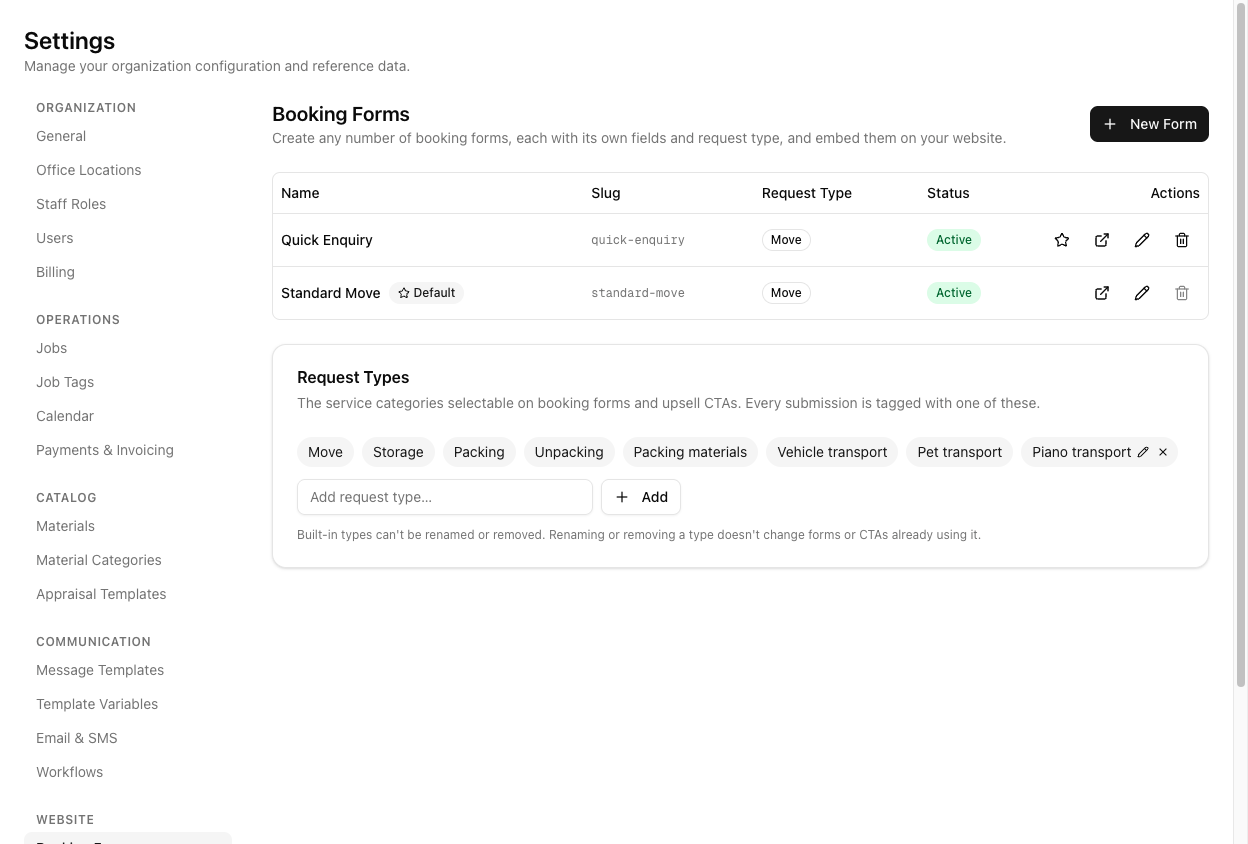
Go to Settings > Booking Forms and click New Form. Each form carries:
- A Name and a Slug — the slug appears in the form's URL.
- A Request Type — the service category every submission through this form gets tagged with.
- A Status — Active or inactive. An inactive form returns a 404 on its embed URL, which is how you take a form offline without deleting it.
One form is marked Default.
Request types
The Request Types list on the same page defines the service categories selectable on booking forms and upsell CTAs. Every submission is tagged with one. VanMan ships with Move, Storage, Packing, Unpacking, Packing materials, Vehicle transport, Pet transport, and Piano transport, and you can add your own.
Built-in types cannot be renamed or removed. Renaming or removing a custom type does not change forms or CTAs already using it.
Choose the fields
Open a form to edit it. Under Form Fields, you choose which steps and fields appear — separately for Desktop and Mobile, via the tabs. That means you can run a lean form on phones and a fuller one on desktop from the same form record.
You get:
- Form Title and Form Subtitle — the heading customers see.
- Use wizard steps — on by default. Turn it off and the form renders as a single scrollable page instead of a multi-step wizard.
- Show review step — hides the review summary when off. Bot protection stays active either way.
- The four steps themselves: Your Details, Move Details, Locations, and Additional Info.
Advanced features
Optional extras, desktop only. Leave them off for a lightweight enquiry form:
- Location maps — a Google Maps pin-drop for pickup and drop-off addresses.
- AI item capture — lets customers photograph their items for AI-assisted lists.
- Access advice — AI suggestions based on the property's access details.
- QR hand-off — a QR code so a customer can continue the form on their phone camera.
- Progress style — whether the wizard progress shows as a Top bar or a Sidebar.
Theme it
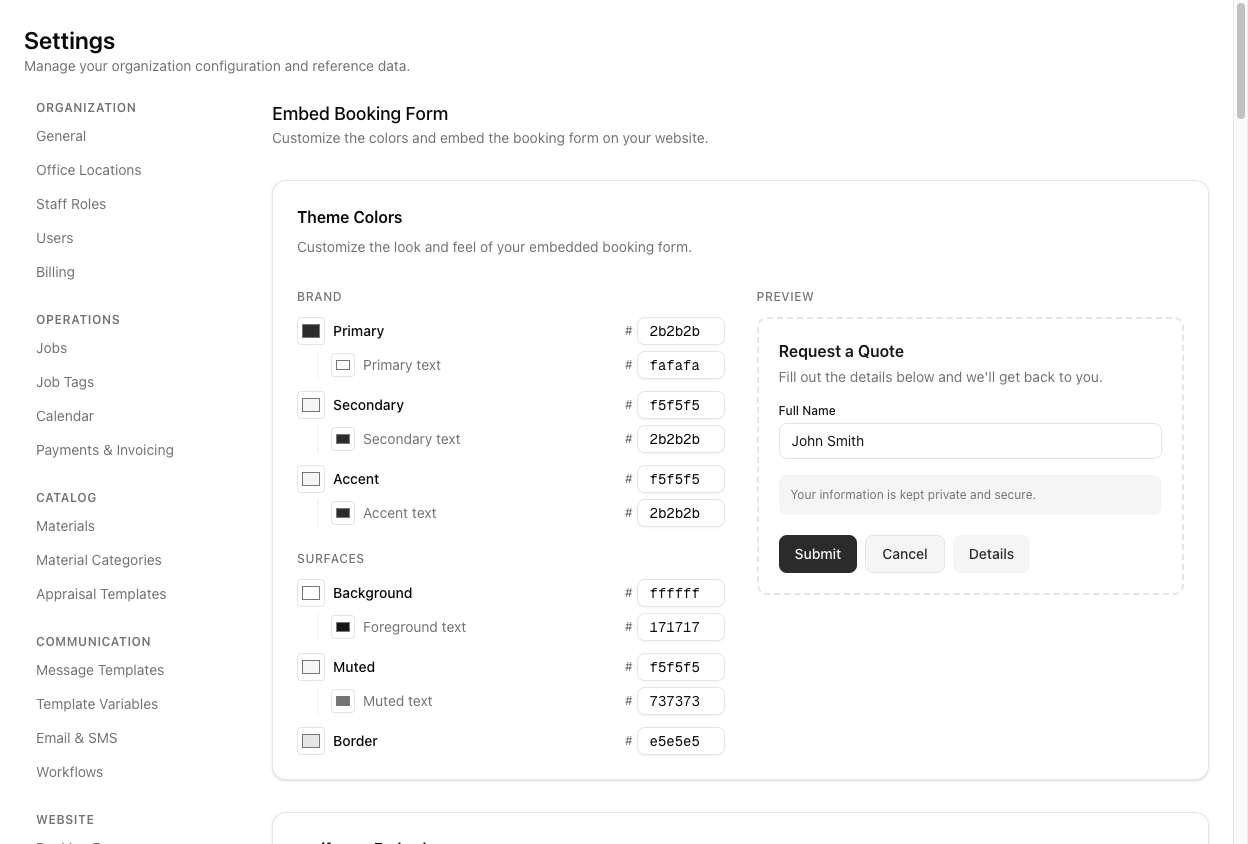
Colours are set once under Settings > Booking Form (the Embed Booking Form page) and are baked into the form URL. You get brand colours (Primary, Secondary, Accent, each with a matching text colour) and surface colours (Background, Foreground text, Muted, Muted text, Border), with a live preview beside them.
Embed it
Each form's edit page has an Embed section with three options:
- iframe embed — the simplest. Paste the HTML wherever you want the form. It ships with a small script that listens for a resize message and grows the iframe to fit, so the form never scrolls inside its own box.
- JavaScript embed — injects the iframe into a
<div>you place. Use this when your CMS strips raw iframes. - Direct link — the form's plain URL. Good for emailing to a customer or linking from social.
All three carry your tenant token and the form slug, so the right form with the right theme loads.
The booking form is protected by Cloudflare Turnstile, which appears as a verification check before the customer can submit. In most cases it passes on its own without them doing anything — it is not a "pick the traffic lights" CAPTCHA — but it is a visible check, not an invisible one, and submission is blocked until it clears.
Bot protection stays active even if you switch the review step off.
Tutorial: put a quick enquiry form on your homepage
You want a short form on the homepage that does not scare people off, while keeping your detailed form on the quote page.
Go to Settings > Booking Forms and click New Form. Name it Quick Enquiry. The slug fills in as quick-enquiry. Set Request Type to Move and leave Status as Active.
Open the form and find Form Fields. Turn Use wizard steps off. A three-field enquiry does not need a four-step wizard — it now renders as one short scrollable form.
Keep Step 1: Your Details and enough of Step 3: Locations to capture where they are moving from and to. Switch off Step 2: Move Details and Step 4: Additional Info. You are after a lead here, not a complete brief — you can gather the rest when you call them.
Under Advanced Features, leave AI item capture, Access advice, Location maps, and QR hand-off all off. They are excellent on your detailed form and overkill on a homepage enquiry.
Click the Mobile tab. Most homepage traffic is on a phone. Confirm the form is as short as it can be here — the desktop and mobile field choices are independent, so trimming one does not trim the other.
Set Form Title to Get a moving quote and Form Subtitle to something reassuring like Tell us where you're moving and we'll come back to you today.
Go to Settings > Booking Form and set Primary to your brand colour. Watch the preview panel update. These colours apply to every form, including this one.
Back on the Quick Enquiry form's edit page, scroll to Embed and copy the iframe embed block. Paste it into your homepage where you want the form. If your CMS strips iframes, use the JavaScript embed instead.
Load your homepage and submit a test enquiry. Then open Requests in VanMan — your submission is there, tagged with the Move request type, ready to convert into a job. If nothing arrives, check the form's Status is Active; an inactive form 404s on its embed URL.
Set your detailed form as Default rather than the quick one. The default is what loads when a URL carries no form slug, and you would rather an unslugged link land on your fuller form.