
Reporting damage or an incident from the app
Use the guided incident flow with AI photo assessment to report damage and other incidents in VanMan.
VanMan has a guided flow for reporting incidents. You can start it from the Report incident or damage quick action on the Today tab, or from a job. It walks you through everything the office needs.
Choosing a type
First, pick the type of incident: Damage, Injury, Near miss, Exposure or Property. Damage is AI-badged because the app can help you assess it from a photo.
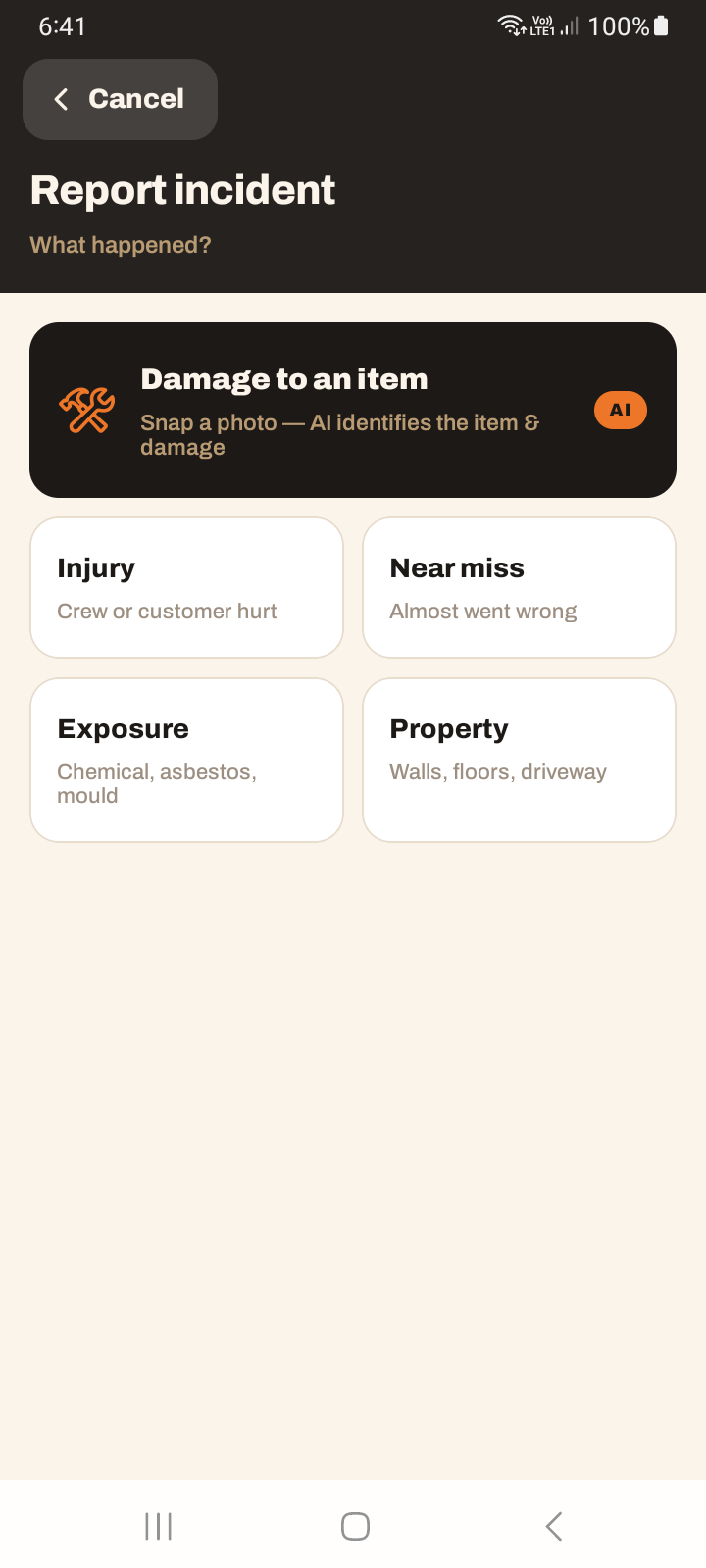
Reporting damage
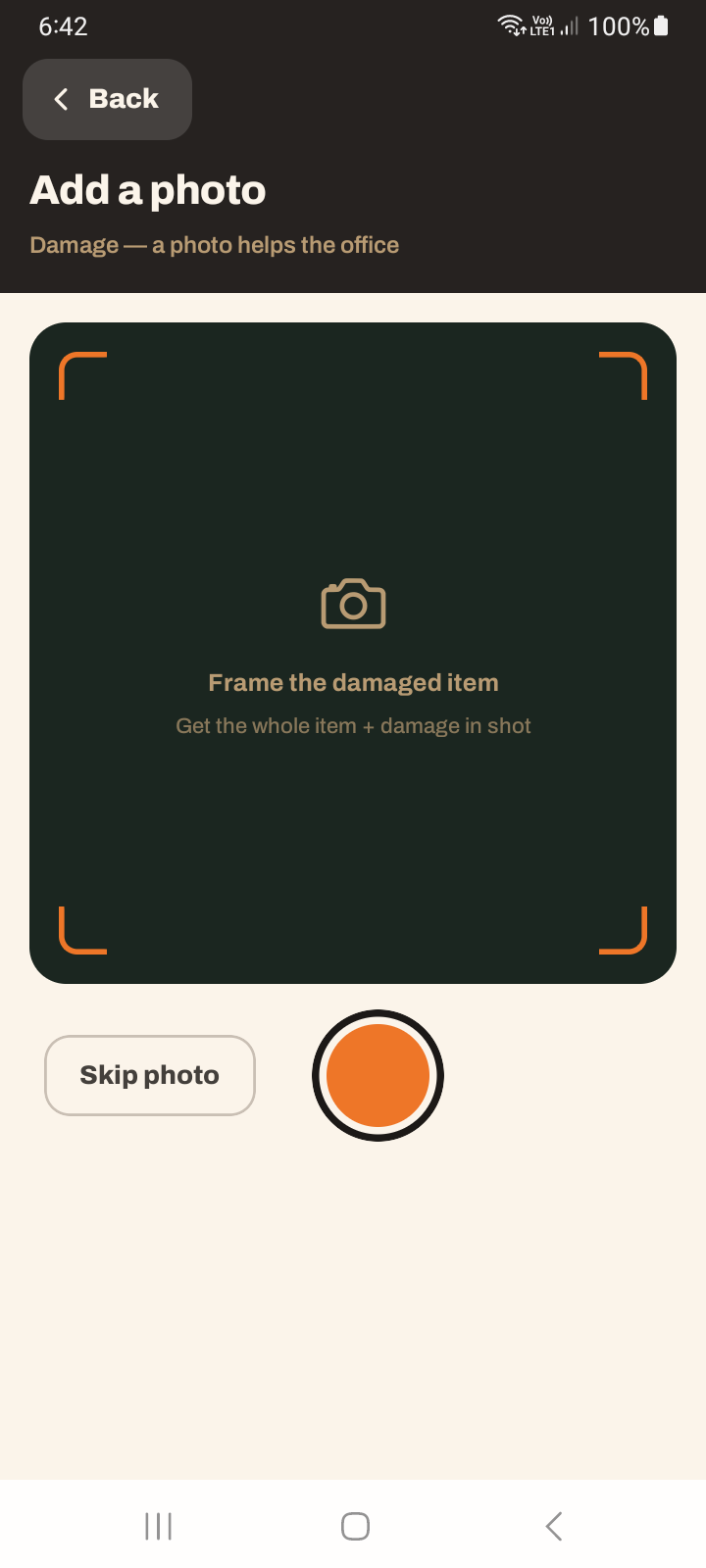
Choose Damage and take a photo of the affected item.
VanMan analyses the photo, identifies the item, describes the damage and suggests a severity. Every one of these is editable, so correct anything that isn't quite right.
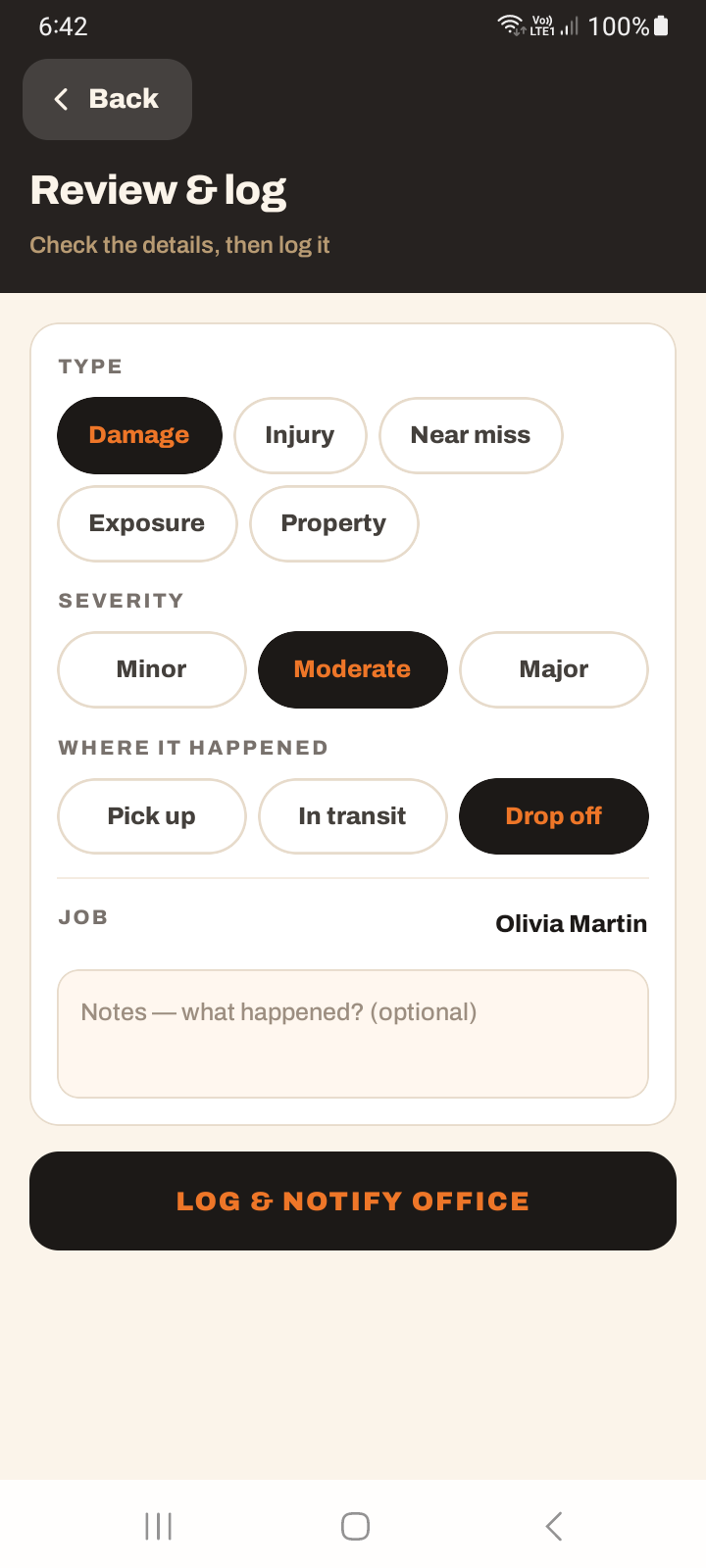
Confirm the severity — Minor, Moderate or Major — and set where it happened: Pick up, In transit or Drop off.
Attach or skip a photo, add any notes, then tap Log & notify office to send it through.
The AI's assessment is a starting point, not the final word. Edit the item, description and severity so the report matches what you actually see on the ground.
Attaching to a job
You can attach an incident to the job it relates to. Any incidents already logged for that job are shown, so you won't double up on something a crew mate has already reported.
Tutorial: report a scratched table on the spot
You've just noticed a scratch on a dining table during the move.
Open the job and use its Incident action, rather than the generic Today one — that links the report to the job automatically, which is what lets the office follow up with the customer. The Today tab's "Report incident or damage" works too, but you'd then link it by hand.
Pick Damage (the AI-badged type) and take a clear photo of the scratch with the table in frame. A sharp, close photo is what makes the AI assessment — and the claim — useful.
The app identifies the item and suggests a description and severity. Treat it as a first draft: if it says "Major" for a light scratch, change it to Minor. You're on the ground; you know better than the photo.
Set the location — In transit if it happened on the truck, Pick up or Drop off otherwise. This matters for working out liability later.
In notes, add context the photo misses — "customer says it was already there", or "caught it on the doorframe on the way out". Your account is the part that resolves the claim.
Tap Log & notify office. The office is alerted immediately, so a claim can be handled while it's fresh rather than surfacing weeks later.
If a crew mate already logged it, you'll see it in the "already logged" list for the job. Don't file a second one — check first.
Report damage while you're still on-site with the item in front of you. A clear photo helps the office and the customer sort out the claim quickly.