
Submitting timesheets at the end of the day
Review crew hours, make adjustments, and send timesheets to the office from the End of Day screen in VanMan.
Tapping End day on the Today tab opens the End of Day screen. This is where you check each crew member's hours and send timesheets to the office before your shift ends.
Reviewing crew hours
The screen lists each crew member with their hours, built automatically from the per-job times tracked during the day, plus a shift total at the bottom. Have a quick read to make sure everything looks right before you adjust anything.
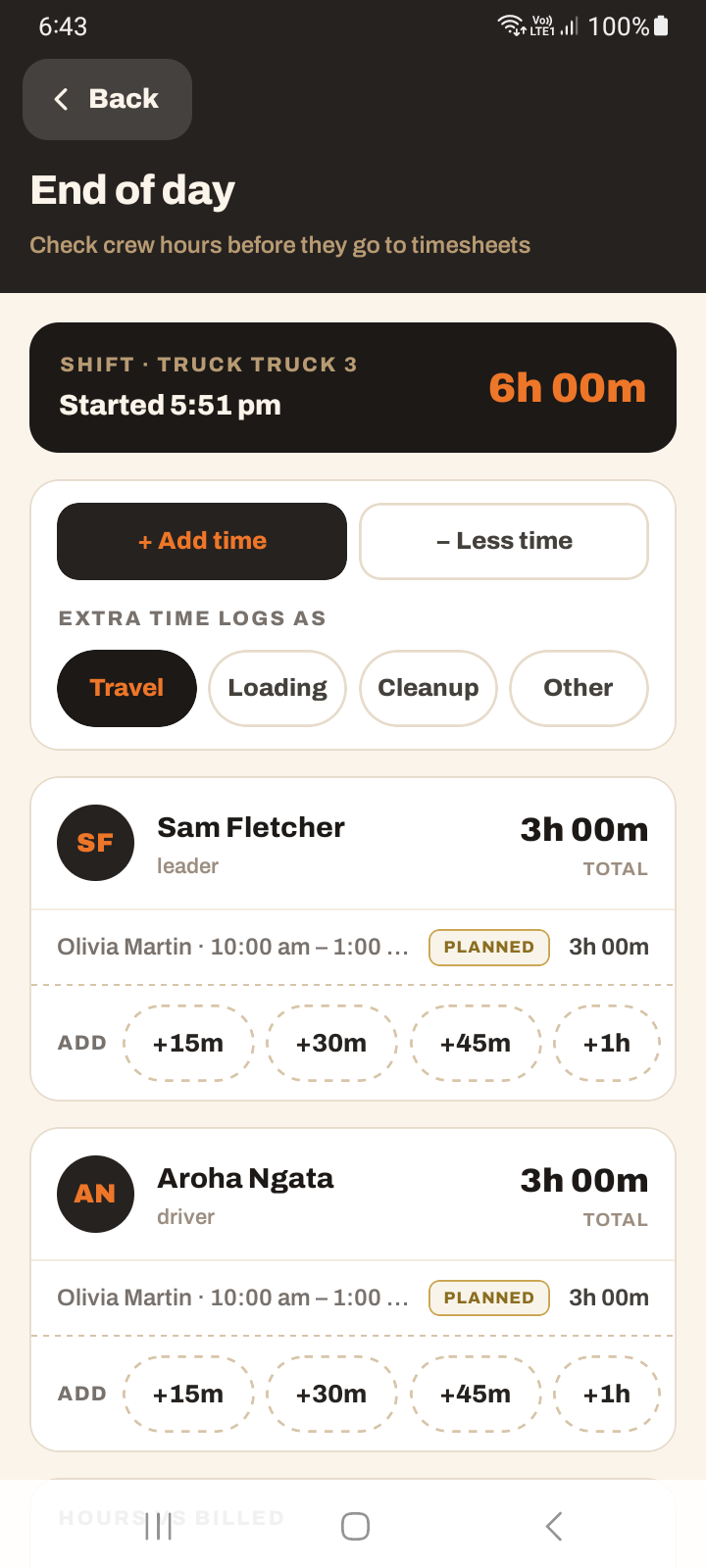
Adjusting hours
Switch to Add time or Less time mode depending on the change you need to make.
Tap a reason chip. In Add time the options are Travel, Loading, Cleanup and Other. In Less time they are Late, Break, Left early and Unwell.
Use the quick +/- chips of 15, 30, 45 or 60 minutes to change each person's hours.
The Hours vs billed variance card compares the crew's tracked hours against the billed hours on the jobs, so you can spot a gap before you submit.
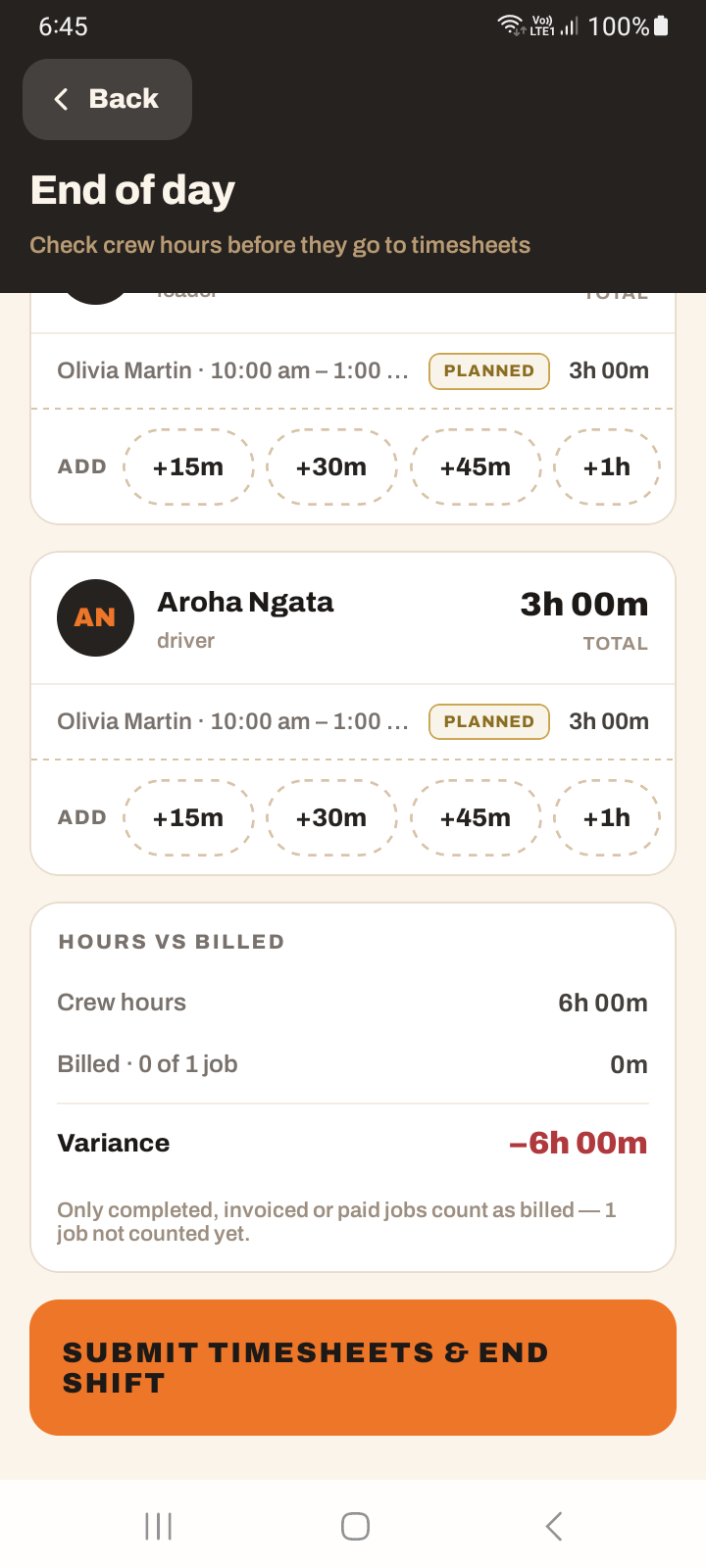
Submitting
When the hours look right, tap Submit timesheets & end shift. This sends a timesheet for each crew member to the office and ends your shift. Any reductions you made are netted off automatically and sent with a note explaining why.
Checking a day you've already submitted
You can't edit a submitted day, but you can read it. On Today, the Start Day button becomes View Day once timesheets are in. For any of the last seven days, open the Time tab and tap the day — it opens this same screen, read-only, showing exactly what the office received. See using the Time tab.
Tutorial: submit a day that ran long
Two jobs overran and there was extra travel. Get the timesheet right before you clock off.
On Today, tap End day. The End of Day screen lists each crew member with hours built from the day's tracked times.
Look at each person's total. The hours come from the timers and planned times — usually close, but the day that overran is exactly when they need a nudge.
Switch to Add time, tap the Travel reason, and use the +15 / +30 chips to add the extra depot-to-site time that the job timers didn't capture. Do it per person if they travelled separately.
If a crew member left before the end, switch to Less time, tap Left early, and knock off the right amount. The reason chip tells the office why the number moved.
Glance at Hours vs billed. If tracked hours wildly exceed billed, that's a gap worth a note to the office — you may have under-quoted, or the day genuinely blew out.
Tap Submit timesheets & end shift. A timesheet goes to the office for each crew member, your reductions netted off with their reasons attached, and your shift ends. The office gets context, not a mystery.
Make your adjustments before you submit — the reason chips give the office context for every change, which saves questions later.