
Using the app with no signal
What genuinely works offline — reading jobs, notes, expenses — and what needs a connection.
Moving jobs happen in basements, lifts, and dead zones. The app handles being offline — but it's important to know which actions genuinely work offline and which don't, because they are not all the same.
What you can read offline
The app prefetches a rolling three-day window — yesterday, today, and tomorrow — including job details and costs. So you can open your jobs, read the addresses, notes, and access details, and see your day, with no signal. Today's job attachments are cached too (older days' files are not).
What you can do offline
These genuinely work offline and queue to sync when you reconnect:
- Starting, pausing and finishing the job timer
- Notes on the delivery log
- Expenses
- Pauses (and resumes)
- Adding and editing crew
Do these freely in a dead zone — they'll catch up when you're back in range.
The job timer works with no signal
This is the important one, and it changed. Start, pause and stop all work offline:
- The tap applies immediately — on the job screen, the jobs list and the floating timer pill.
- It is stored as a queued change that survives closing and reopening the app.
- When coverage returns, the queued taps sync in order.
- Each carries the time you actually pressed it, not the time it synced.
Because press times are preserved, there is no reason to wait for signal before starting a job. A driver who starts a job in an underground carpark at 8:02 and gets signal at 8:40 has an 8:02 start on the timesheet. Press it when it happens.
What needs a connection
The money end of a job is disabled offline — not queued. These need a live connection:
- Recording a payment
- Sending an invoice
- Capturing a signature
- Saving the tally, importing an estimate, and anything to do with bundles
- Changing the job's status
Watch out for the button labels: a control may read "SAVE (offline)", but while you're offline it is disabled — tapping does nothing. The "(offline)" label is a warning, not a promise that it'll queue.
So the honest picture: offline covers reading your work, running the timer, and notes / expenses / pauses / crew. What still needs signal is anything touching money or the customer's signature — the tally, payment, invoice and sign-off.
The offline banner
When you're offline the app shows a banner — "You are offline · N actions pending" — so you know your queued notes and expenses are waiting to sync.
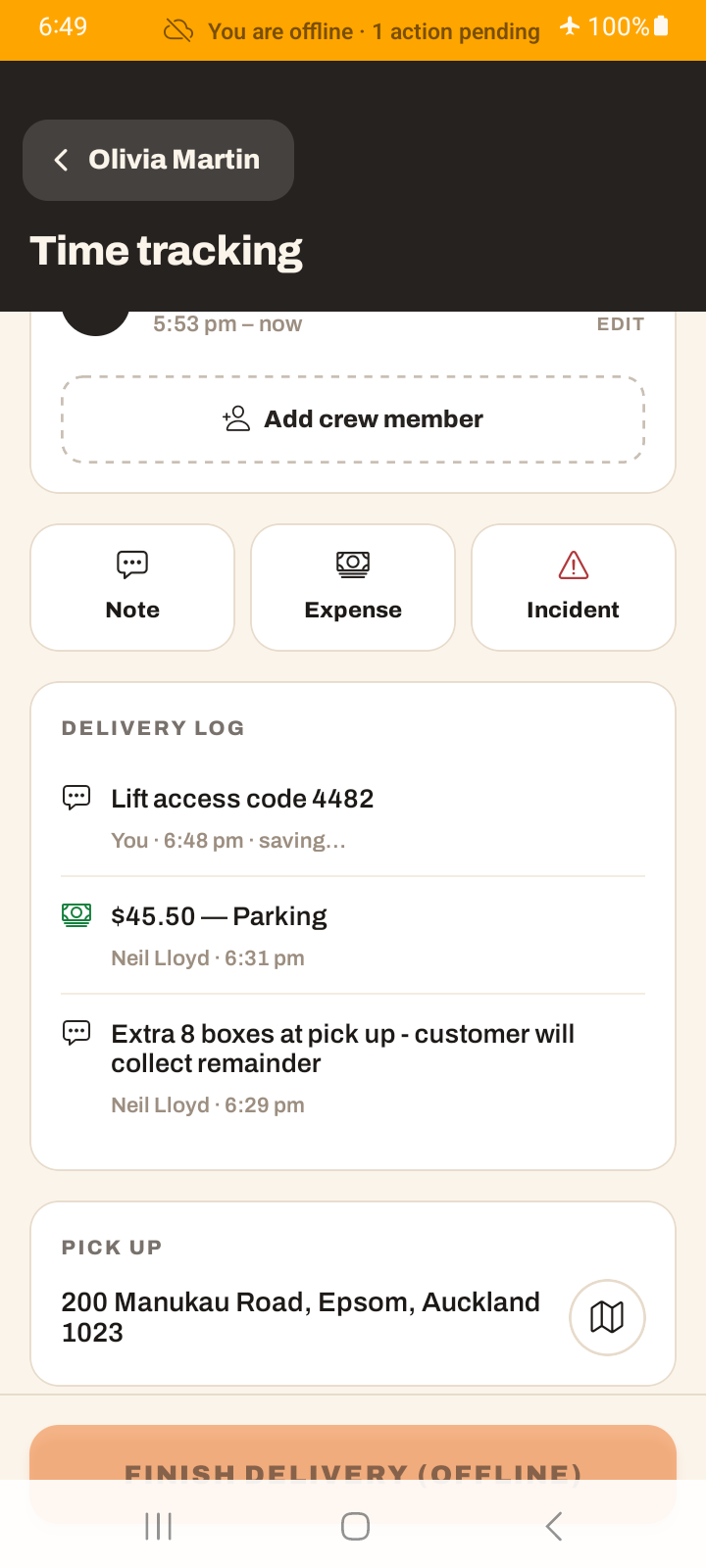
Tutorial: work a basement job with no signal
You're moving someone out of a lift-only apartment with no reception inside.
Tap ▶ Start at the moment you actually start, in the lobby or upstairs — it no longer matters whether you have bars. The tap queues with the real press time, so the timesheet is right either way.
Upstairs with no signal, you can still open the job and read the access notes, the item list, and the addresses — they were prefetched. The app doesn't go blank when you lose signal.
Paid for parking? Log the expense. Customer flagged a scratch already there? Add a note. These queue offline and sync later — do them on the spot rather than trying to remember.
Stopping for a bit? Pause works offline and queues. The break gets recorded even with no signal.
You can't save the tally, take a payment, get a signature or send the invoice with no signal — those are disabled, and the "(offline)" label doesn't change that. Leave them until you're back in range.
Back downstairs with signal, get the signature, save the tally, record the payment, and send the invoice. Your queued timer taps, notes and expenses sync at the same time — watch the offline banner's pending count drop to zero.