
Starting and ending your day
Start and end your shift from the Today tab — and how location sharing really works.
Your shift is controlled from the Today tab.
Start Day
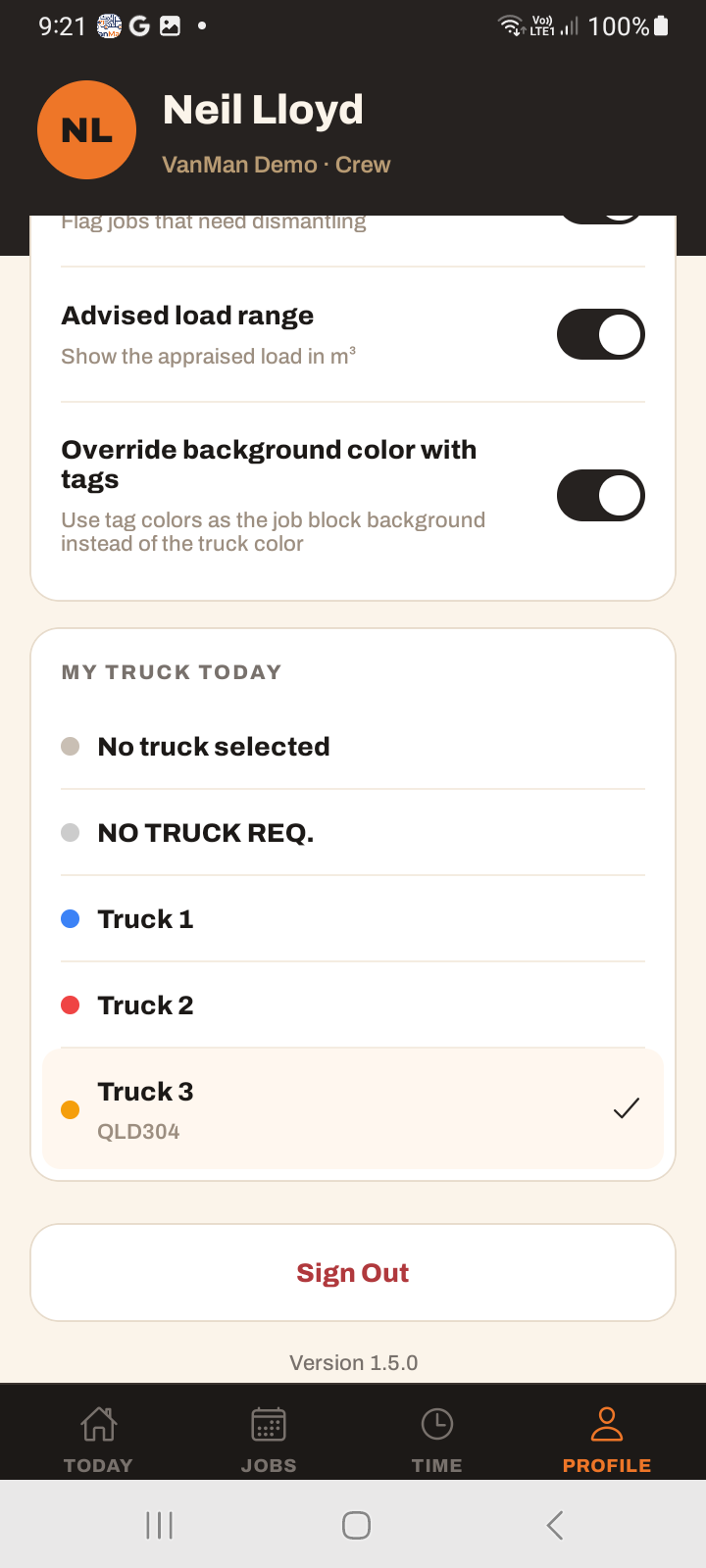
Tapping Start Day puts you on shift. The button becomes an On shift state showing Started , with an End day button. Starting a shift uses your selected truck, so pick your truck first.
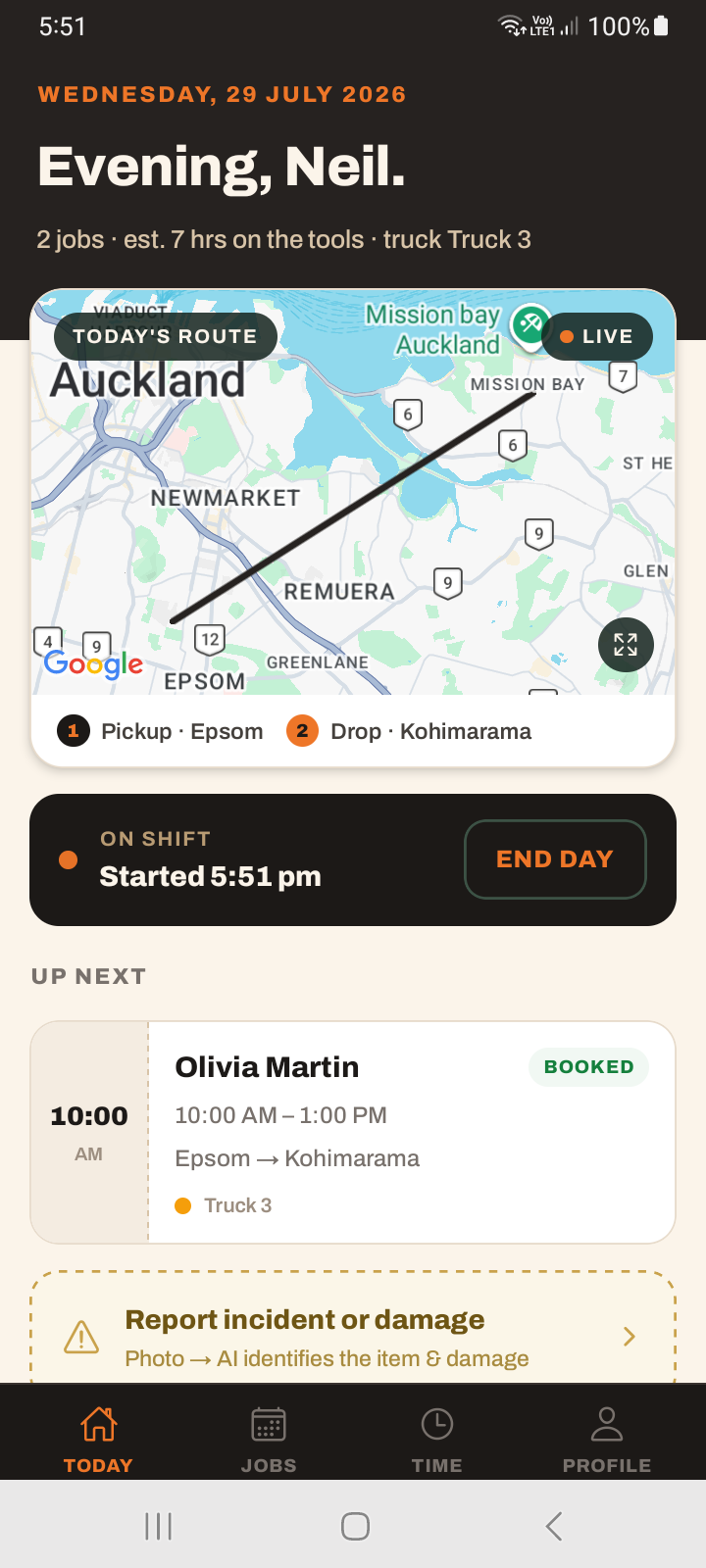
At the end, End day takes you to the end-of-day timesheet flow — see submitting timesheets.
After you've submitted: View Day
Once the day's timesheets have gone to the office, the Start Day button becomes View Day. Tap it to reopen the day and review what was submitted — read-only, so you can check it without being offered a second shift by accident.
For earlier days, use the Time tab: today back a week, one row per day, scoped to your selected truck. See using the Time tab.
Location sharing is separate from your shift
Starting your shift does not turn on location sharing, and ending it does not turn location off. This is the thing most people get wrong.
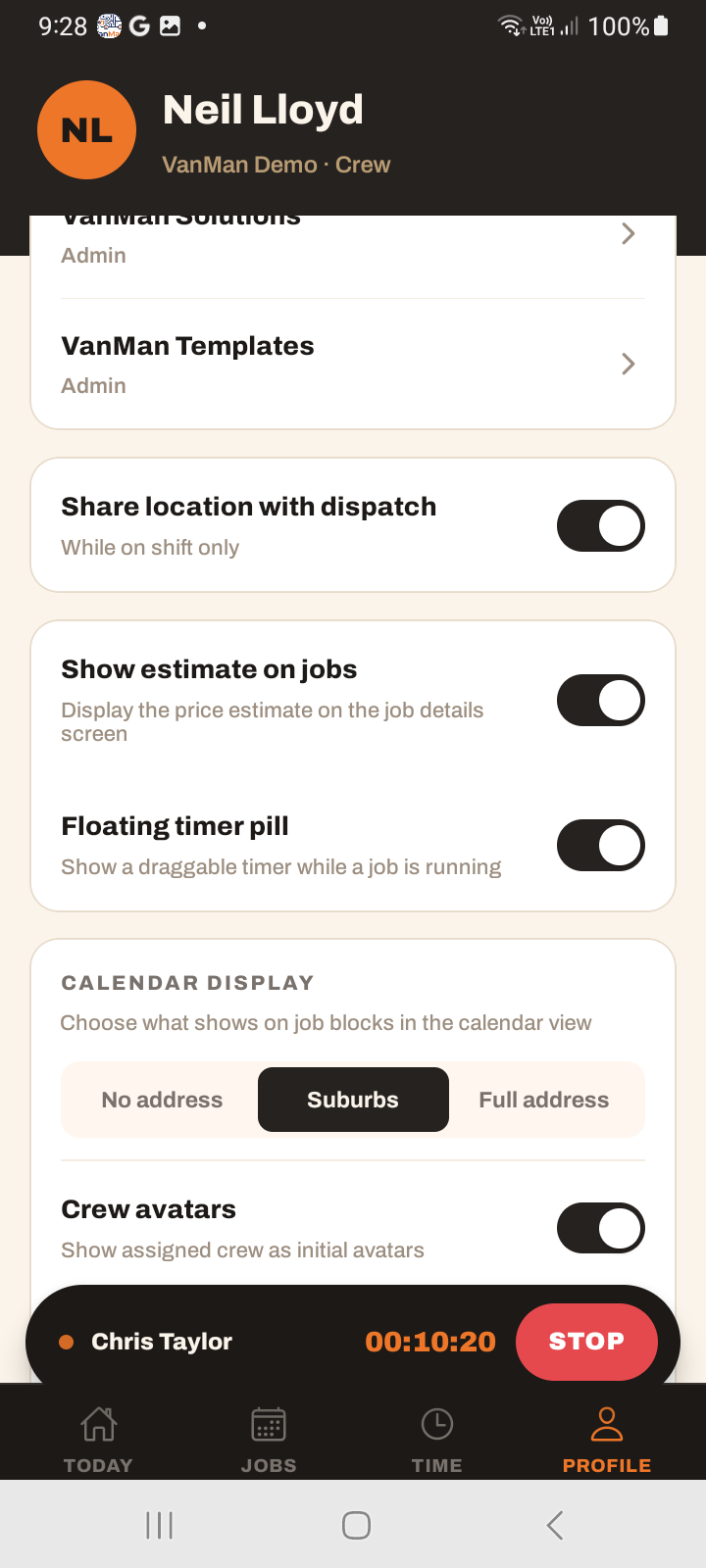
Location sharing is controlled by the "Share location with dispatch" toggle in your Profile, combined with having a truck selected. It runs whenever both are true — regardless of whether you have started or ended a shift.
So if you want dispatch to see your truck, turn the Profile toggle on. If you want to stop sharing, turn it off. Tapping End day will not stop it.
This matters both ways. A driver who assumes "I ended my day so I've stopped sharing my location" may still be sharing it if the Profile toggle is on. And a driver who started a shift but never turned the toggle on is not on the map at all.
Tutorial: run a clean shift
On Today, make sure the correct truck is selected. Your shift and your location reporting both need a truck — without one, neither works properly.
Go to Profile and switch Share location with dispatch on. This — not Start Day — is what puts your truck on the dispatch map. Do it at the start of your working day.
Back on Today, tap Start Day. It flips to On shift with your start time. This records your shift for the timesheet; it is a separate thing from location.
The shift is running. Your hours accrue for the end-of-day timesheet, and — because you turned the Profile toggle on — dispatch can see your truck.
Tap End day when you're done. This takes you to the end-of-day flow to review and submit your hours. It ends the shift — it does not end location sharing.
If you do not want to share location after hours, go to Profile and switch Share location with dispatch off. Ending your day did not do this for you — only the toggle does.
If a driver reports "I'm off but still showing on the map," the fix is the Profile location toggle, not the shift. Have them turn Share location with dispatch off.